

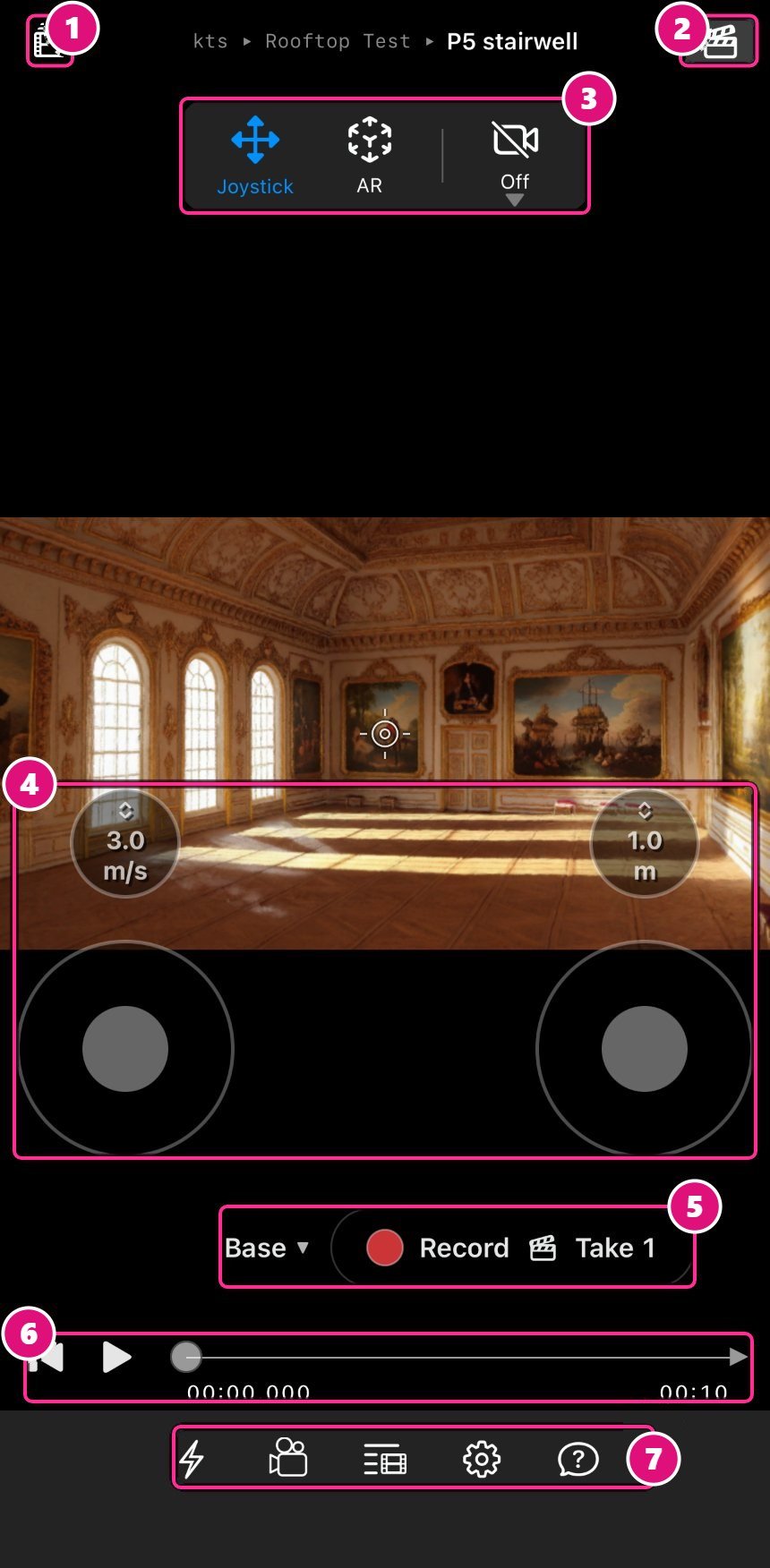
- Script
- Takes
- Joystick, AR and camera
- Dials and joysticks
- Setup picker and Record
- Playback
- Bottom bar
Install the app and sign in
- In Chrome on your computer, sign in to Spark.
- On the Home page, find the QR code under Shoot with Spark on iPhone. Scan it with your iPhone or iPad. You can also search for Lightcraft Spark on the App Store.
- Install the app.
- Open the app and sign in with your account.
- Optional: Allow access to the camera and microphone if Spark asks.

What the app does
You film takes inside a 3D scene. The app can also broadcast your camera to people in the browser. Tap the view to hide the controls and see the whole frame. The bottom bar holds the rest:Open a 3D scene
- Tap your organization, then a production, then a script.
- Tap a scene heading. A blue cube shows how many 3D scenes it has.
- Tap View in 3D.
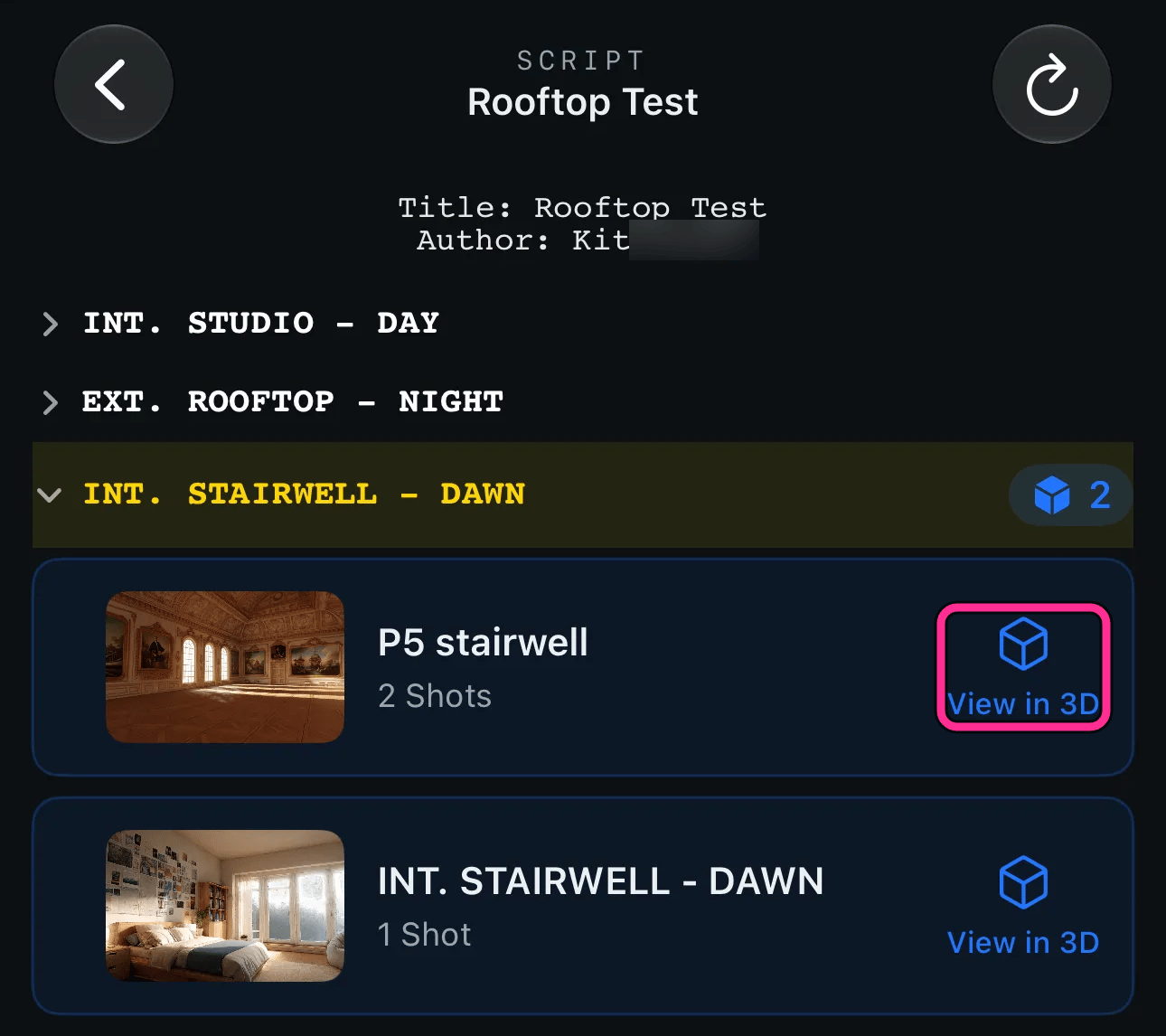
The app takes about 5 million splats per scene. Above that, the scene won’t load, so keep a smaller version for the app.
Browse a script
- Tap the script button at the top left to read the script and open another 3D scene.
- Tap the clapperboard for Takes. Lists you make in the Gallery don’t show in the app.
Move through a scene
Use the two joysticks to move and turn, or drag on the view to look around. Tap a dial to open its scale:- Speed: how fast the joysticks move you, 3.0 m/s to begin with
- Height: how far above the floor the camera sits, in meters
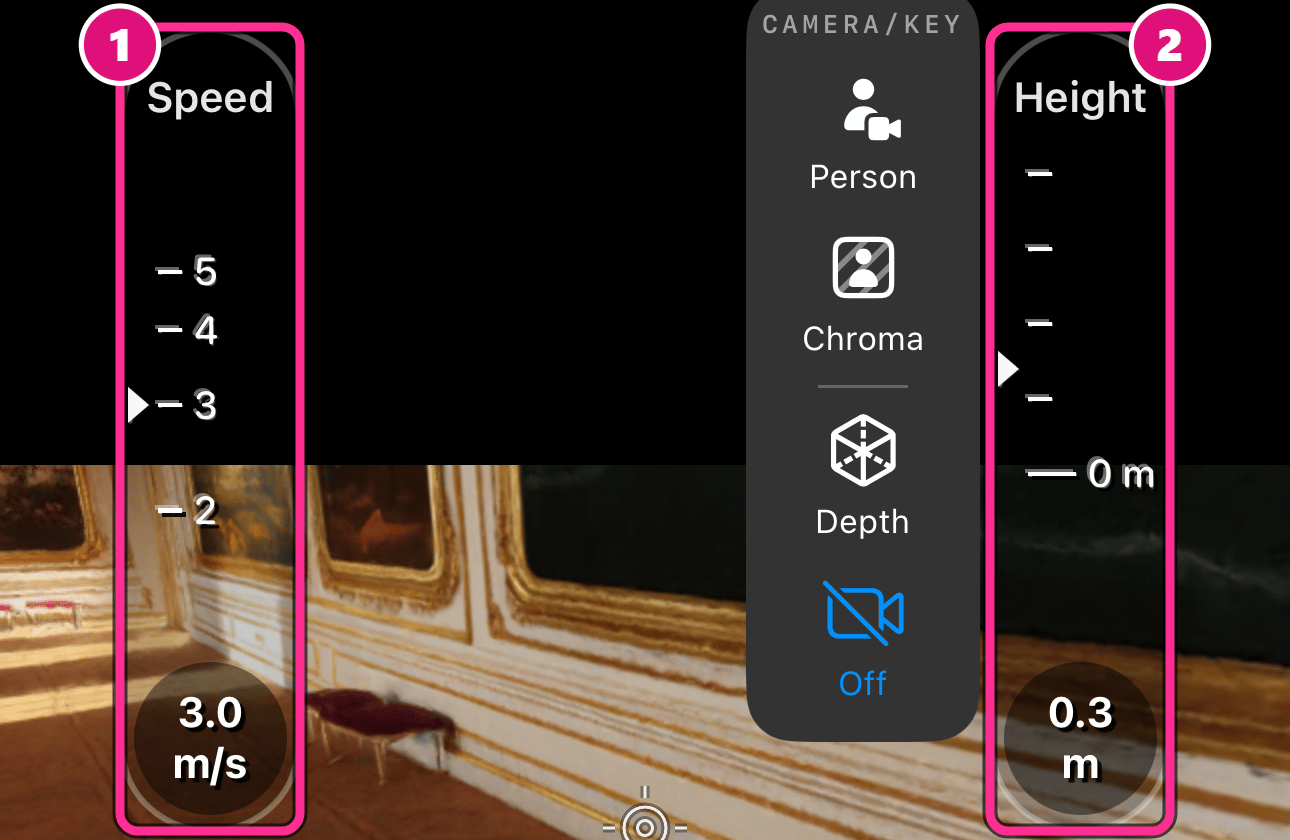
- Speed
- Height
Camera settings
Tap the camera in the bottom bar. Slide the ruler to set the selected control.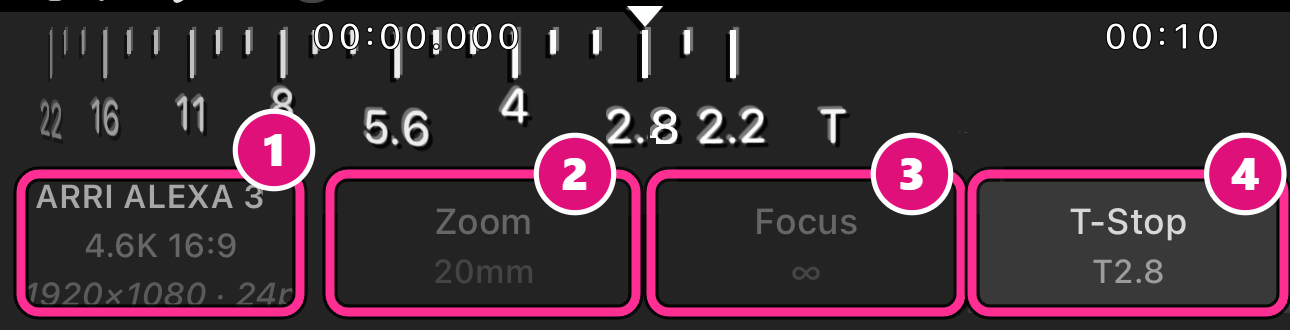
- Camera
- Zoom
- Focus
- T-Stop
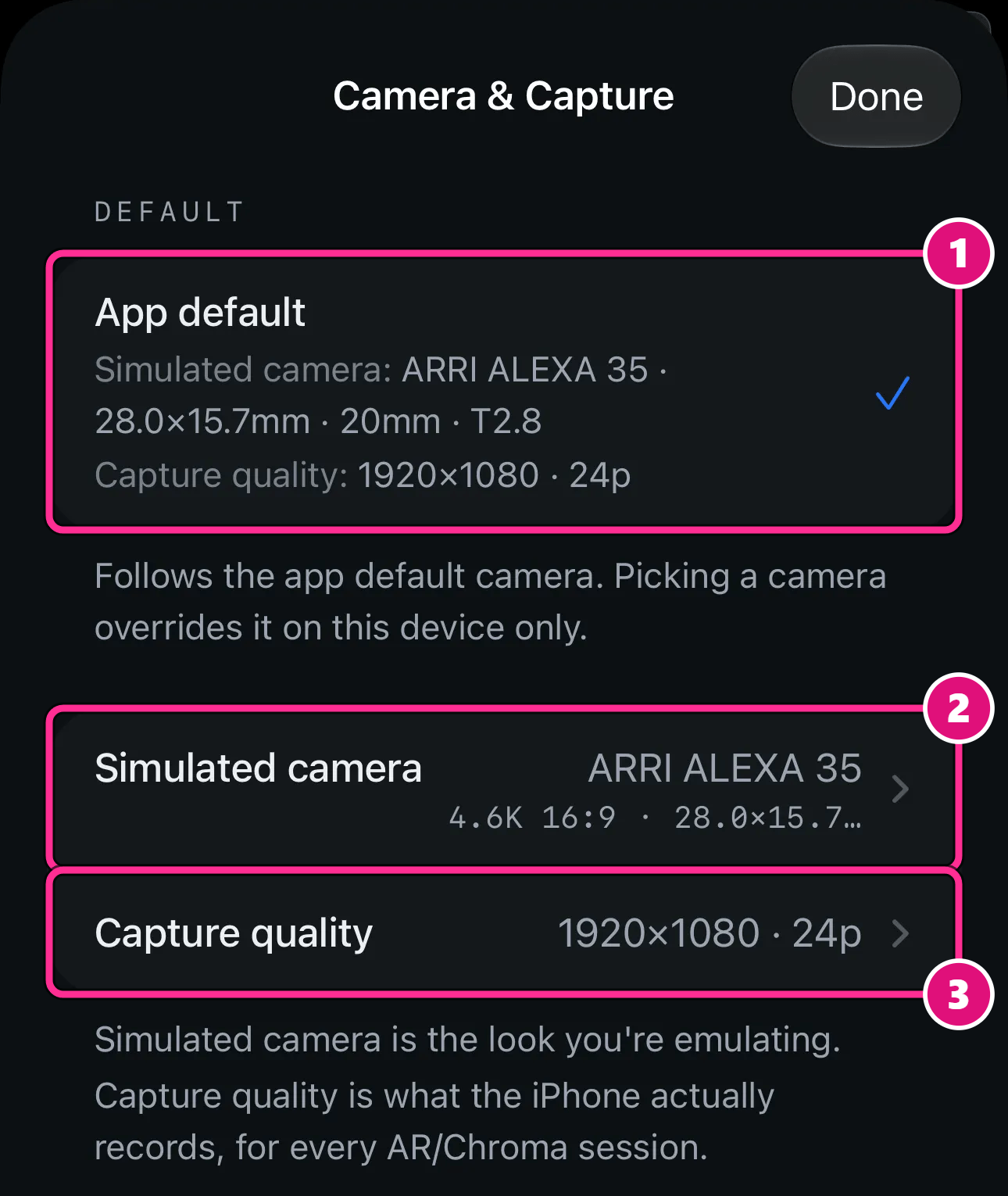
- App default
- Simulated camera
- Capture quality
- Simulated camera is the look you’re matching.
- Capture quality is what the iPhone records.
View settings
View settings
Related
Camera setups on iPhone
Jump to a setup or camera.
Composite and record
Put a performer in the scene and record.