

Jump to a setup or camera
Open Setups & Cameras
Tap the list button in the bottom bar, then 2 Setups. The number is how many setups the 3D scene has.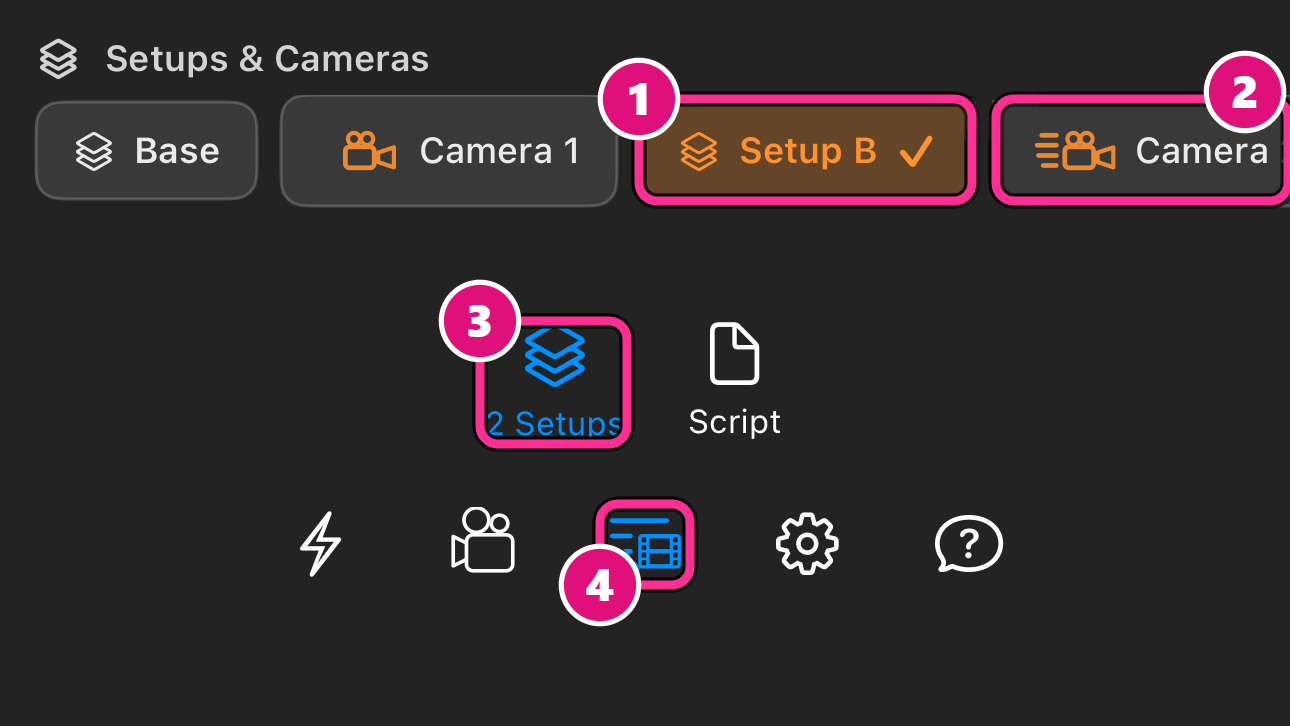
- Setup
- Camera
- 2 Setups
- List button
Tap a setup
The setup turns orange with a tick. You stand in its arrangement without jumping to a camera.
Add a stationary camera
Tap the blue + at the far right of the row. Spark adds a camera at your position, in the setup you’re in, and selects it. Use one to mark a spot in a large scene and jump back later.
Ride a moving camera
Tap a camera with a keyframed path, then tap play. The view rides the path you set in the web app, and you keep handheld control of the framing.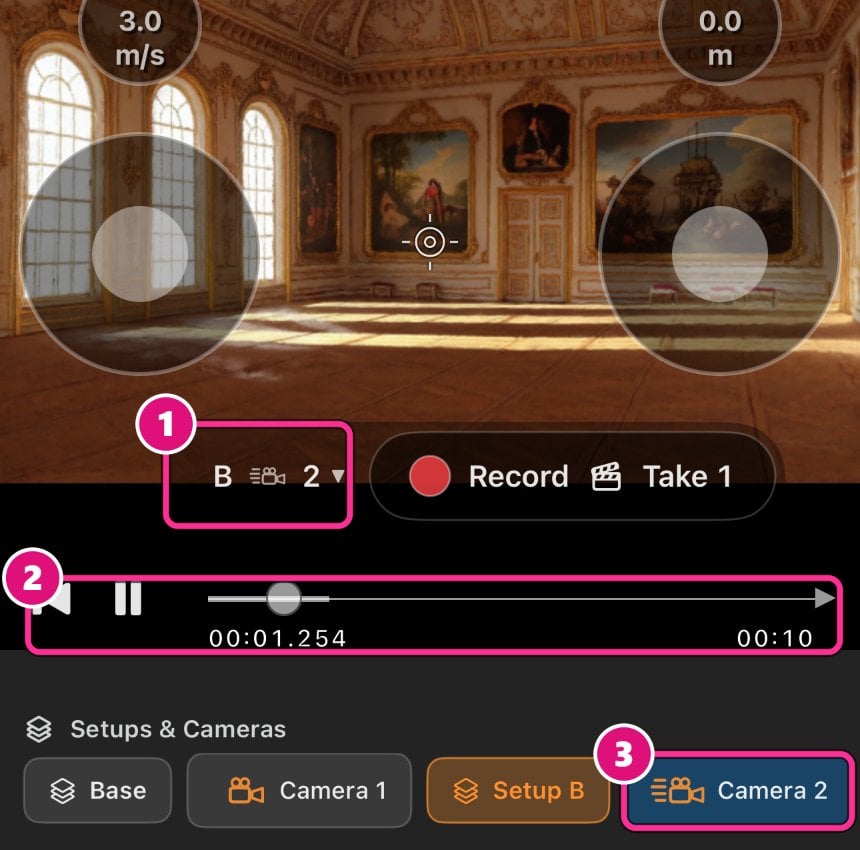
- Picker
- Playback
- Camera
Camera motion types
Each camera’s icon shows how it moves. You set paths and parents in the web app.
- Path
- Stationary
Hidden and moved parts
Parts you hide or move in the web app look the same in the app. Each setup shows its own part changes, and a change reaches an open scene within a few seconds. See Parts of an object.Related
Spark iOS app
Open a 3D scene and move through it.
Cameras
Add a camera and set its path in the web app.