
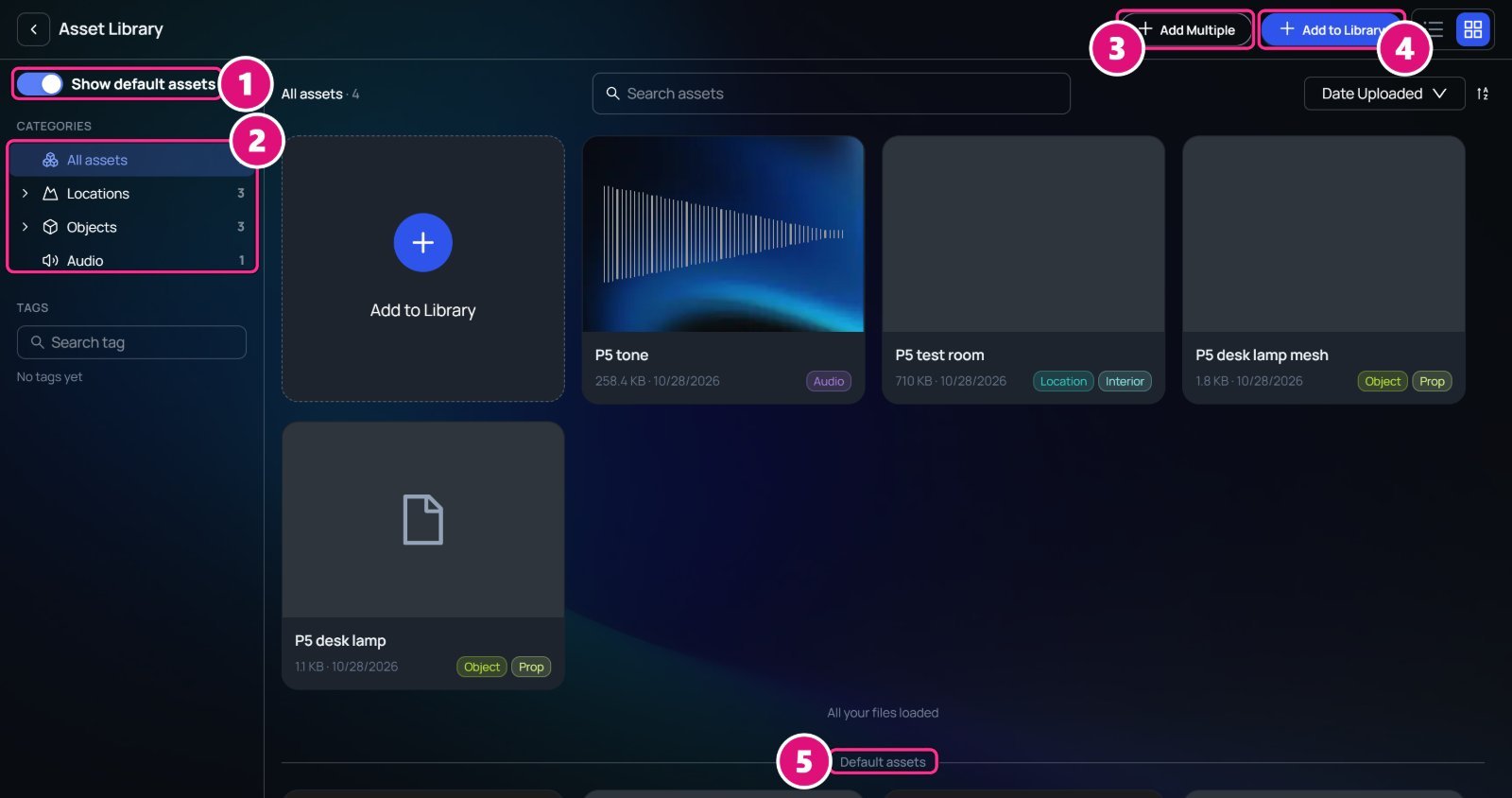
The Asset Library holds every file a production can use: locations, objects and audio. Open it from the Asset Library tab, or from a + in the Outliner, which opens it on that category. The Asset Library page. Box 1 is on Show default assets, 2 on the category list, 3 on Add Multiple, 4 on Add to Library and 5 on the Default assets divider.
  1. Show default assets: Lightcraft’s own files
  2. Categories, with counts
  3. Add Multiple: a batch of one kind
  4. Add to Library: one file
  5. Default assets: Lightcraft’s files below, yours above

Categories and default assets

Default assets come with every production, such as the Opulent Hall location and the Motorcycle object. Use them to try Spark before you upload anything.

Add a file

1

Click Add to Library

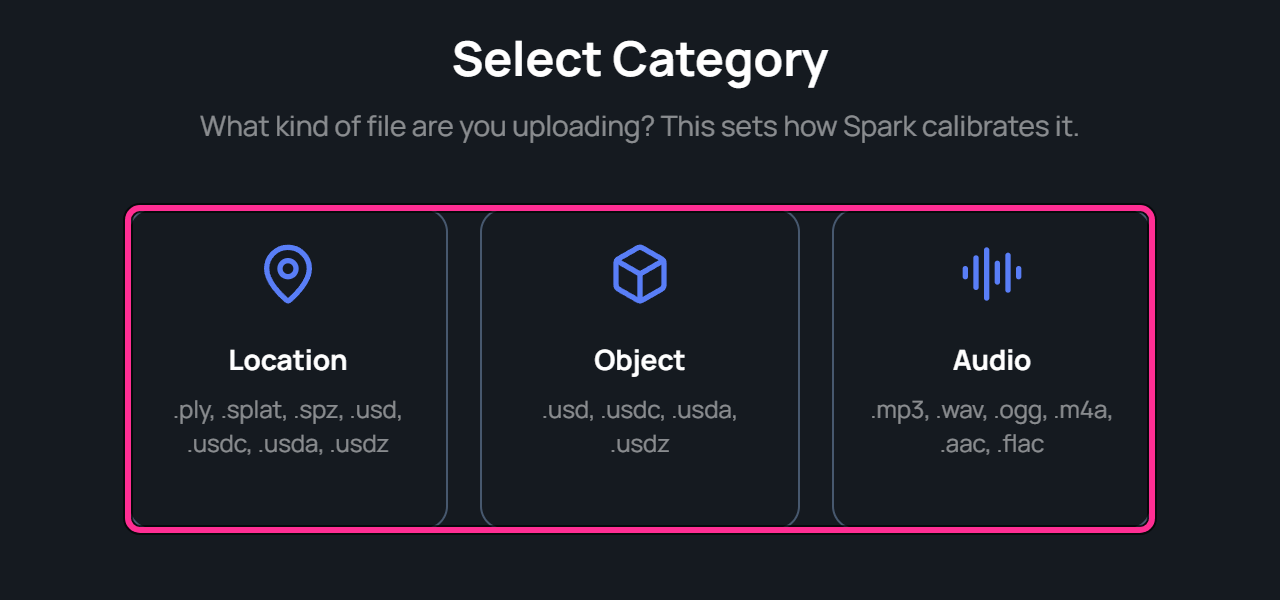
From All assets, Spark asks for the file’s category. Pick Location, Object or Audio. Inside a category, Spark skips this step.The Select Category window, asking what kind of file you are uploading, with a box on the Location, Object and Audio cards and the file types for each.
2

Choose the file

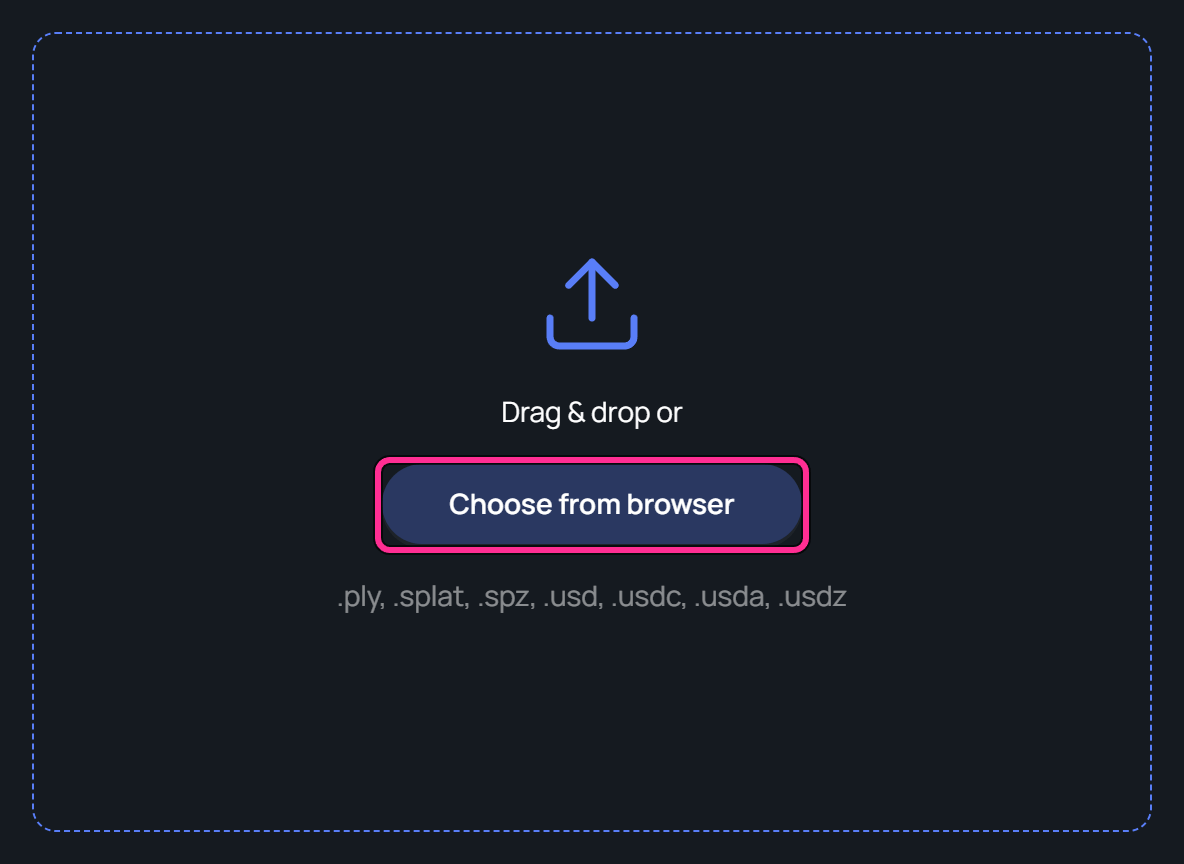
Drag it in, or click Choose from browser. A preview shows on the left.The upload area, Drag and drop or Choose from browser, with a box on Choose from browser and the file types listed below.
3

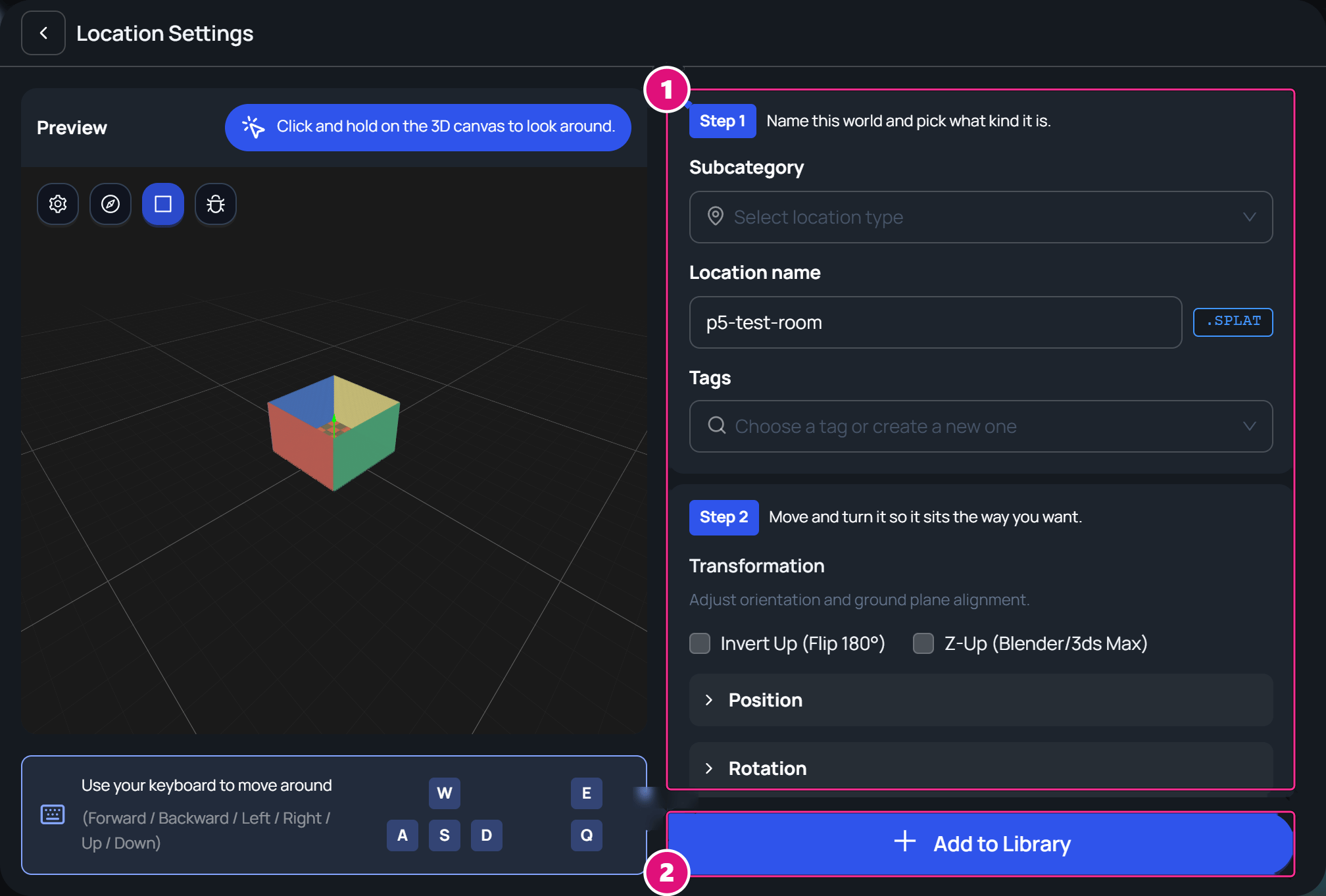
Fill in the settings

Name the file and pick its subcategory. Locations and objects also ask how to turn and size them. See Locations and Objects.The Location Settings window. Box 1 is on the settings column with Subcategory, Location name, Tags and Transformation, and 2 on Add to Library.
  1. Settings
  2. Add to Library
4

Click Add to Library

The upload’s progress shows at the top of the page. The file then shows in its category.
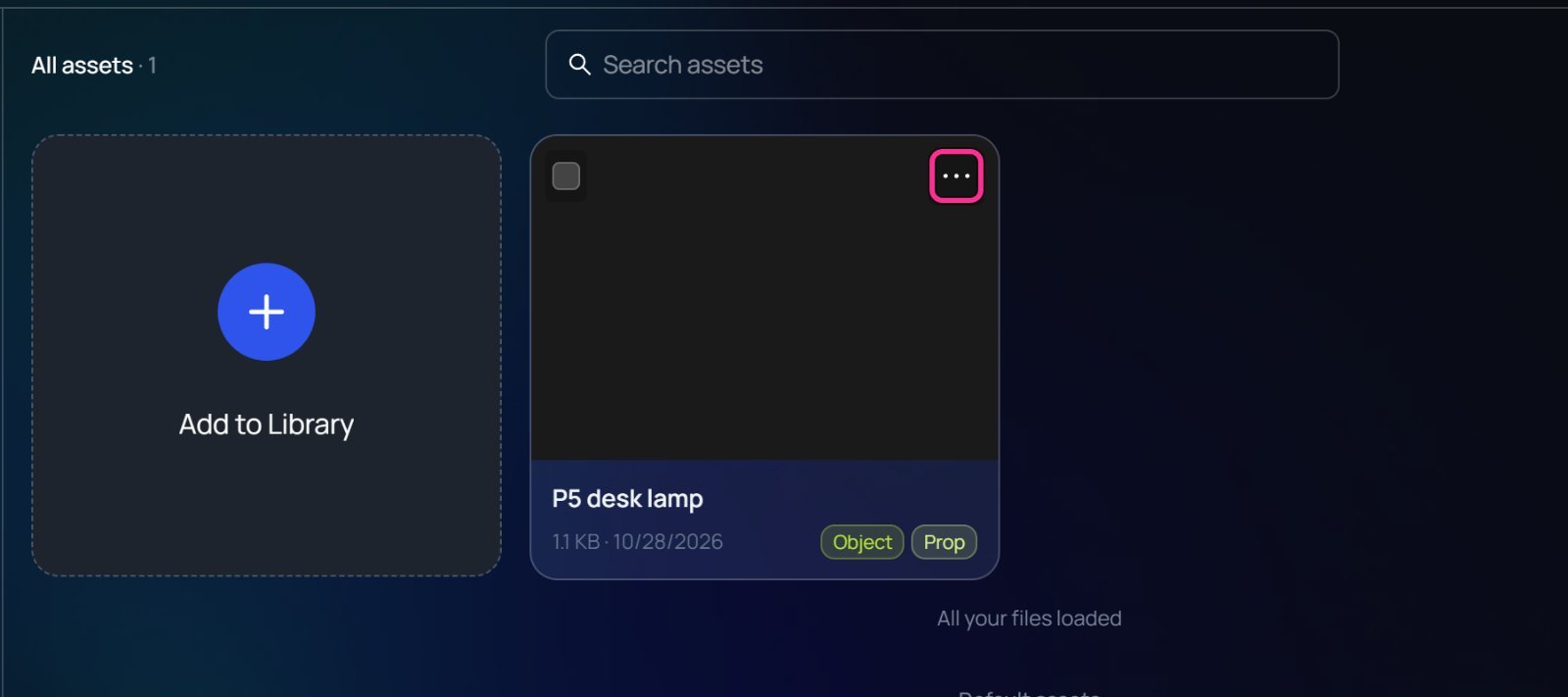
On a file’s card in the Asset Library tab, ⋯ holds Edit Metadata, Download and Delete. The Asset Library tab with a box on the menu button at the top right of the P5 desk lamp card.

Upload limits

You add files only by uploading them to the library. The old Load Locally option is gone.
  • One file can be up to 1 GB. Spark refuses an empty file.
  • Add Multiple takes up to 50 files of one kind. It skips duplicates, and refuses a file of the wrong kind.

Storage

Spark accepts an upload while your organization’s storage used is under its limit, even if that upload goes over it. Once the storage used reaches the limit, Spark refuses new uploads until you delete files or buy more storage. Spark then shows Your organization is out of storage. Delete files or buy more storage from Organization → Settings → Billing. The files of your takes and the preview pictures of your files count toward the storage used. Add Multiple checks the storage left before you start:
  • A red line means the organization is already out of storage. The upload button is grayed out.
  • An amber line, such as Only 1.0 MB of storage left, means this batch will upload, but uploads after it will be refused.
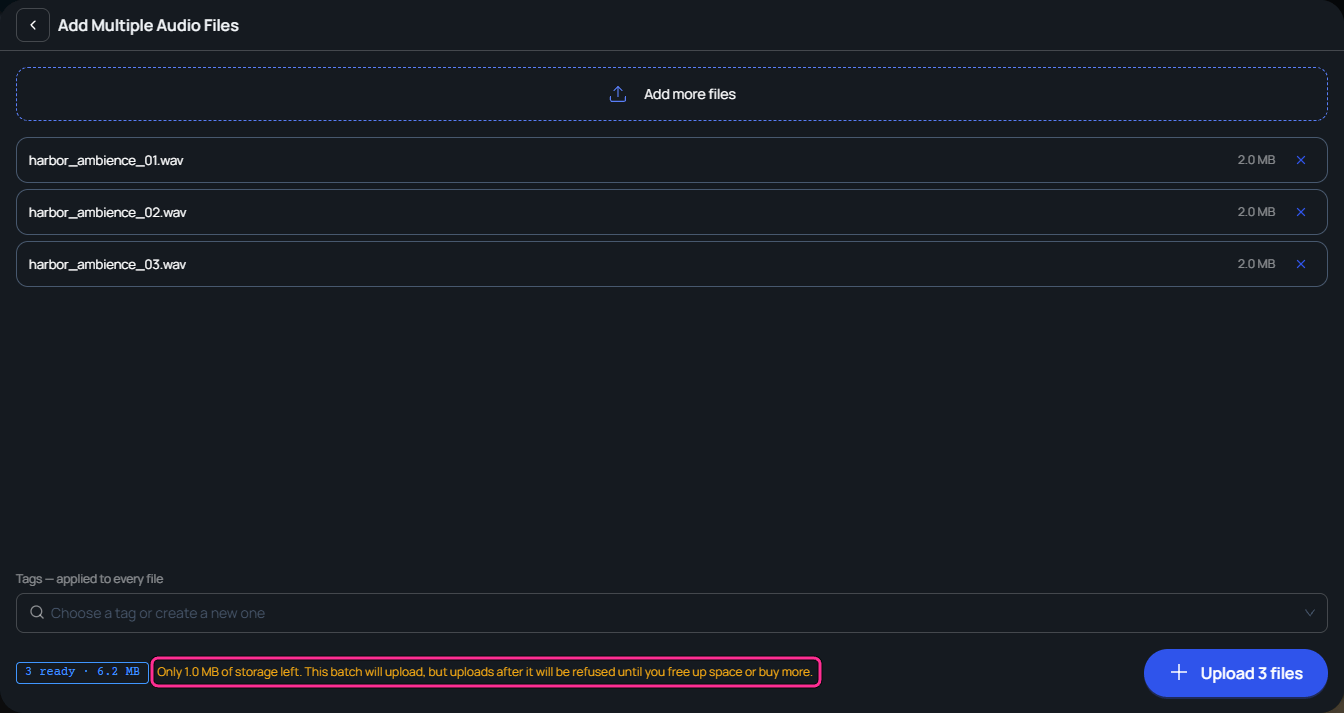
The Add Multiple Audio Files window with three files. A box is on the amber line: Only 1.0 MB of storage left. This batch will upload, but uploads after it will be refused until you free up space or buy more. If the limit is reached partway through a batch, the rest of the files aren’t uploaded. Viewing, downloading, renaming and deleting files still work at the limit.

Locations

Add a location to a 3D scene.

Objects

Add and arrange objects.