
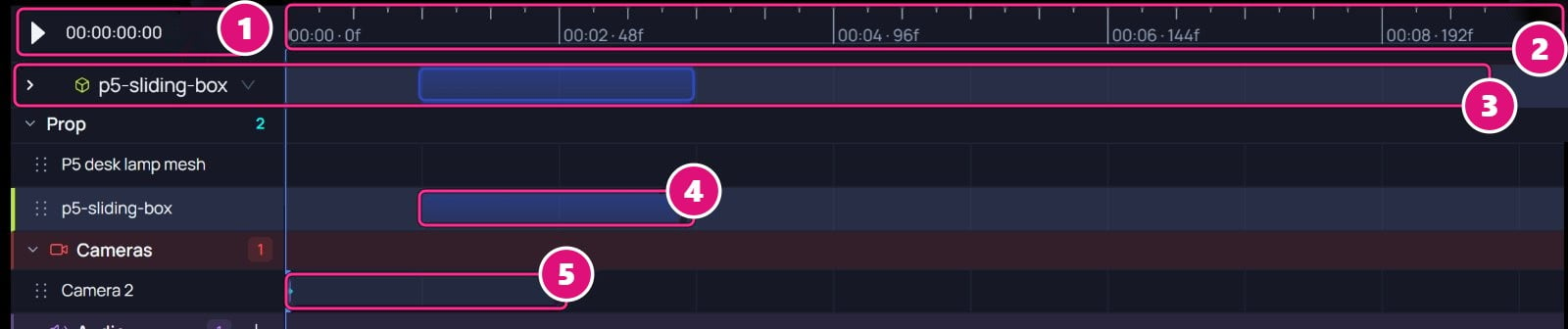
- Play and the time
- Time ruler
- Selected item
- Animation clip
- Camera keyframes
Play the scene
Click play or press Space. The playhead runs across the ruler, and animated objects move in the canvas.Animate with keyframes
A keyframe locks the position and rotation of a camera or an object at one frame.Turn on Auto-keyframe
Select the camera or object. Under Transformation, turn on Auto-keyframe. Spark places a keyframe at the playhead.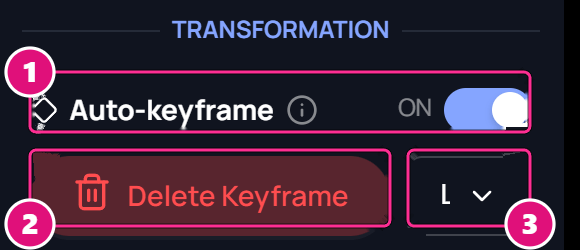
- Auto-keyframe
- Keyframe button
- Interpolation
Add a pre-animated USD clip
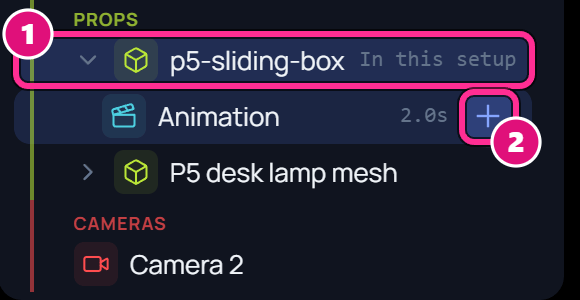
A USD file with its own animation brings it in as a clip. When you upload it, Object Settings shows the animation’s length.Add the object
Add it to the setup like any object. See Add an object.
Move a clip
Drag a clip along its row to start it at another time. Dragging an end moves the whole clip, so clips can’t be trimmed here. To trim a sound, see Add audio.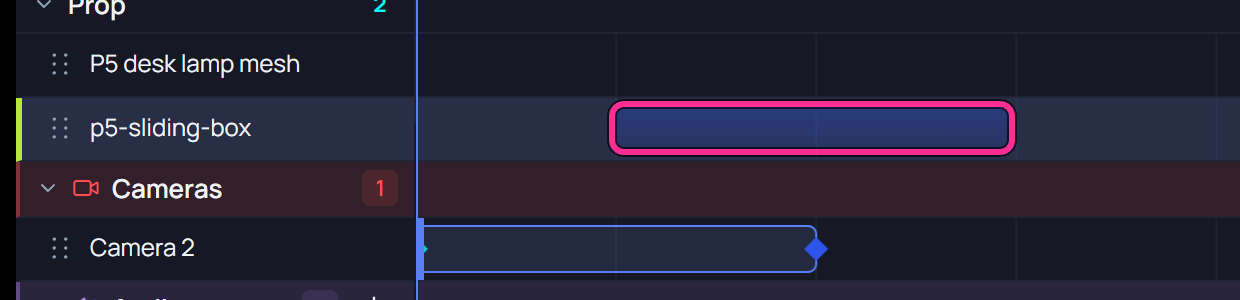
Related
Cameras
Add a camera and set its lens.
Objects
Add and move objects.