
A list collects CG Takes and Takes from anywhere in the script.

Create and edit a list

1

Make the list

On the Lists tab, click New Custom List. Enter a name and, if you like, a description, then click Create.The New List window. Box 1 is on the Name field reading P6 test list, 2 on the Description field and 3 on Create.
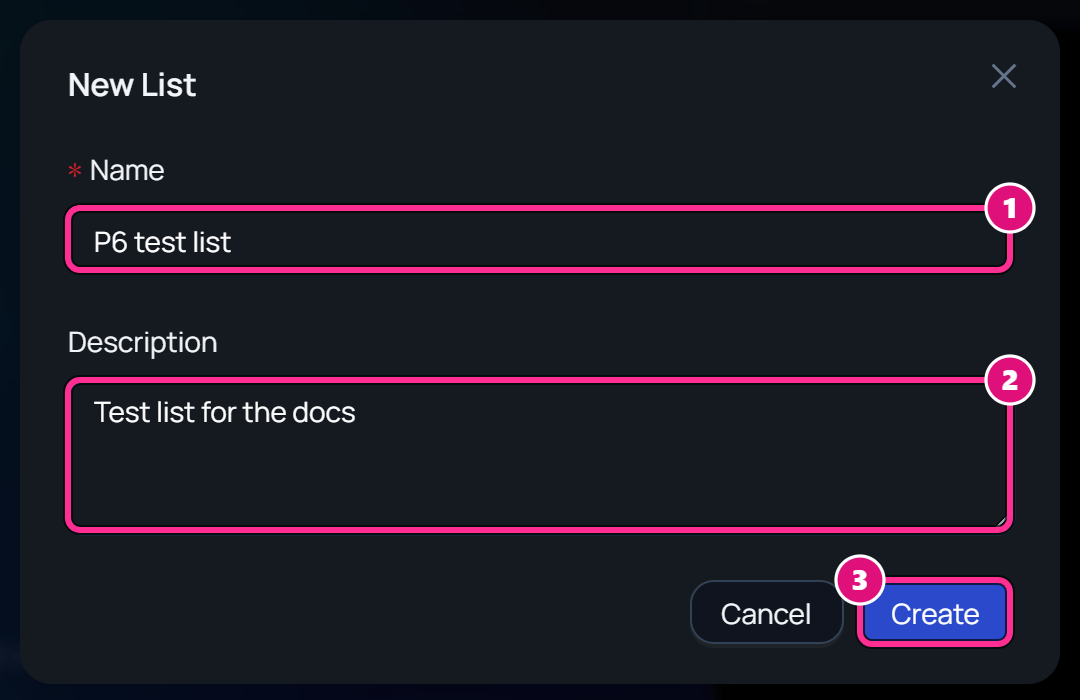
  1. Name
  2. Description
  3. Create
2

Add takes

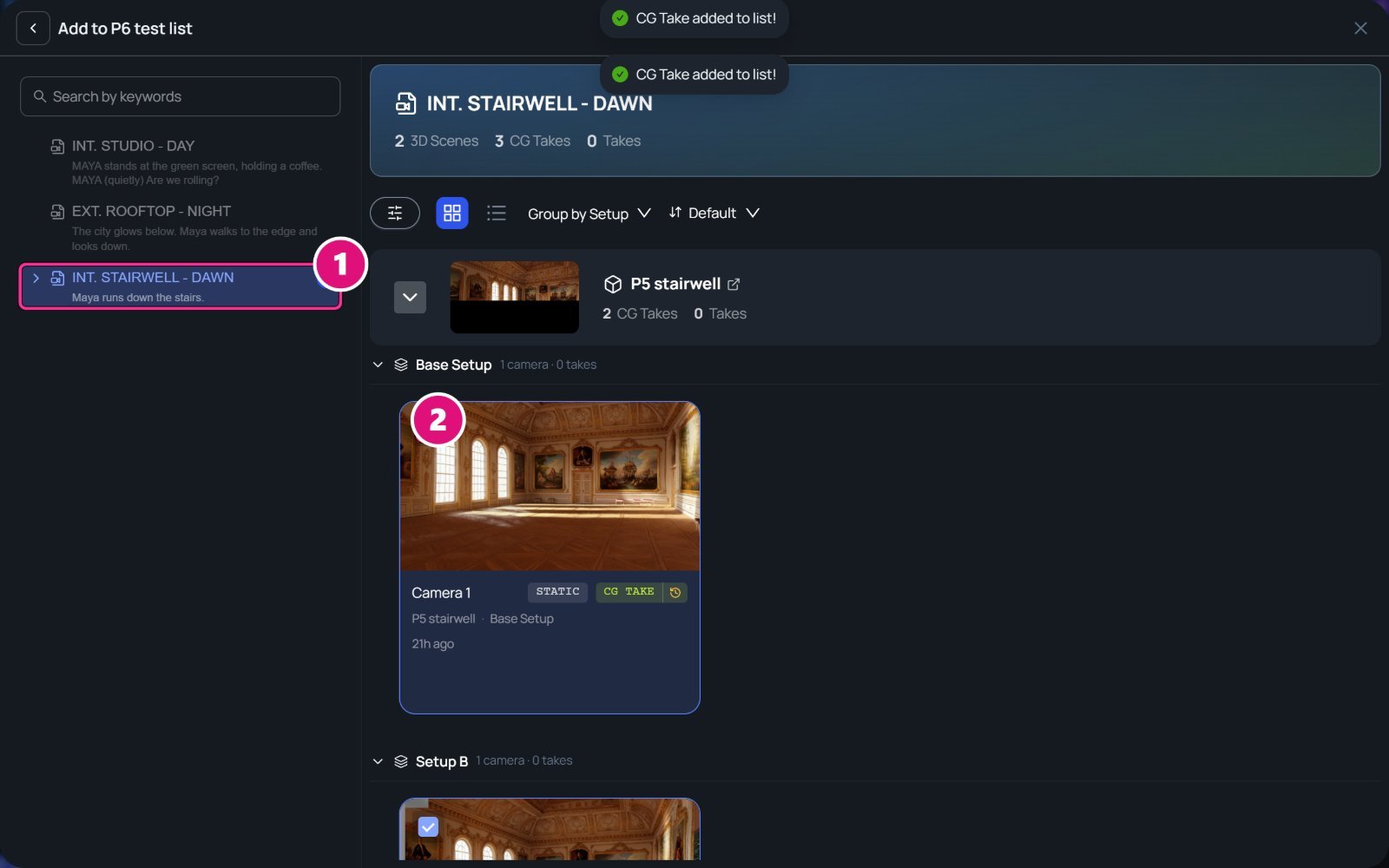
Open the list and click Add Takes. Tick a card to add it. You can also use Add to list on any card.The Add to P6 test list window, with two CG Take added to list! messages. Box 1 is on the INT. STAIRWELL - DAWN heading and 2 on the ticked box of the Camera 1 card.
  1. Scene heading
  2. Ticked card
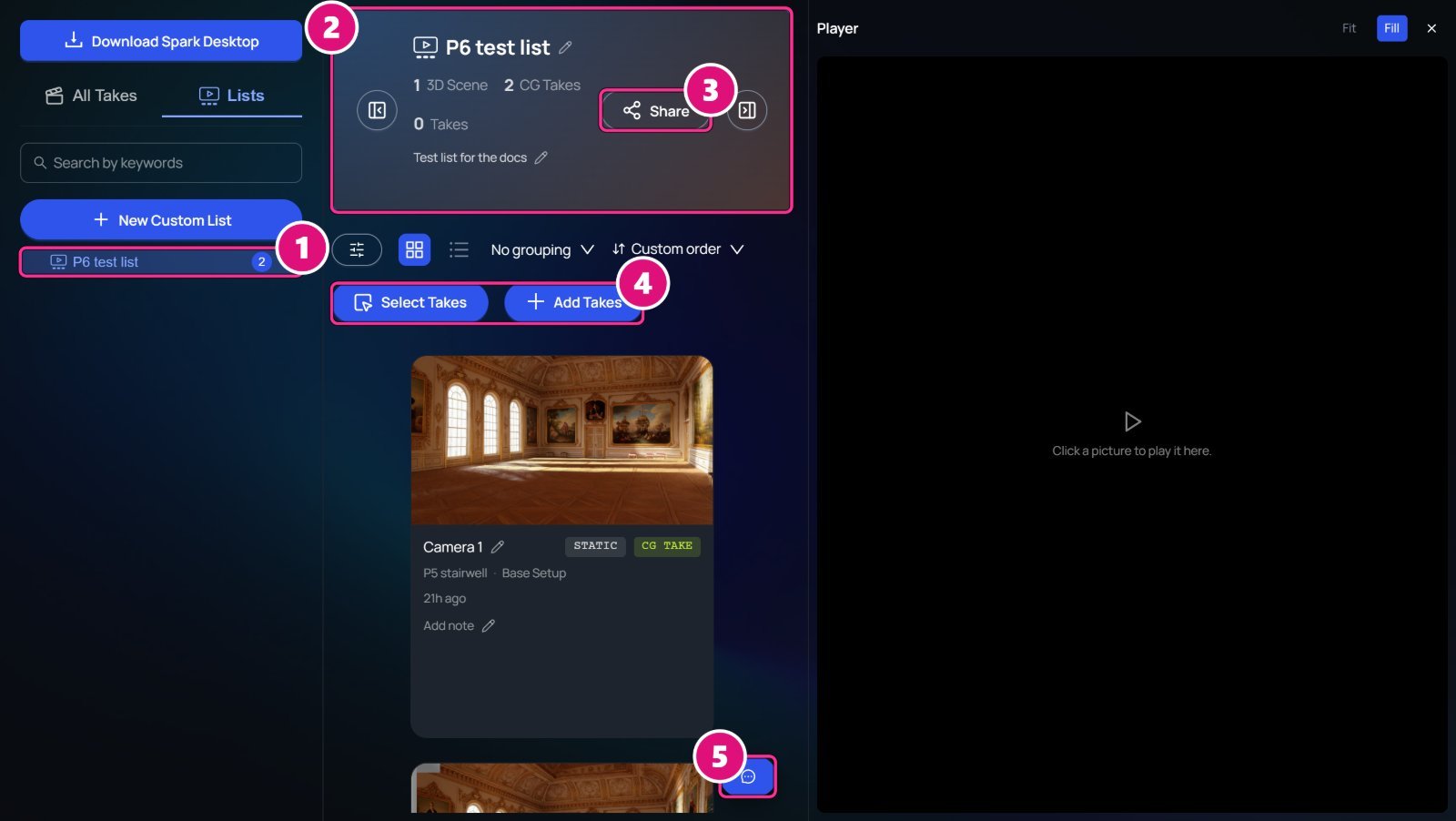
The list’s page holds its takes and tools. The P6 test list. Box 1 is on its row in the sidebar, 2 on its header, 3 on Share, 4 on Select Takes and Add Takes, and 5 on the comments button.
  1. List
  2. Header
  3. Share
  4. Select Takes and Add Takes
  5. Comments
  • To rename the list or change its description, click the pencil beside it.
  • With Custom order, drag cards to reorder them.
  • To delete the list, click the trash on its sidebar row. The takes in it stay in the Gallery.

Comment

Comments belong to a list.
  1. On the list, click the round blue button at the bottom right.
  2. Enter your comment in Write a comment and press Enter.
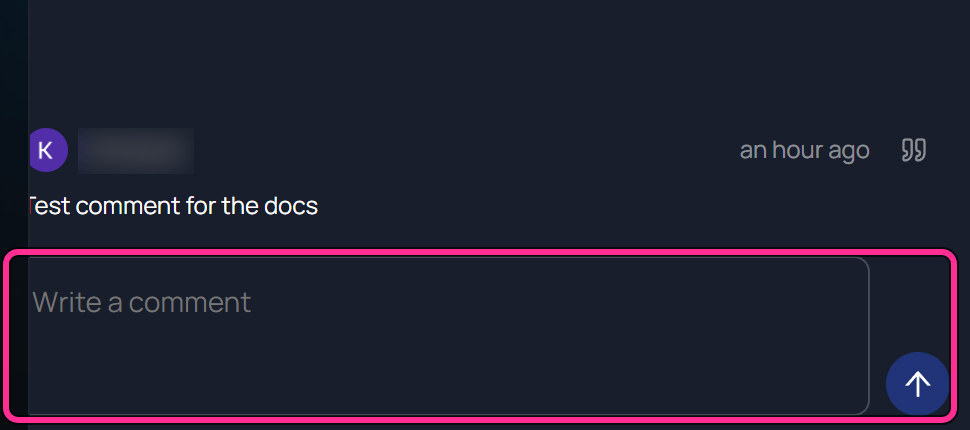
The Comments panel with one comment, Test comment for the docs, and its author's name blurred. A box is on the Write a comment field and its send button. Each comment shows its author’s name. To quote a take, click Quote in comments on its card’s … menu while comments are open. Anyone with the link can open the list without a Spark account.
2

Set a password and an expiry

Turn on Password and enter one. Under Expires, pick how long the link works: 1 day, 7 days, 30 days, 3 months, 1 year or Never. You can also pick a date.
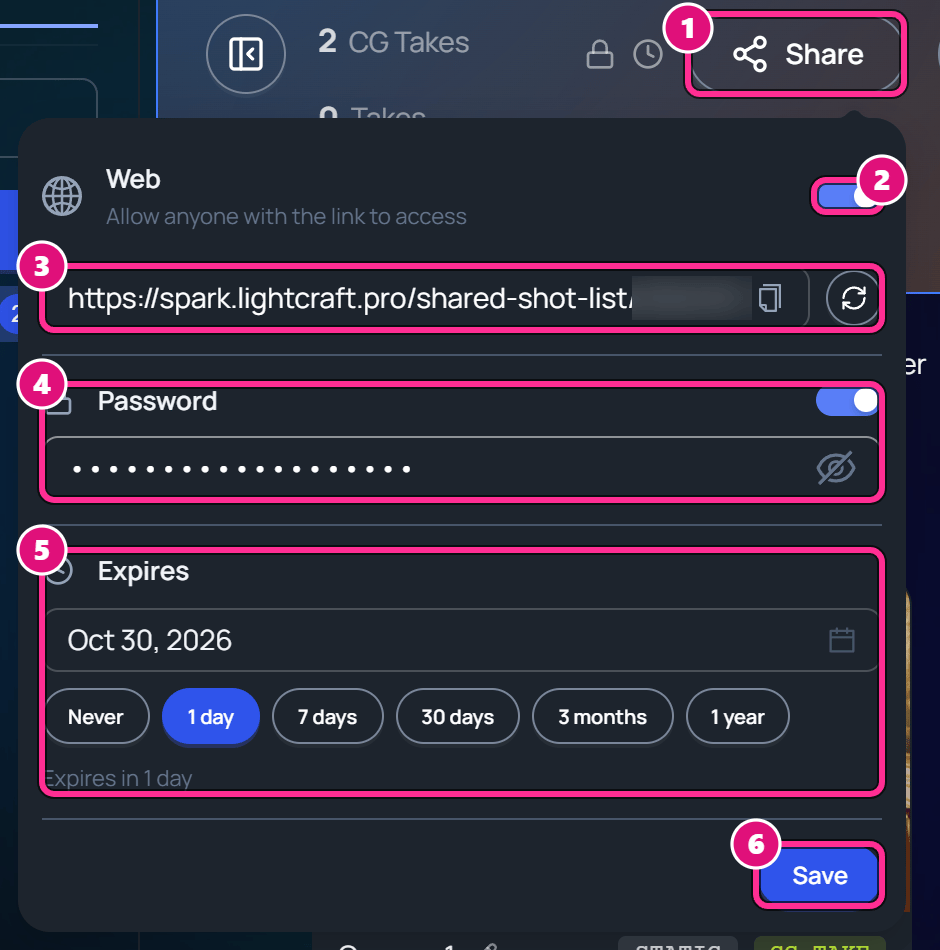
To stop the link working, turn off Web. Refresh link makes a new link, and the old one stops working for everyone who has it.

Open a shared list

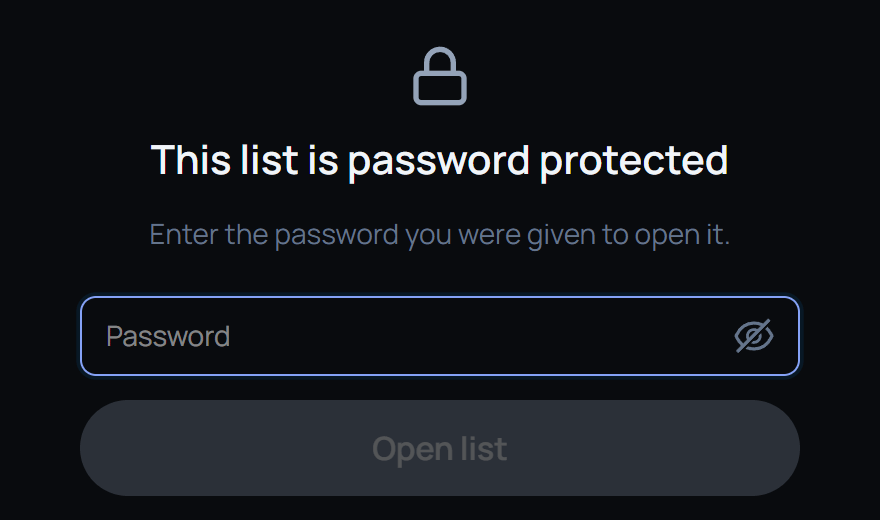
Open the link. If the list has a password, enter it and click Open list. A shared list asking for its password: This list is password protected. Enter the password you were given to open it. Below are the Password field and Open list. The list opens read-only, with its takes, Select Takes and Download all. Comments, notes and card menus don’t show. P6 test list opened from its link, with two CG Take cards. Box 1 is on Select Takes and 2 on Download all.
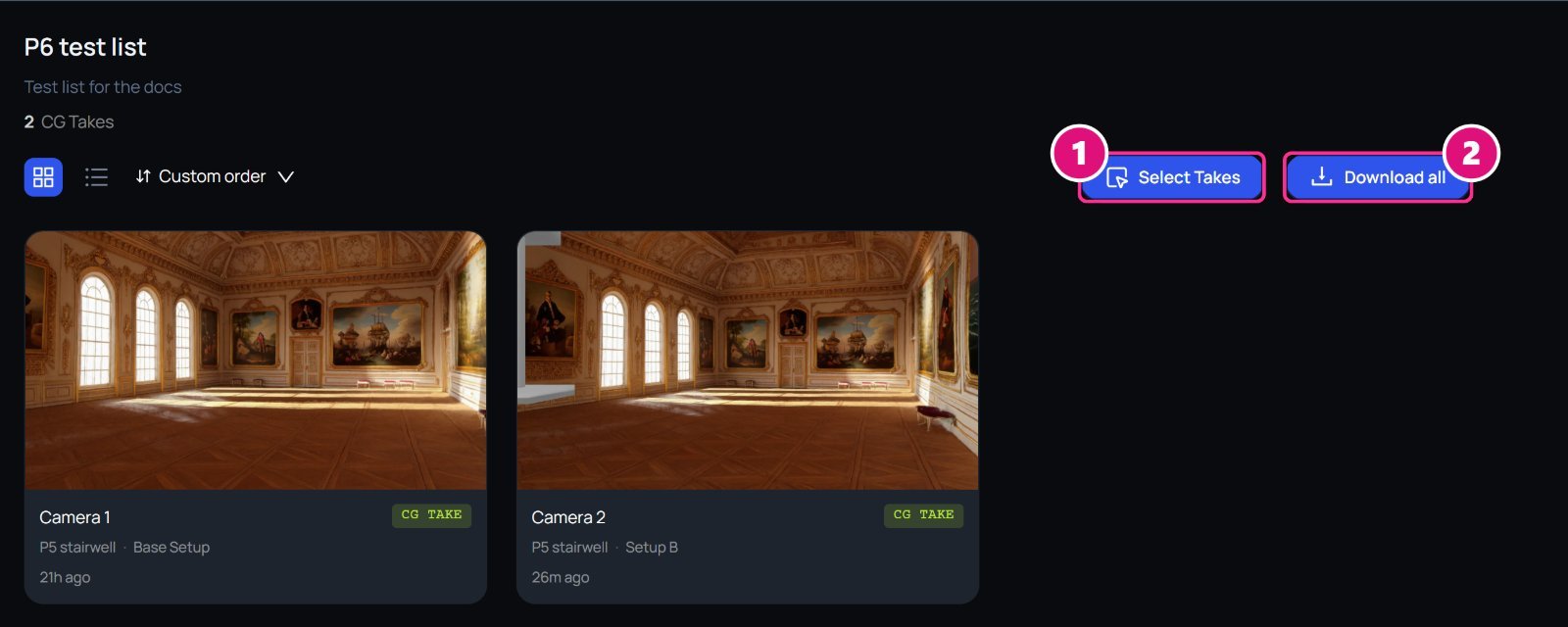
  1. Select Takes
  2. Download all
A link that’s off or replaced shows This link doesn’t work.

Browse and play takes

Find a take and play it.

Build an edit

Cut takes into a rough cut.