

Scene numbers
Every scene heading has a number. Spark uses the number typed in the heading, such as#12A#. A heading with no number takes its position in the script.
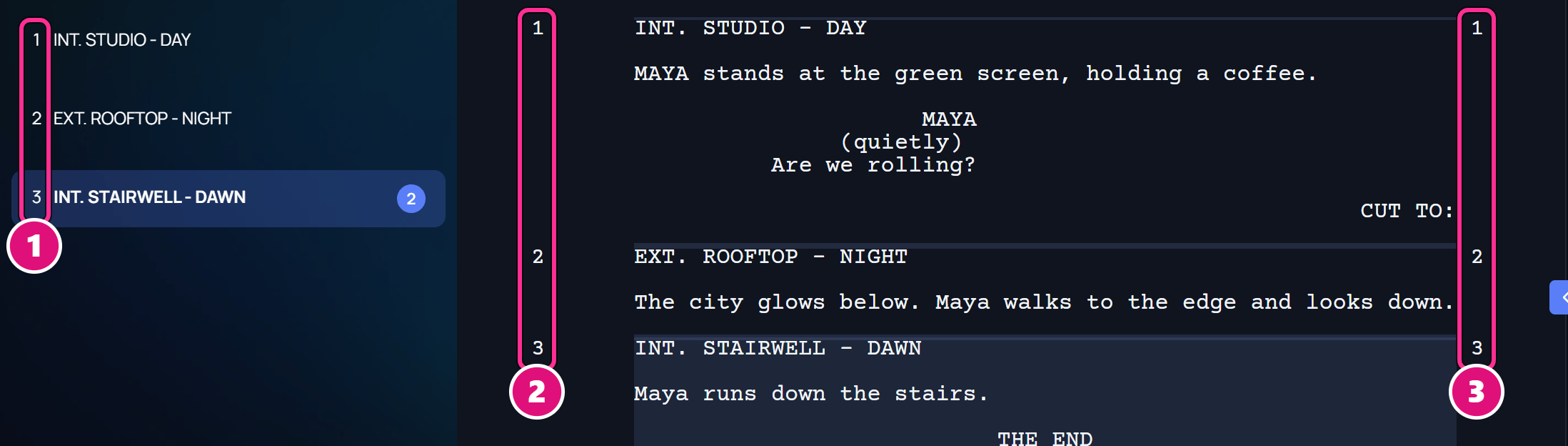
- Number column
- Left margin
- Right margin
- View, Edit, Compare and the PDF show the number in both margins.
- Every list of scene headings starts with the number, such as Script scenes.
- Search finds a script scene by its number.
- A Final Draft file keeps its scene numbers when you upload it.
Pages
View, Edit and the PDF show the same pages.- A script’s title page comes first.
- Each sheet is the paper size the format sets.
- Page numbers start on page 2.
- A speech cut by a page break ends with (MORE). It picks up on the next page under the character’s name and (CONT’D).
Set the page format
Open Page format
On the script page, click Settings, then Page format.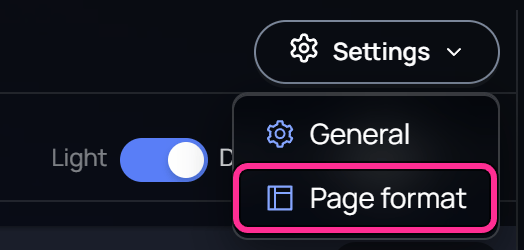
Change the values
Preview lays the script out again as you type, and shows the page count.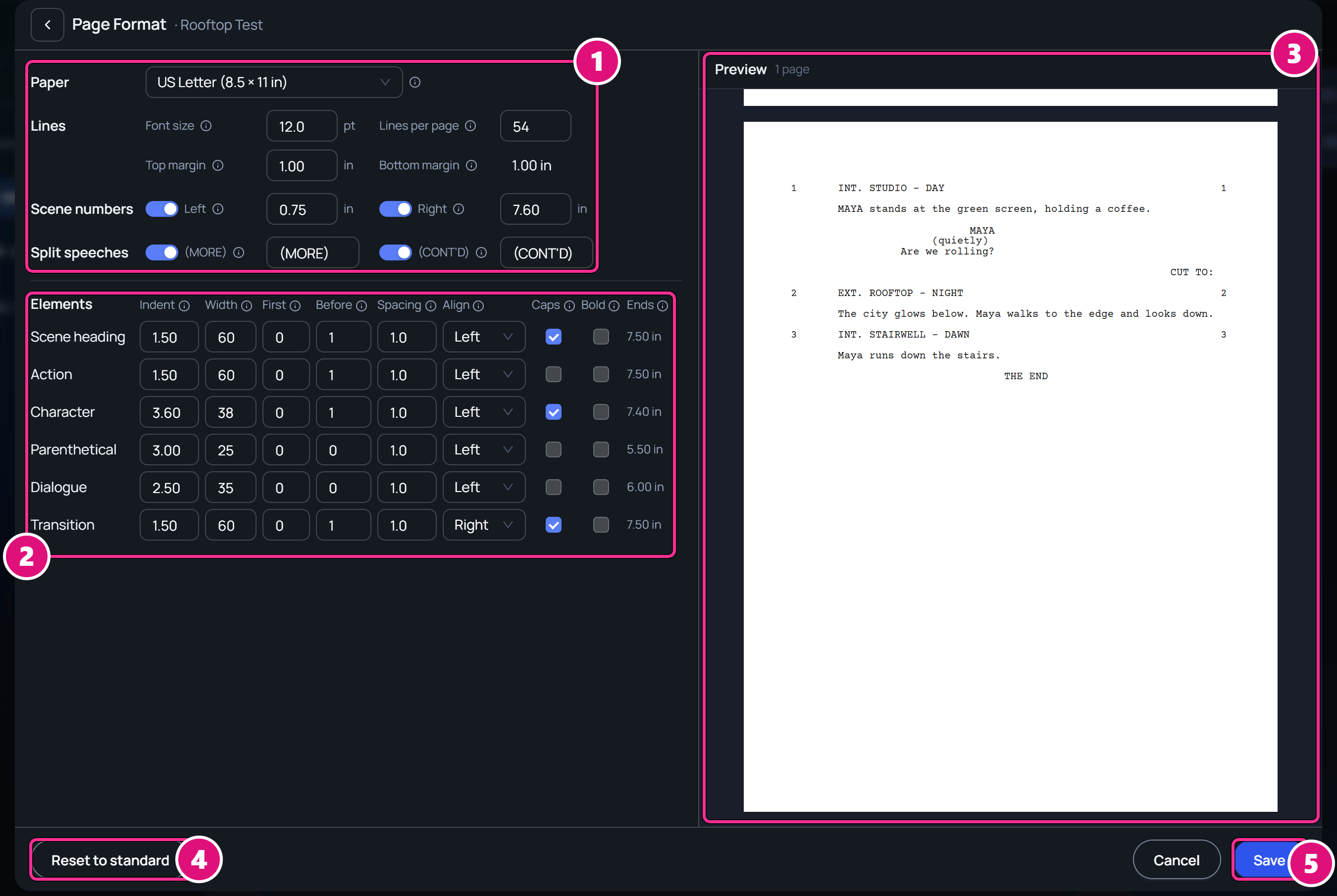
- Page settings
- Elements
- Preview
- Reset to standard
- Save
Bottom margin follows from the other values.
Each row under Elements sets one screenplay element, from Scene heading to Transition.
Ends shows where a full line ends. It has to stay on the paper.
Keep an uploaded file’s format
When you upload a PDF or a Final Draft file, Spark saves its page format with the script. A newer version you import brings its own format, which applies when you publish it.- Reset to imported fills in the format of the uploaded file. It shows only for a script that has one.
- Reset to standard fills in Spark’s standard format.
Related
Script editor
Write and format a script.
Drafts and versions
Publish edits and import newer versions.