
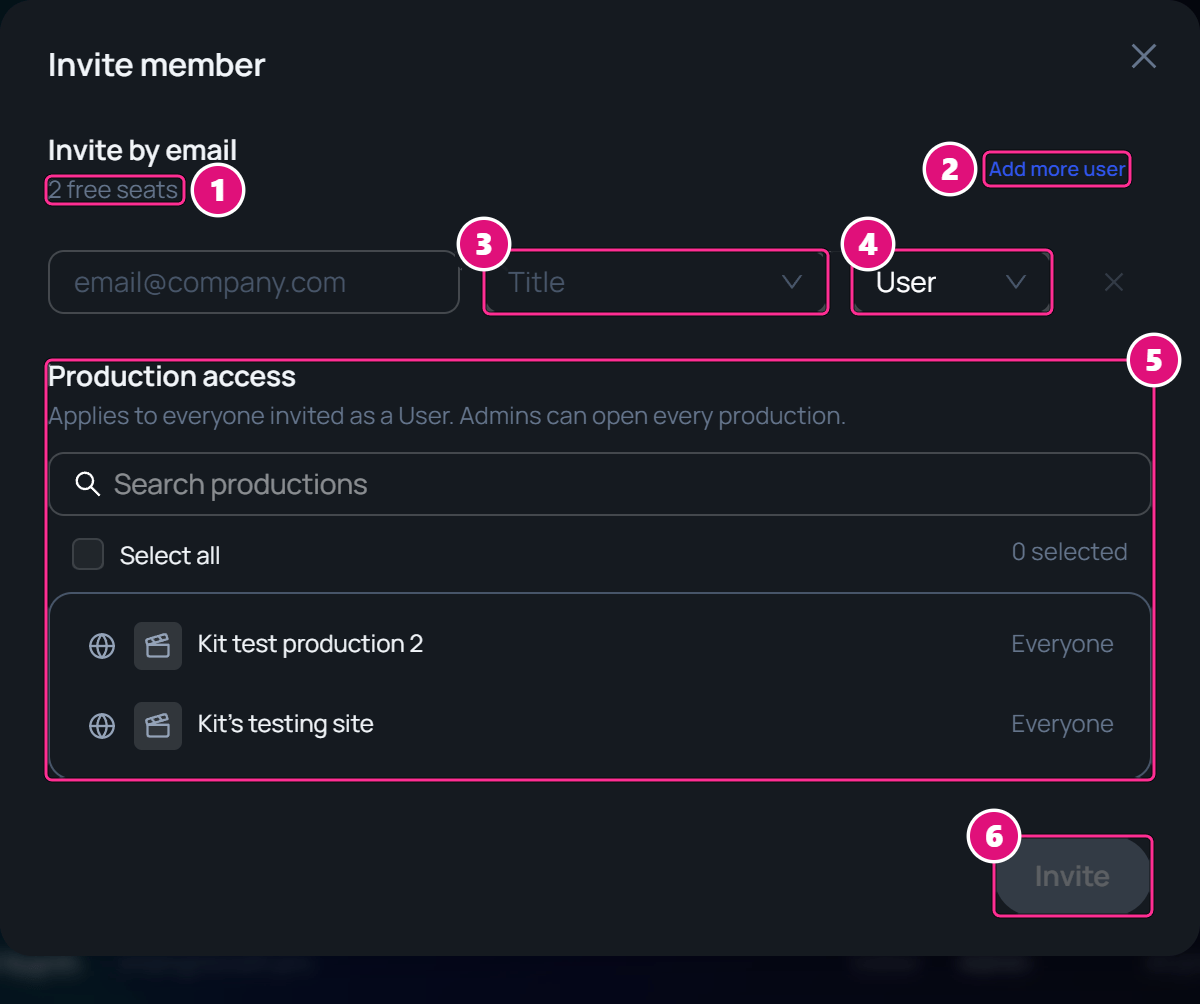
Only the organization’s Owner can invite, change and remove members. Everything here happens in Organization Settings, under Members. The Invite member window. Box 1 is on the free seats count, 2 on Add more user, 3 on Title, 4 on the access level, 5 on Production access and 6 on Invite.
  1. Free seats
  2. Add more user
  3. Title
  4. Admin or User
  5. Production access
  6. Invite

Seats and billing

Each member uses one seat, and so does each invitation that hasn’t been accepted yet. The seat line under Members shows the count, such as 2 of 3 seats used · 1 pending. When every seat is taken, the line turns red and asks you to add a paid seat from Billing. Invite is grayed out until then. The Members section of a full organization. Box 1 is on the red seat line, 3 of 3 seats used, 2 pending. Box 2 is on the grayed Invite button with the tooltip Seat capacity reached.
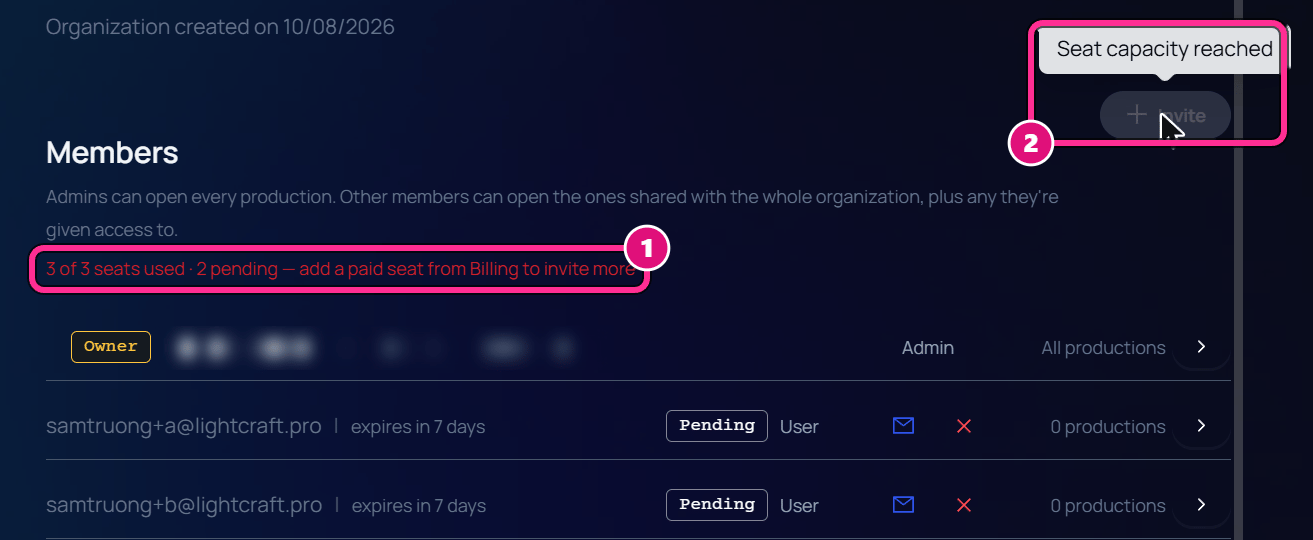
  1. Seat line, full
  2. Invite, grayed out
Billing lists paid seats at $30 a month each, plus any free bonus seats. A new organization starts on a free trial, and nothing is charged until it ends.
Files need an active subscription. If it ends, they lock at once and are deleted 30 days later. Subscribe again within those 30 days to get them back.

Invite a member

1

Open the invite window

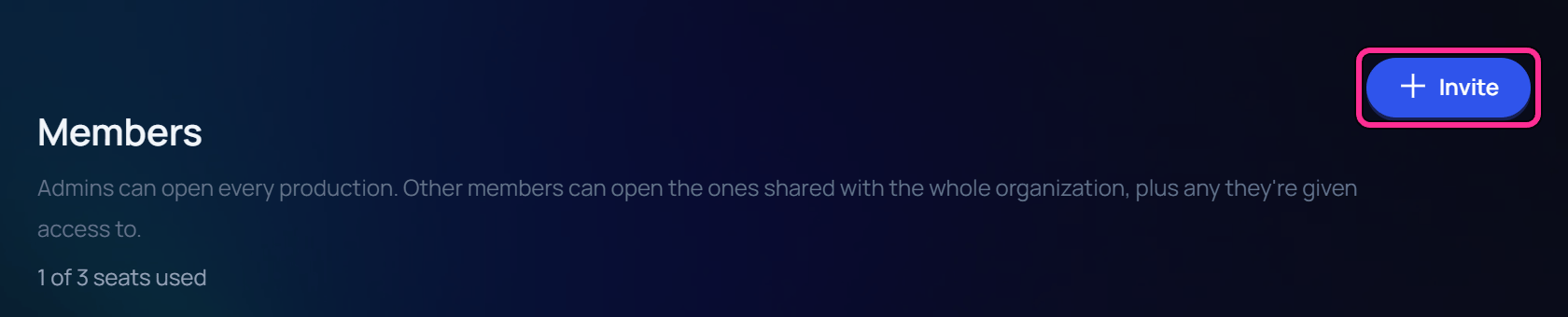
In Organization Settings, click Invite under Members.The Members section of Organization Settings, with a box on Invite.
2

Add each person

Enter their email, pick a Title, and choose Admin or User. Click Add more user for another row. Title only names the job. Admin or User decides what they can open.The Invite by email row. Box 1 is on the email field, 2 on Title, 3 on User and 4 on Add more user.

  1. Email
  2. Title
  3. Admin or User
  4. Add more user
3

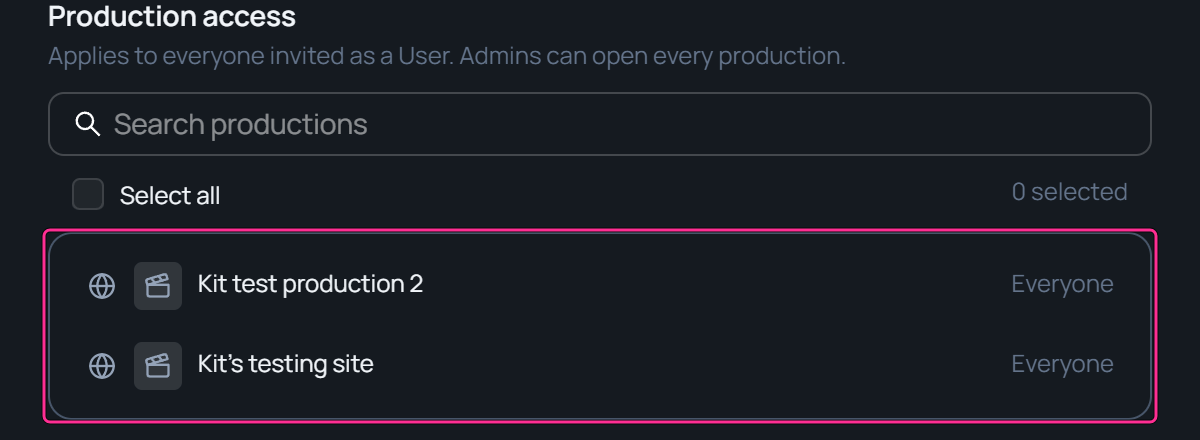
Choose their productions

For a User, tick the productions they can open. Productions marked Everyone are open to every member already.Production access in the invite window, with a box on the list of productions, both marked Everyone.
4

Send it

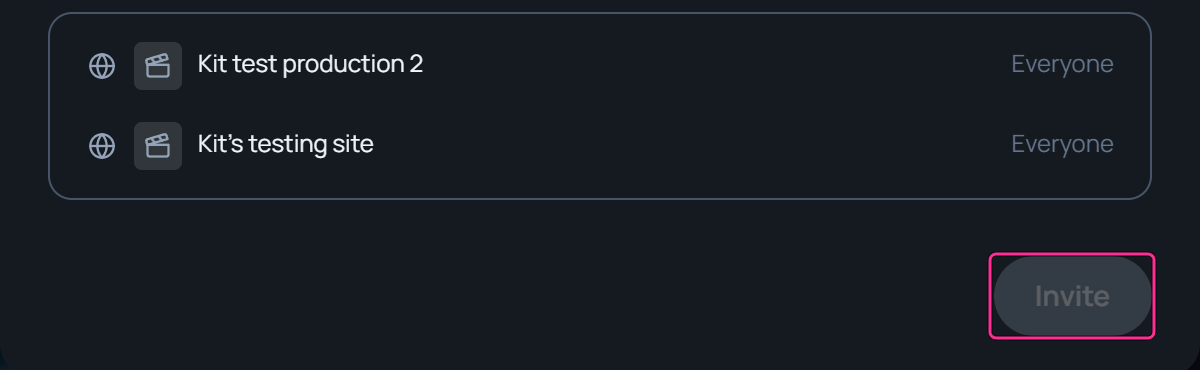
Click Invite. The invitation appears under Members as Pending, and holds a seat for 7 days.The bottom of the invite window, with a box on Invite.
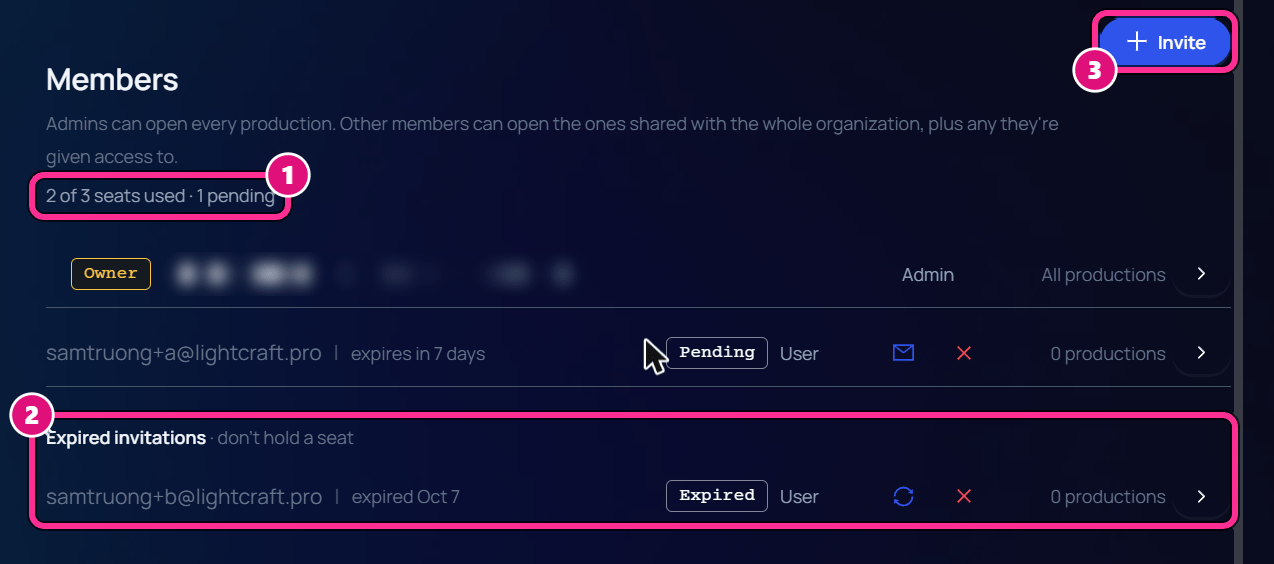
If an address’s invitation ran out, Spark shows Invitation expired. Click Resend it to send it again. On a pending row, click the envelope to send the invitation again. To free its seat, click the X, then Cancel invitation. An invitation that runs out moves under Expired invitations, and no longer holds a seat. The Members list. Box 1 is on the seat line, 2 of 3 seats used, 1 pending. Box 2 is on the Expired invitations group, and 3 on the Invite button.
  1. Seat line
  2. Expired invitation
  3. Invite
The seat line doesn’t count the expired invitation, so Invite works again. The expired invitation has a resend icon.
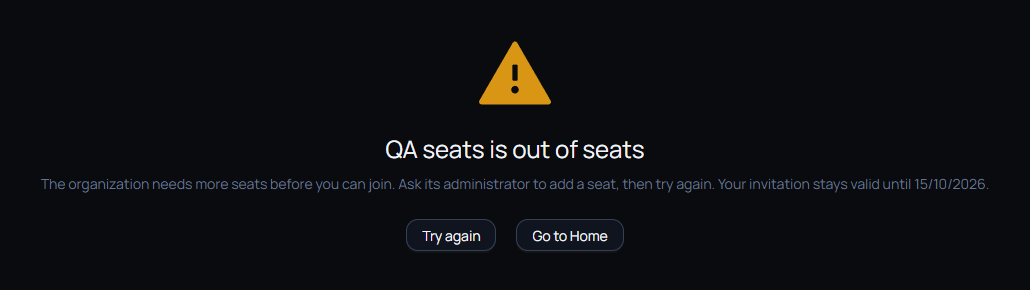
They aren’t added. Spark shows that the organization is out of seats, and that their invitation stays valid until its last day. Once a seat is free, Try again lets them in.A page that reads QA seats is out of seats, with Try again and Go to Home buttons.
Change a member’s access

Click the arrow at the end of a member’s row, or of a pending invitation. Production access lists the productions they can be given. The Production access window for one member. Box 1 is on the list of productions with checkboxes, and 2 on Save Changes.
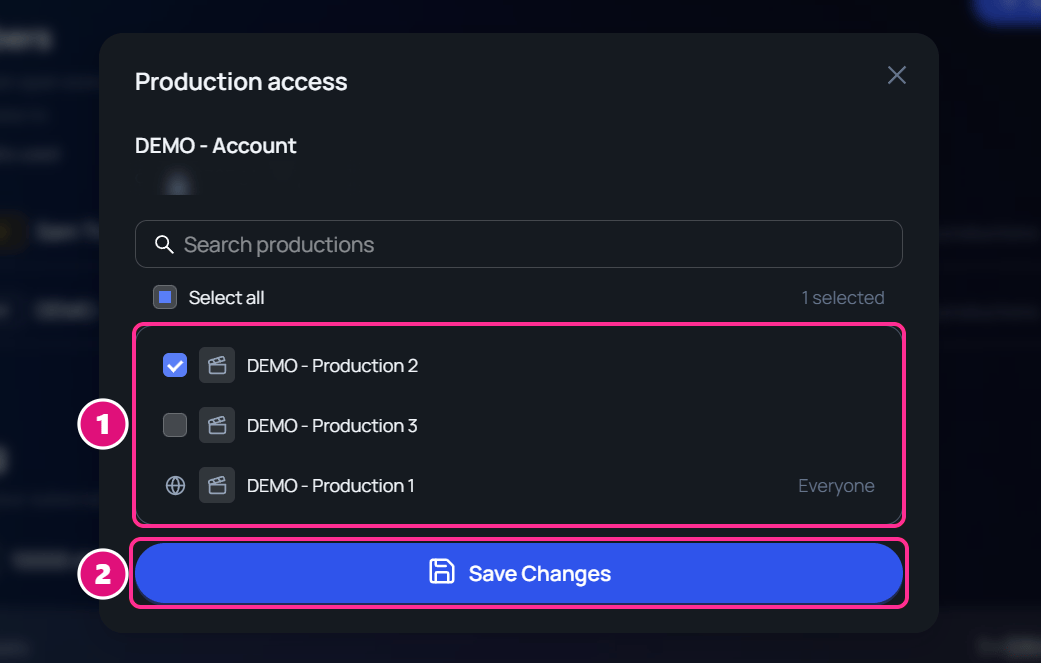
  1. Ticked productions
  2. Save Changes
Tick the productions they can open, then click Save Changes. Admins can open every production, so you don’t set access for them. The Owner can also change a member’s access level and title on their row.

Remove a member

On the member’s row, click the remove icon (Remove member), then Remove to confirm. They lose access to the organization, and their seat is free again.

Organizations

What Owners, Admins and Users can do.

Productions

Choose who can open each production.