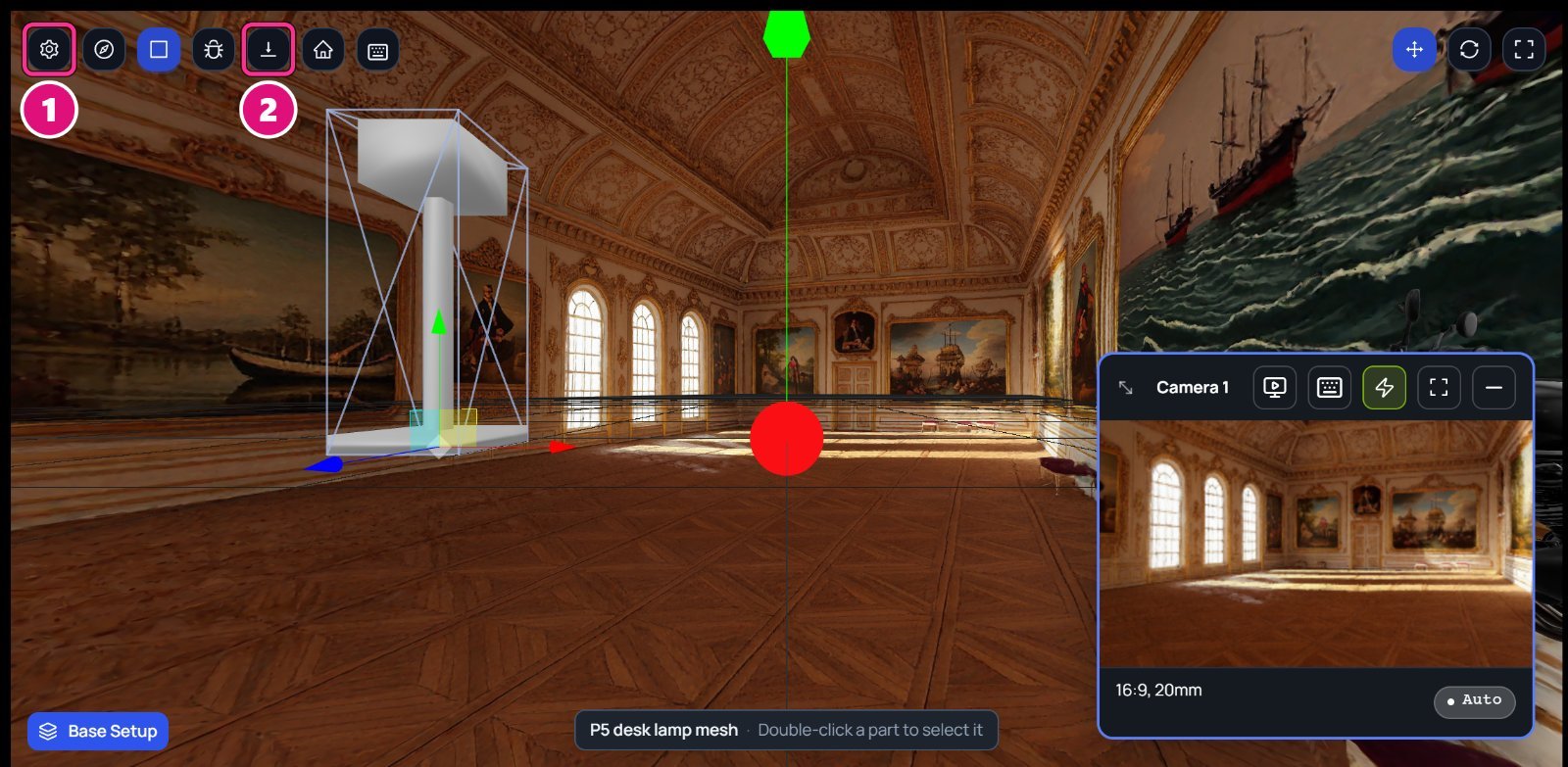
- Settings
- Top-Down View
Fly through a 3D scene
To change how fast you fly, click Settings (the gear) in the canvas toolbar, then Camera & controls.
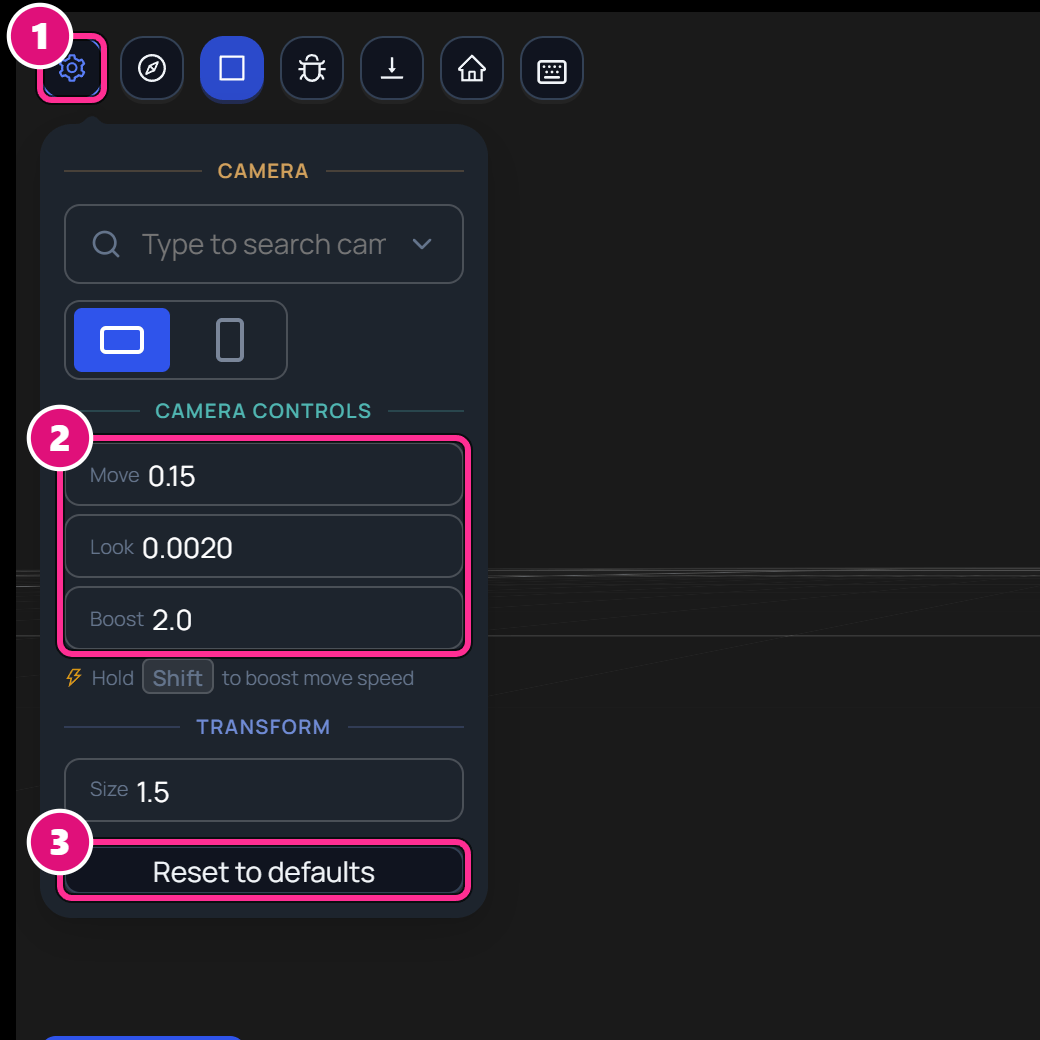
- Settings
- Move, Look, Boost
- Reset to defaults
- Move sets how fast the keys move you.
- Look sets how fast dragging turns the view.
- Boost sets how much faster you move while you hold Shift.
Select an item
Click the item’s row in the Outliner. Its settings open in the Properties panel.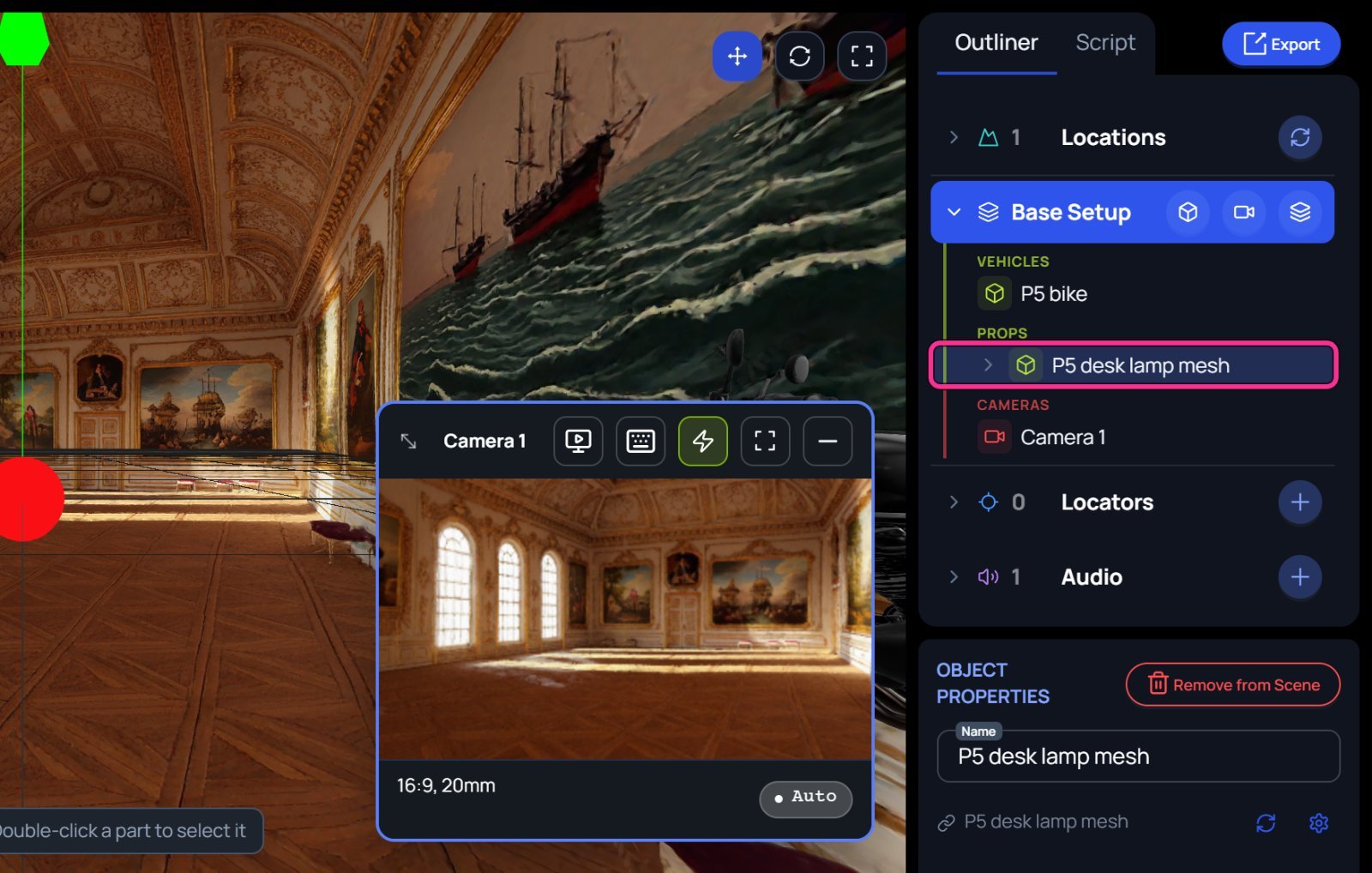
- Shift+click adds another item to the selection.
- Esc clears the selection.
- Double-click an object on the canvas to select one of its parts. See Parts of an object.
Jump to the selection
Select a camera, a locator, an object or a part, then press F. You can also click Jump to at the top of its Properties panel. The view jumps there at once.
After F frames an object or a part, keep F held and drag. The view orbits around the middle of what you framed. Let go of F or the mouse button to stop.
A jump moves your view, not the scene, so Ctrl+Z doesn’t undo it.
The view doesn’t jump in these cases:
- In Top-Down View, or while the camera preview is full screen, Jump to is grayed out.
- For a hidden object, it shows It’s hidden — show it to jump to it.
- For an object still loading, it shows Nothing to jump to yet — it’s still loading.
- F does nothing for a location, a splat or a ruler.
Top-Down View
Click Top-Down View to look straight down on the scene. Middle-drag to pan, scroll to zoom, and use W, A, S, D to move.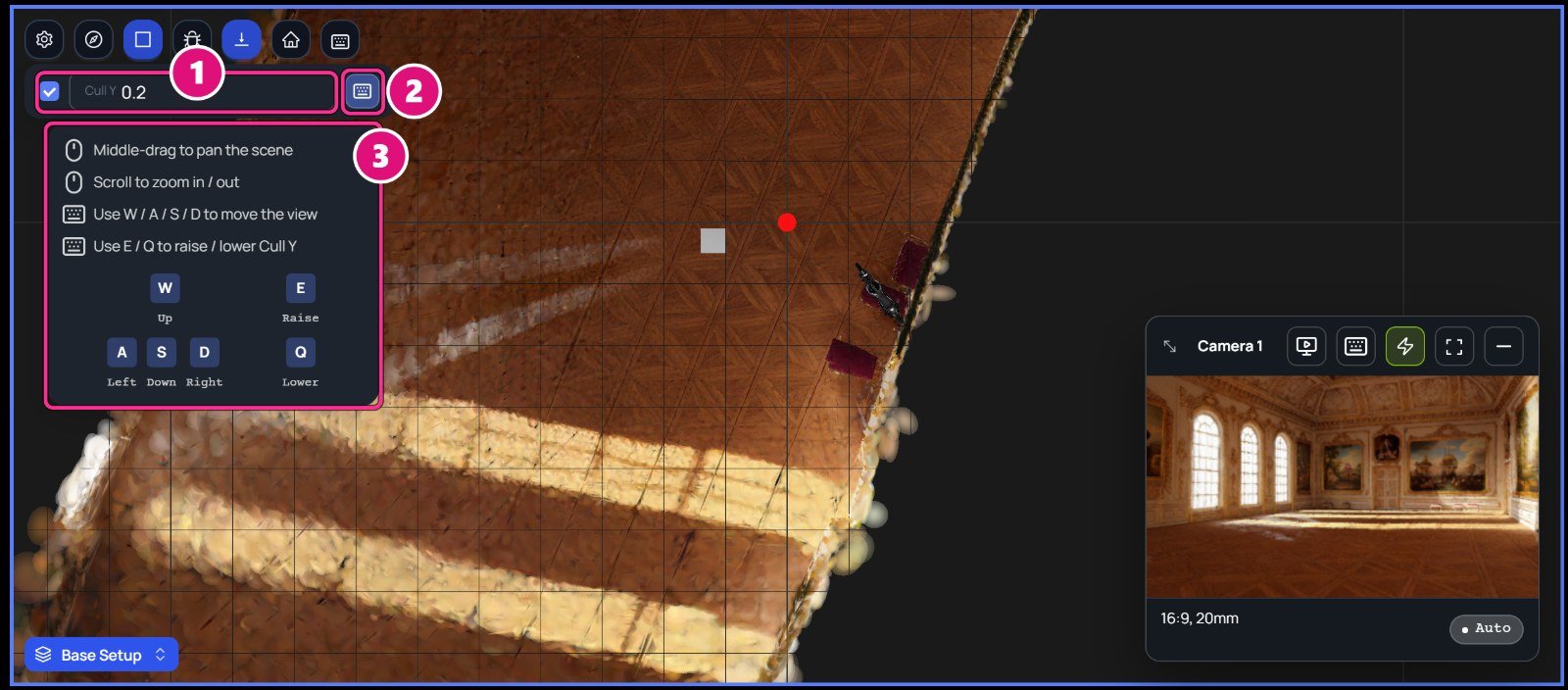
- Cull Y
- Controls
- Top-down controls
- Drag the value or type a height.
- Click the canvas, then press E to raise the cut and Q to lower it, by 0.5 each time.
- Untick the box to see the whole scene. Tick it again to go back to the last height.
- Reset view centers the view again and keeps the Cull Y height.
Related
Scene editor
The canvas toolbar and the panels around it.
Objects
Move, rotate or scale what you selected.