

Sign in on the web
Open spark.lightcraft.pro in Chrome. Use the email address your invitation went to. In Safari on a Mac, Spark opens an Improve your experience window after you sign in. It can’t be closed, so open Spark in Chrome instead.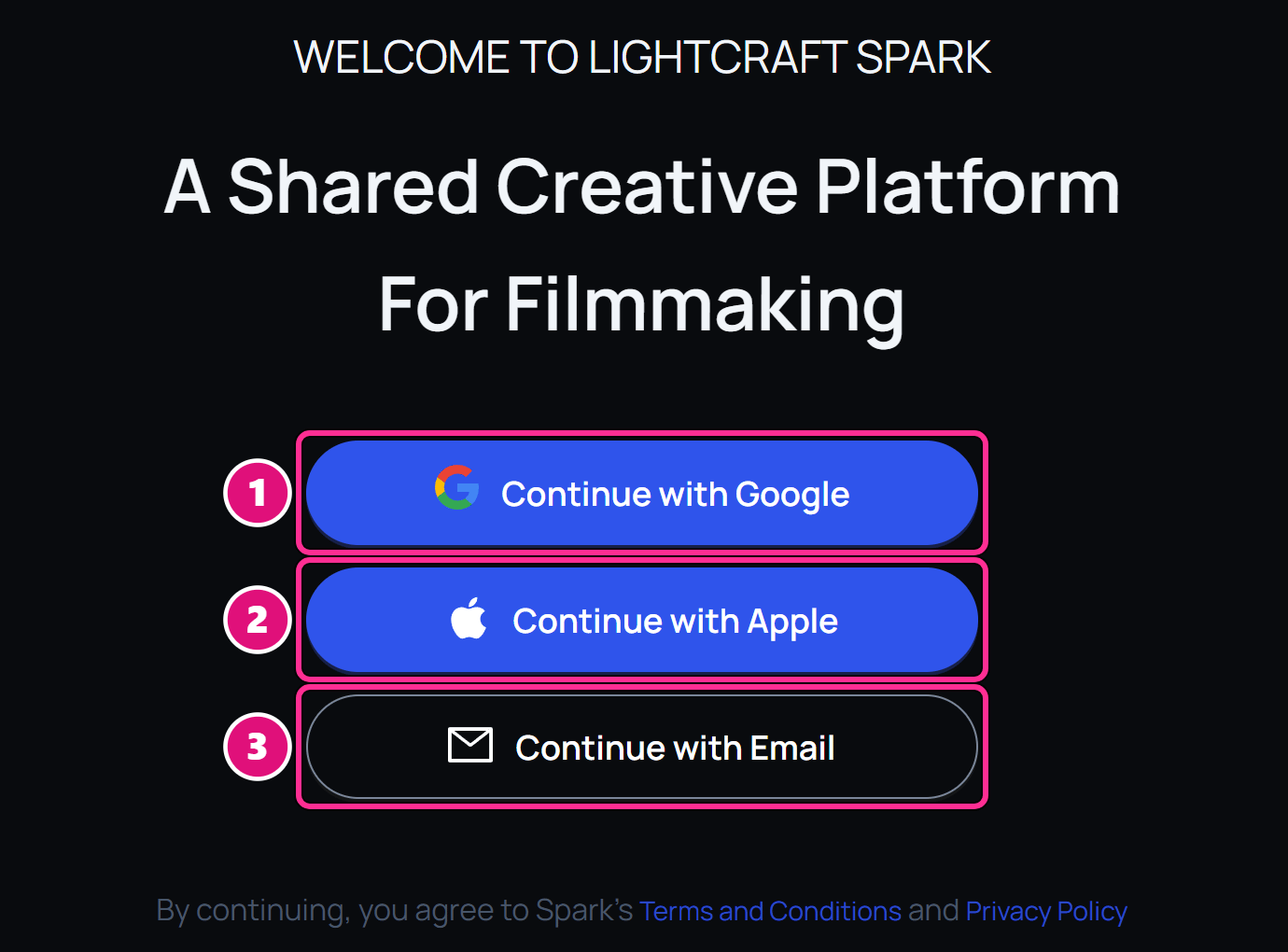
- Apple
Spark says Email Not Whitelisted
Spark says Email Not Whitelisted
Spark lets in approved email addresses only. An invitation to an organization doesn’t add your address. Write to support@lightcraft.pro to ask for access, then sign in again.
Spark says Confirm your email first
Spark says Confirm your email first
You signed up with email but haven’t opened the confirmation link yet. Open the newest email from Spark, click its link, then sign in again.
Install and sign in on iPhone or iPad
Sign in on the web first. The Home page then shows a QR code under Shoot with Spark on iPhone.Get the app
Scan the QR code with your iPhone, or search for Lightcraft Spark on the App Store.
Sign in
Open the app and sign in with your account. See Spark iOS app.
Install Spark Desktop
Spark Desktop installs as Spark Atlas. Download it from Download Spark Desktop in the Gallery, or here: To sign in, open Spark Atlas and click Sign in at the top right. Your browser opens to finish signing in. See Upload takes from iPhone for the offload workflow.Related
Quickstart
Make your first 3D scene.
Organizations
Create or join an organization.