

The examples on this page were created using Claude Code. Other AI agents and models can follow the same prompts.
Prerequisites
- An AI agent installed on your computer and signed in, such as Claude Code in Claude Desktop or a terminal.
- System requirements:
- Mac: Apple silicon, macOS 15 or later
- Windows: Windows 10 or 11, an x64 processor
- A Spark production with at least one script. See Quickstart.
Important: you need a coding agent installed on your computer. This guide will not work in claude.ai, chatgpt.com or similar browser chats.
Set up
To connect your agent to Spark, follow these steps:Open your agent
- In Claude Desktop, click the Code tab. Under the prompt box, choose Local, then any folder for Claude to work in.
- In a terminal, type
claude, then press Enter. If it asks to trust the folder, choose yes.
Give your agent the setup prompt
The install takes a minute or two.If your agent asks permission to run the installer, allow it.
Setup prompt
Sign in and start a new session
Your browser will open Spark. Sign in there. Never type your password into the chat.When your agent suggests, start a new session: click + New in Claude Desktop, or type
/exit, then claude in a terminal.What to ask for
- Paste a scene’s link from the Spark web app, so Claude knows where to work.
- Ask for a plan first. Each prompt below ends with “Show me your plan before you build it.”
- Use Claude for jobs with many repeated steps. Big ones can take 20 minutes or more.
- Make small changes, such as moving one object, by hand. That’s faster.
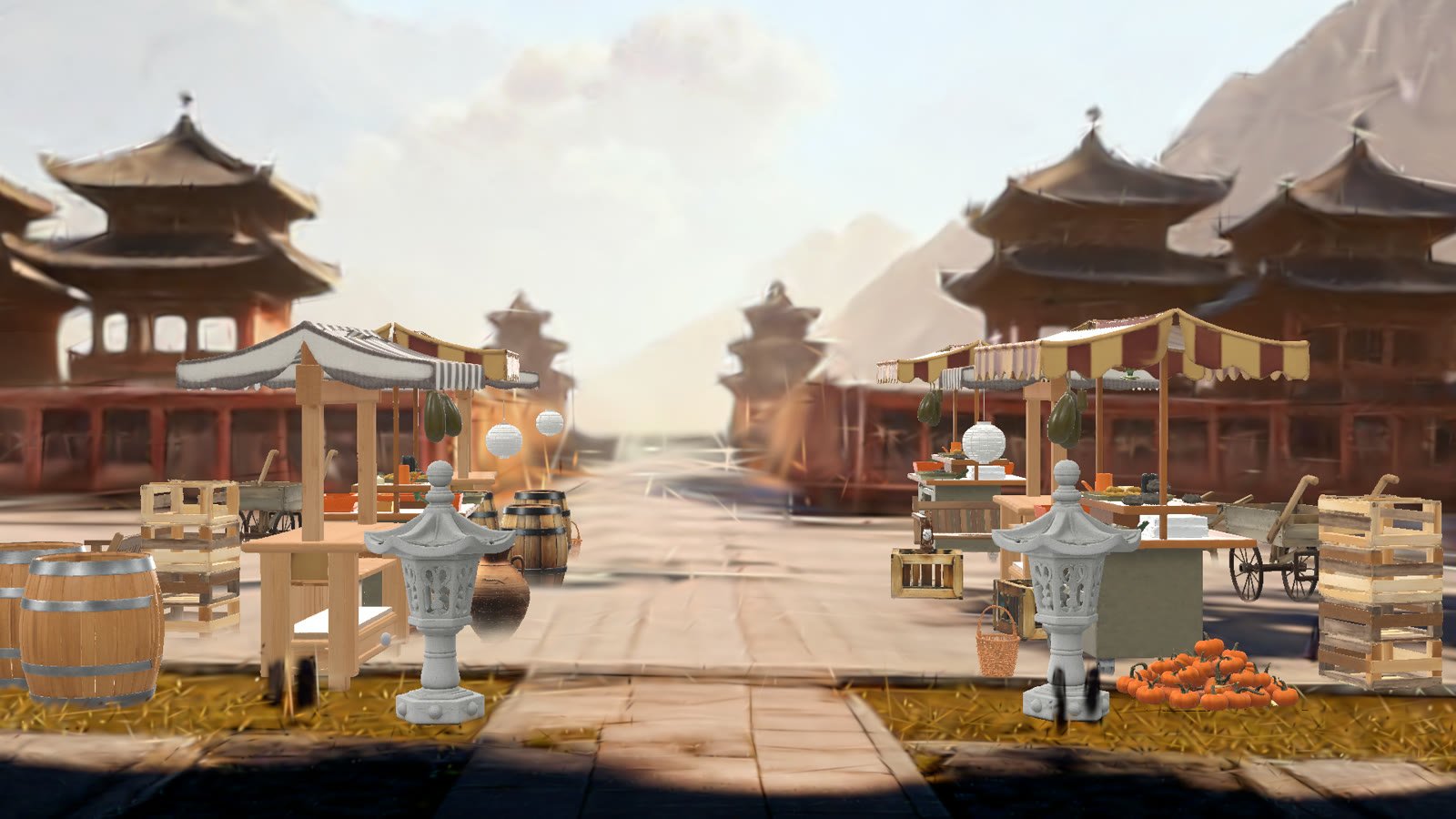
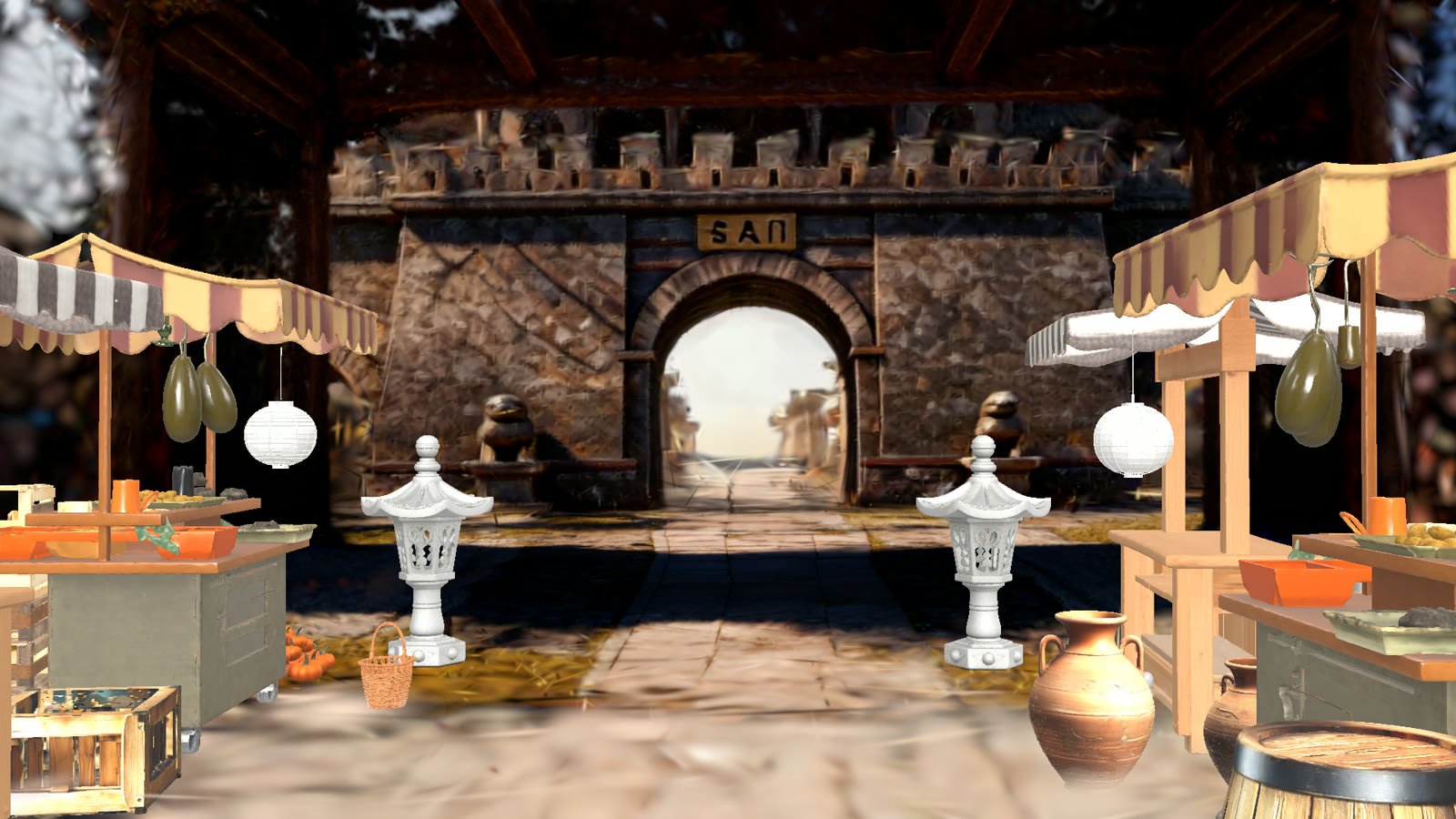
Dress a set
Set dressing prompt
Animate complex movement
Animation prompt
Add camera moves
Camera move prompt
What Claude can do
- Place, move, scale and rotate objects in a 3D scene
- Place assets from your production’s files or the Spark Library
- Make simple USD stand-ins, such as props and characters, then upload them
- Add cameras with real lenses, aim them and set focus
- Animate objects and cameras with keyframes
- Render a camera’s view, check the frame and fix its own mistakes
- Render shot previews, then cut them into an edit with audio
- Pose the parts of an asset
Ask Claude to undo any change, such as “remove the props you just added”. Undo leaves files behind: assets Claude placed or made stay in your production’s files.
What Claude can’t do
- Create organizations, productions or scripts. Use the Spark web app.
- Delete a scene. Use the Spark web app.
- Change lighting. Every render uses the same studio light.
- Record takes. Use the Spark iOS app.
- Make new Gaussian splat locations. It uses the ones in your files and the Library.
Update Spark
Give your agent the setup prompt again, then start a new session. The installer updates Spark each time it runs.Troubleshooting
- Your agent asks you to run a command yourself. A safety check blocked the installer or the sign-in. Paste the whole setup prompt again, including the sentence that gives permission.
- The ground or buildings look smeared. Library locations are sharp only near their middle. Ask Claude to move the action and camera closer to the middle. If the scene needs more room, ask it to scale the location up.
Related
Quickstart
Make a production and a script for Claude to work in.
Asset Library
See the files Claude places and uploads.