

Creating an organization
To create a new organization, click New Organization on the Home page and enter a name. You become the owner of any organization you create, with the Admin role.Inviting team members
Invite collaborators to your organization by email. Invited members receive a notification and can join immediately if they already have a Spark web account. To send an invitation, click the gear icon in the top bar, open Organization Settings, and click Invite in the Members section. Only the organization owner can invite.Choosing production access
When you invite someone as a User, the Production access section of the invite window sets which productions they can open once they accept.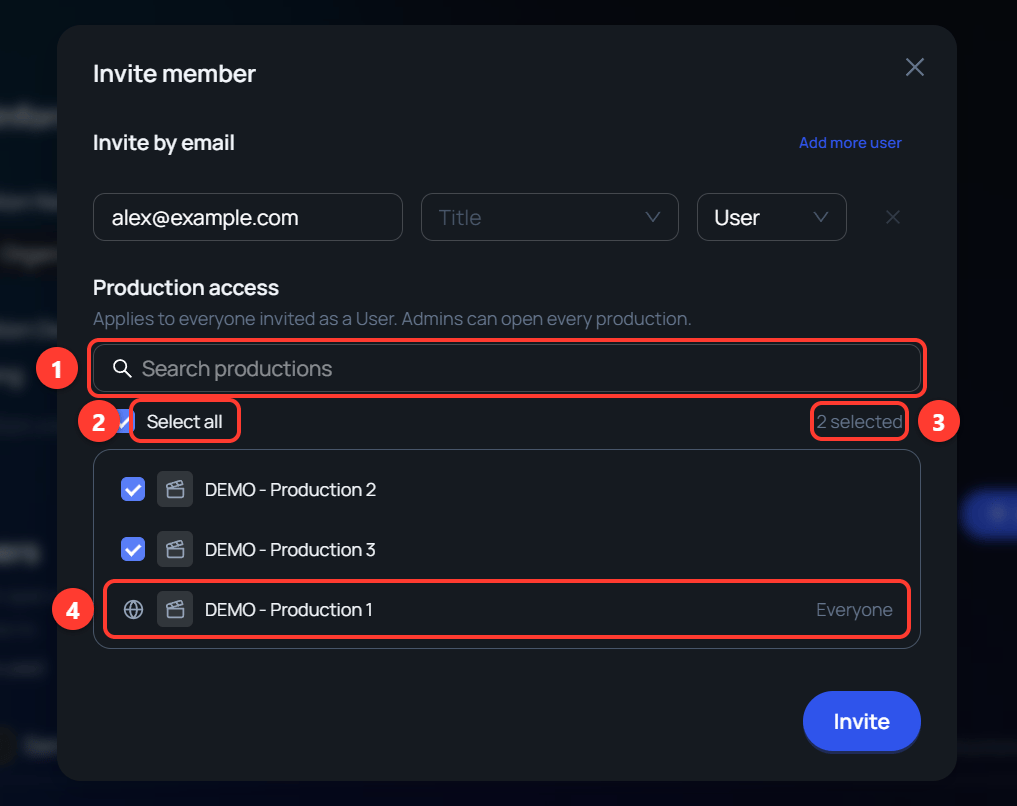
- Search productions filters the list by name.
- Select all ticks every production the search is showing.
- The count shows how many productions are ticked.
- A production marked Everyone is already open to the whole organization. It has no checkbox, because every member can open it.
Changing access after you invite
A sent invitation appears in the Members list until the person accepts.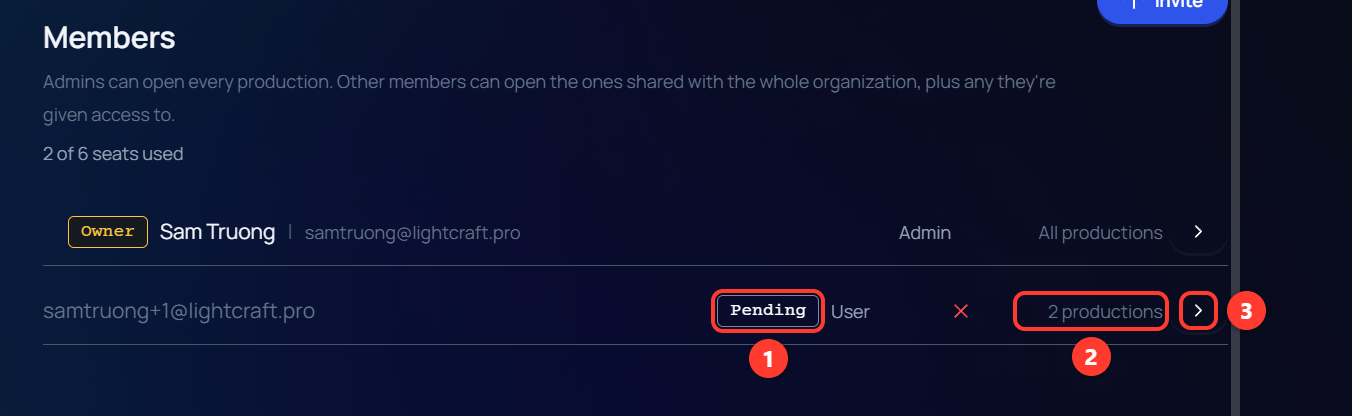
- Pending marks an invitation that has not been accepted yet.
- The count is the productions this person can open after they accept. It includes productions open to everyone, so it can be higher than the number you ticked.
- The arrow opens Production access for that row. Clicking anywhere on the row does the same.
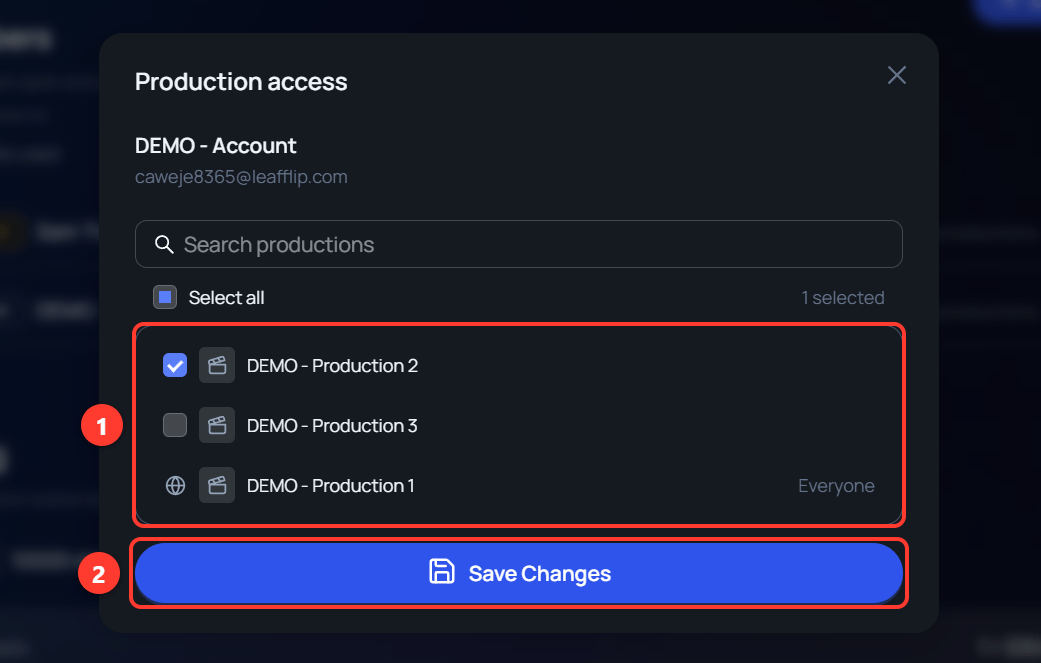
- The productions this person can be given. Ticked productions are the ones they can open.
- Save Changes applies the new set.
Seats and invitations
An organization has a fixed number of seats. Each member uses one seat, and so does each invitation that has not been accepted yet.The seat line
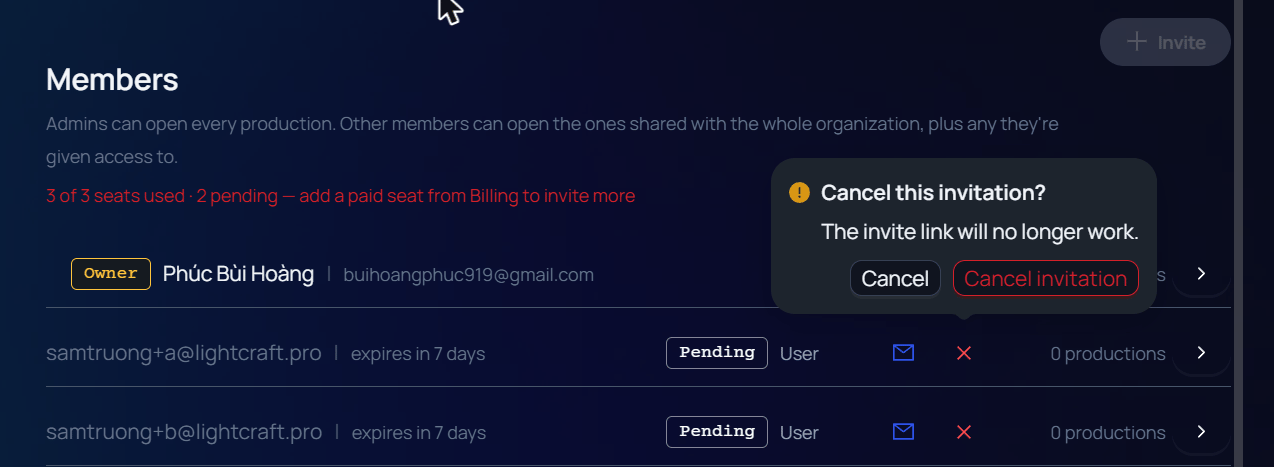
Open Organization Settings and look under Members. A line shows how many seats are in use, such as 1 of 3 seats used. An invitation that has not been accepted yet holds a seat and is counted as pending: 2 of 3 seats used · 1 pending. When every seat is taken, the line turns red and reads 3 of 3 seats used · 2 pending — add a paid seat from Billing to invite more. The Invite button is greyed out, with the tooltip Seat capacity reached.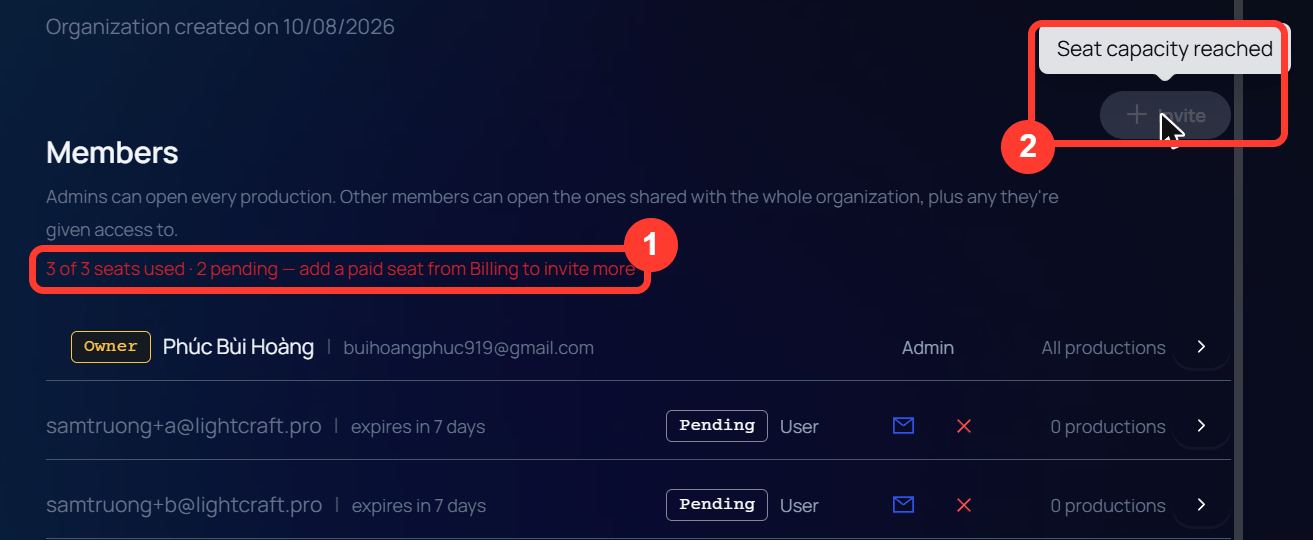
- The seat line of a full organization.
- Invite is greyed out until a seat is free.
The invite window
The Invite member window shows the number of free seats under Invite by email. It checks each address when you leave the box.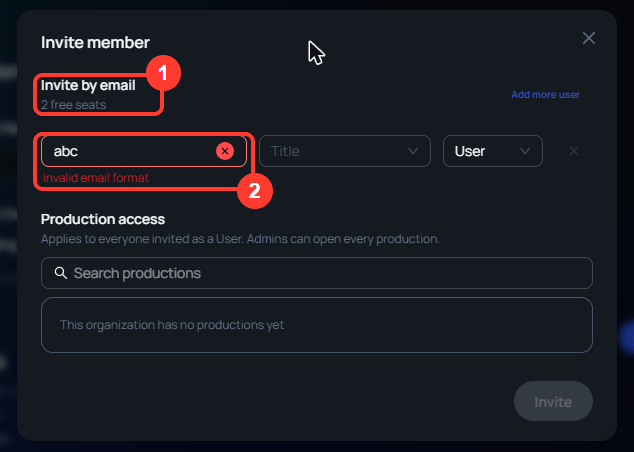
- The free seats left in the organization.
- The message under an address that cannot be invited.
Add more user is greyed out, with the tooltip No more free seats, when the rows in the window already use every free seat.
Pending invitations
An invitation appears in the Members list with the tag Pending and the time left, such as expires in 7 days.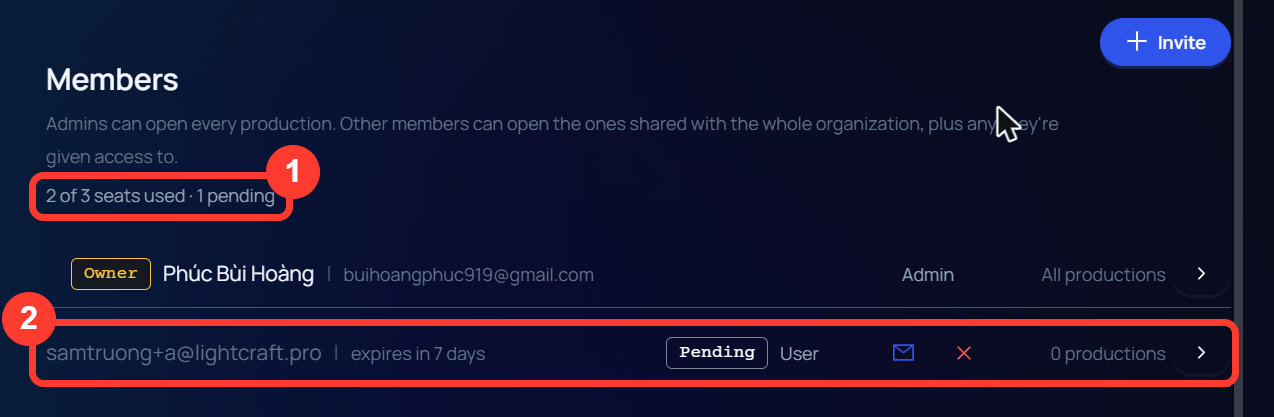
- The seat line counts the invitation as pending.
- The invitation row, with the envelope icon and the X.
- The envelope icon (Resend invitation) sends it again and shows Invitation resent to with the address.
- The X asks Cancel this invitation? and warns The invite link will no longer work. Click Cancel invitation. The message Invitation cancelled! appears, and the seat is free again.
Expired invitations
An invitation that has run out moves under the heading Expired invitations · don’t hold a seat. It has the tag Expired and the date it ran out. It is no longer counted on the seat line, so its seat can go to someone else.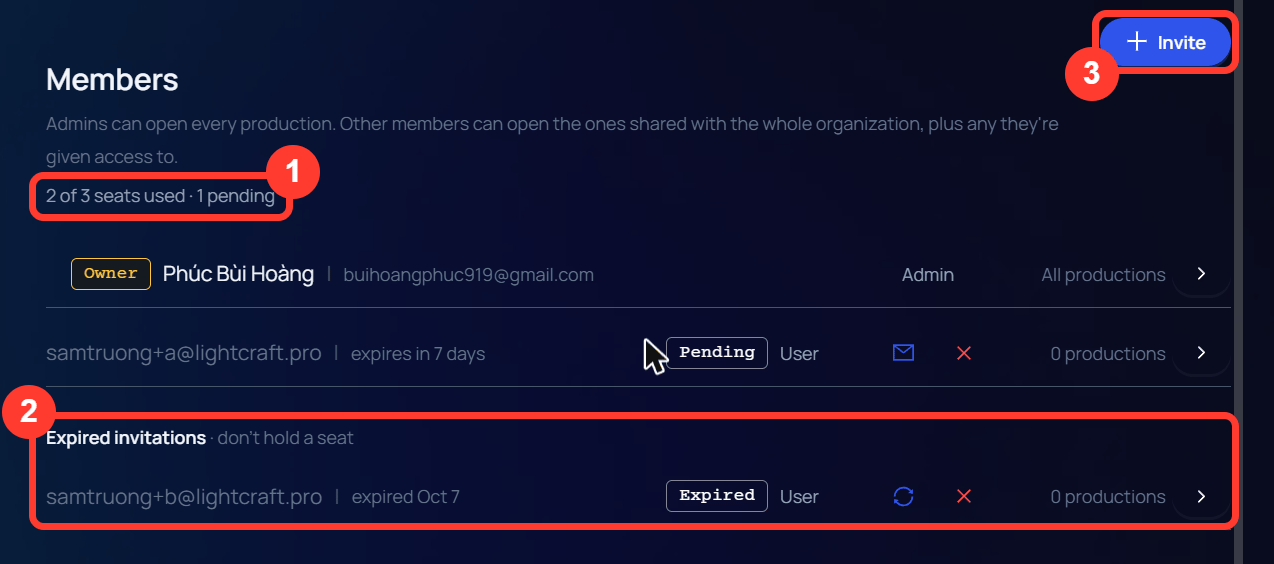
- The seat line no longer counts the expired invitation.
- The expired invitation, under its own heading.
- Invite is enabled again.
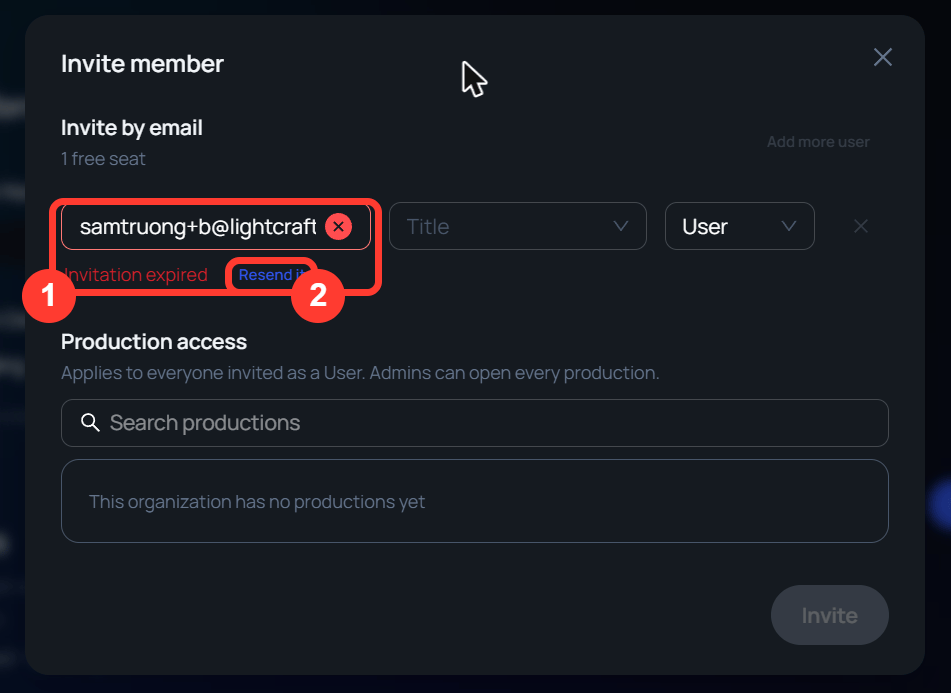
- The message for an address whose invitation ran out.
- Resend it sends the invitation again.
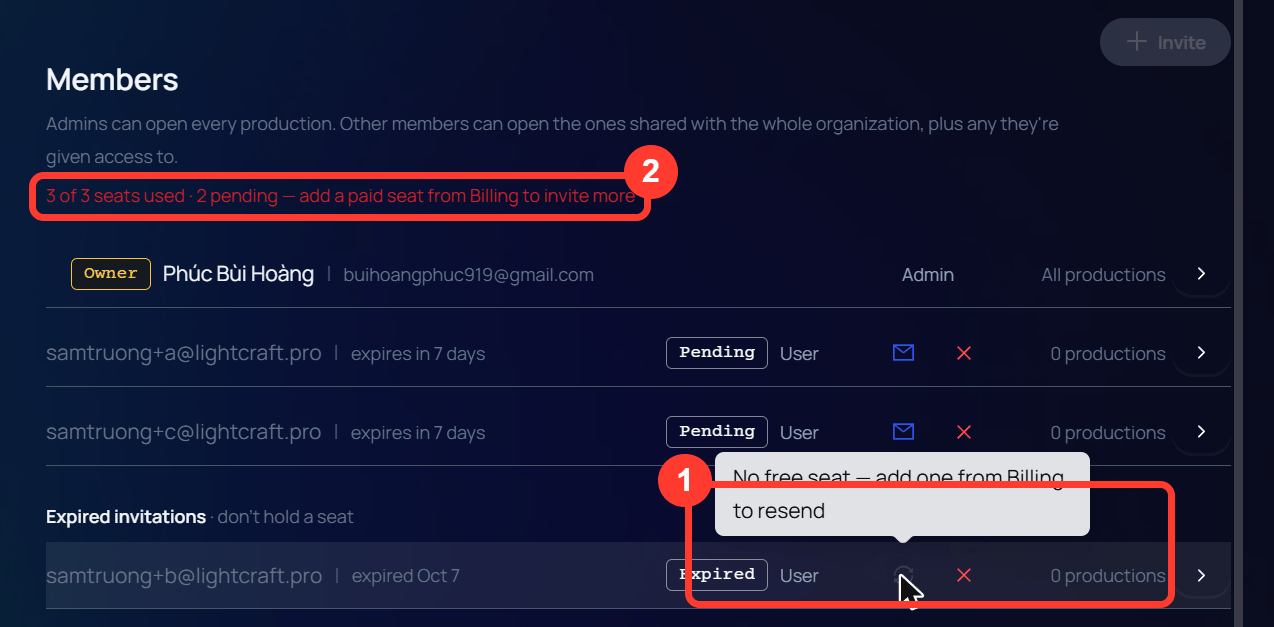
- The greyed resend icon and its tooltip.
- The seat line of the full organization.
Accepting when the organization is full
A person who accepts an invitation while the organization has no free seat is not added. They see a page that names the organization and says it is out of seats.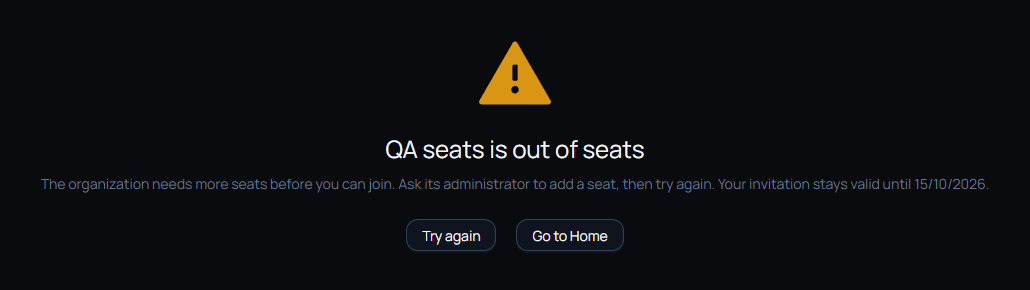
Roles and permissions
Organizations support the following roles:- Admin — Full access to organization settings, member management, and all productions.
- User — Can open the productions shared with the whole organization, plus any productions they are given access to. Cannot manage organization settings or members.