

Auto-generated script outline
When you write a scene heading in a script (for example,INT. WAREHOUSE - NIGHT), the Spark web app automatically creates a script outline on the left side. Clicking on one of these script scenes displays the list of linked 3D scenes on the right. The list starts out empty, but you can add 3D scenes easily.
Navigating the script outline
Clicking on the script outline at the left automatically navigates to that section of the script, and displays the list of 3D scenes that are associated with that script scene.3D Scene list sidebar
The 3D scenelist will be empty at first. Each 3D scene is a workspace where you can import assets and arrange setups and cameras. Each 3D scene card shows three counts under the scene name.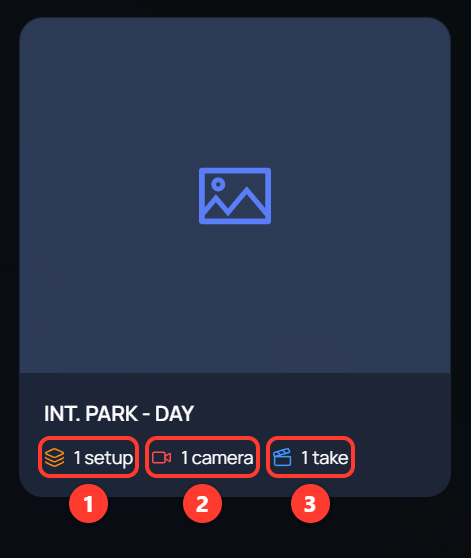
- Setups in the scene, including the Base Setup.
- Cameras across all setups.
- Takes: one CG Take for each camera, plus any takes you have recorded.
Navigating from script to 3D scene editor
Click the + Create a New 3D Scene button in the upper right hand corner of the Scripts page to create a new blank 3D scene. Spark will suggest a name based on the script scene title, but you can change the 3D scene name to better describe it.
Select any 3D scene in the sidebar to open it in the 3d scene editor. You can switch between the script editor and 3D scene editor at any time without losing your place.