
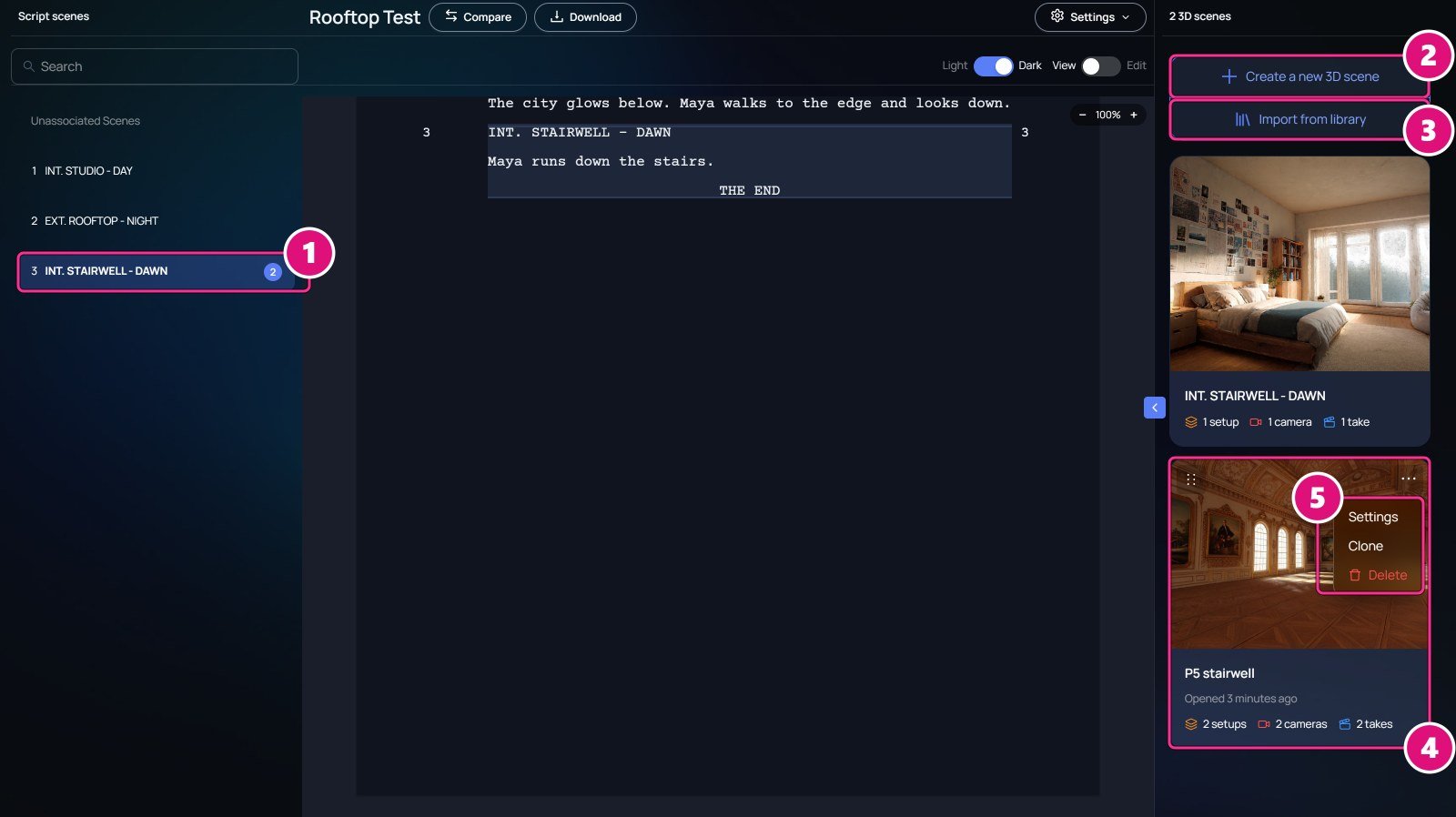
A 3D scene is a set you build for one script scene. A script scene can hold several 3D scenes, each with its own location, objects and cameras. A script open in Spark. Box 1 is on the script scene INT. STAIRWELL - DAWN with a count of 2, 2 on Create a new 3D scene, 3 on Import from library, 4 on the P5 stairwell card and 5 on the card's menu with Settings, Clone and Delete.
  1. Script scene and its 3D scene count
  2. Create a new 3D scene
  3. Import from library
  4. 3D scene card: setups, cameras, takes
  5. Card menu: Settings, Clone, Delete

Create a 3D scene

1

Pick the script scene

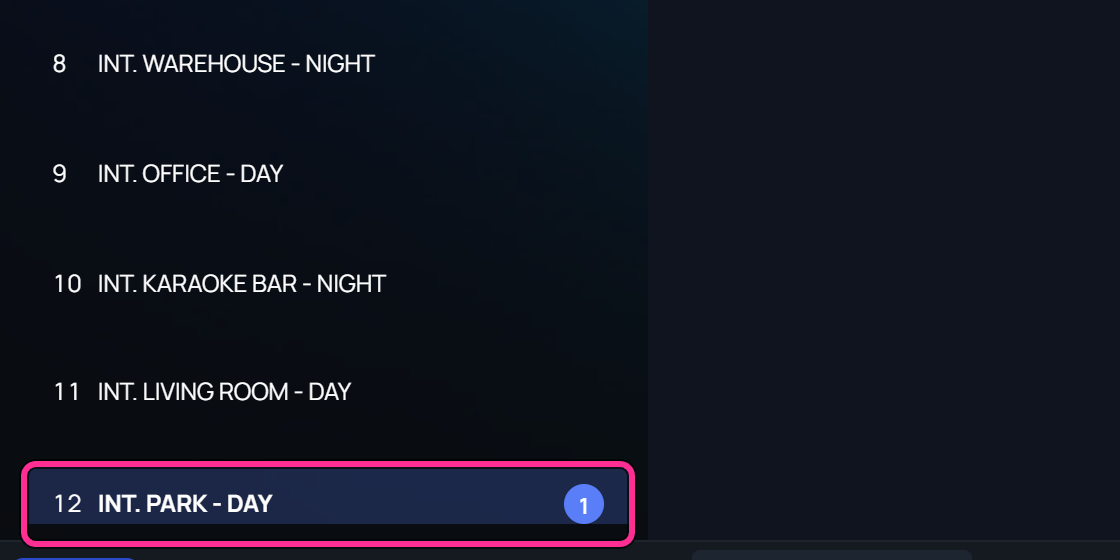
On the script page, click the script scene in the left column. Its 3D scenes show on the right.The Script scenes column, with a box on INT. PARK - DAY and its 3D scene count.
2

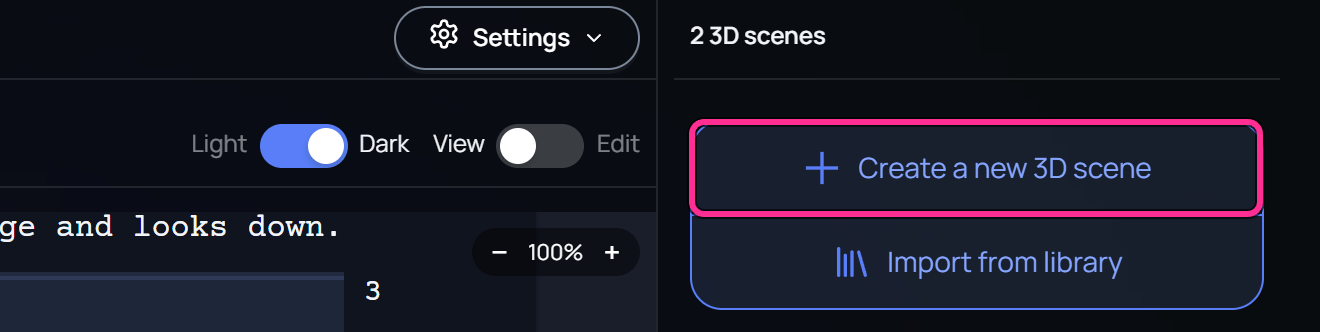
Click Create a new 3D scene

The Create 3D Scene window opens. Spark fills in the name from the scene heading.The right column of the script page, with a box on Create a new 3D scene, above Import from library.
3

Choose the camera

Pick a Camera Preset, then landscape or portrait.The Create 3D Scene window. Box 1 is on Camera Preset with Landscape and Portrait, and 2 on Create. The name reads INT. PARK - DAY.
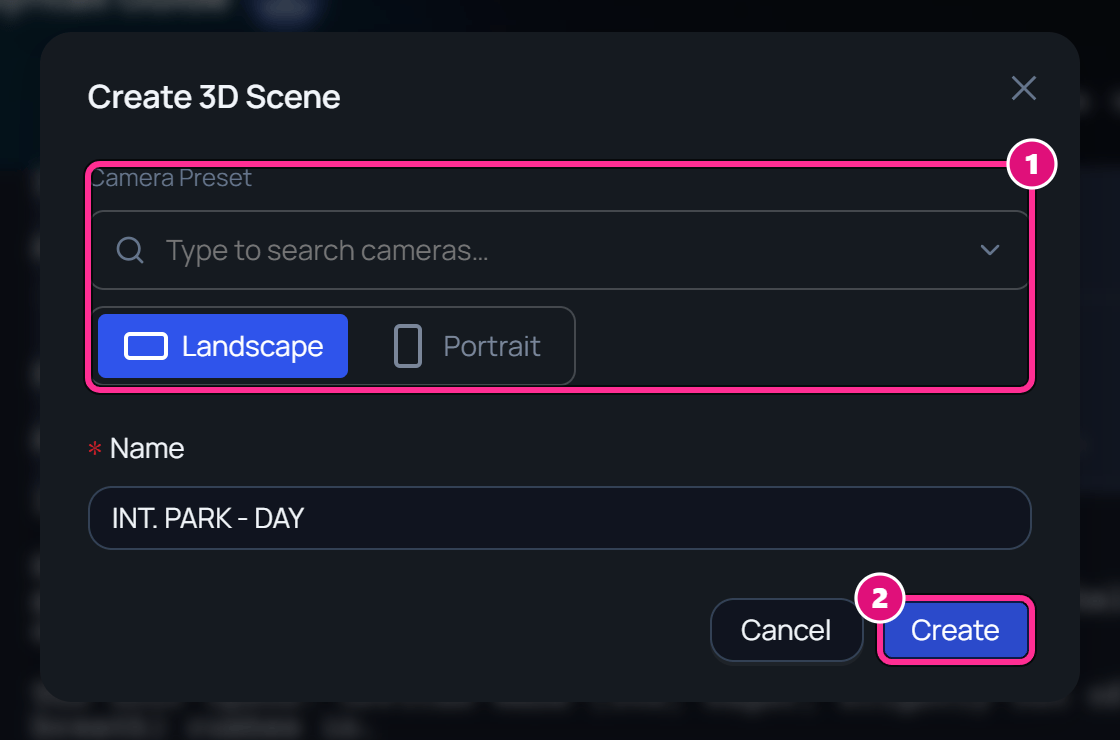
  1. Camera preset and orientation
  2. Create
4

Create it

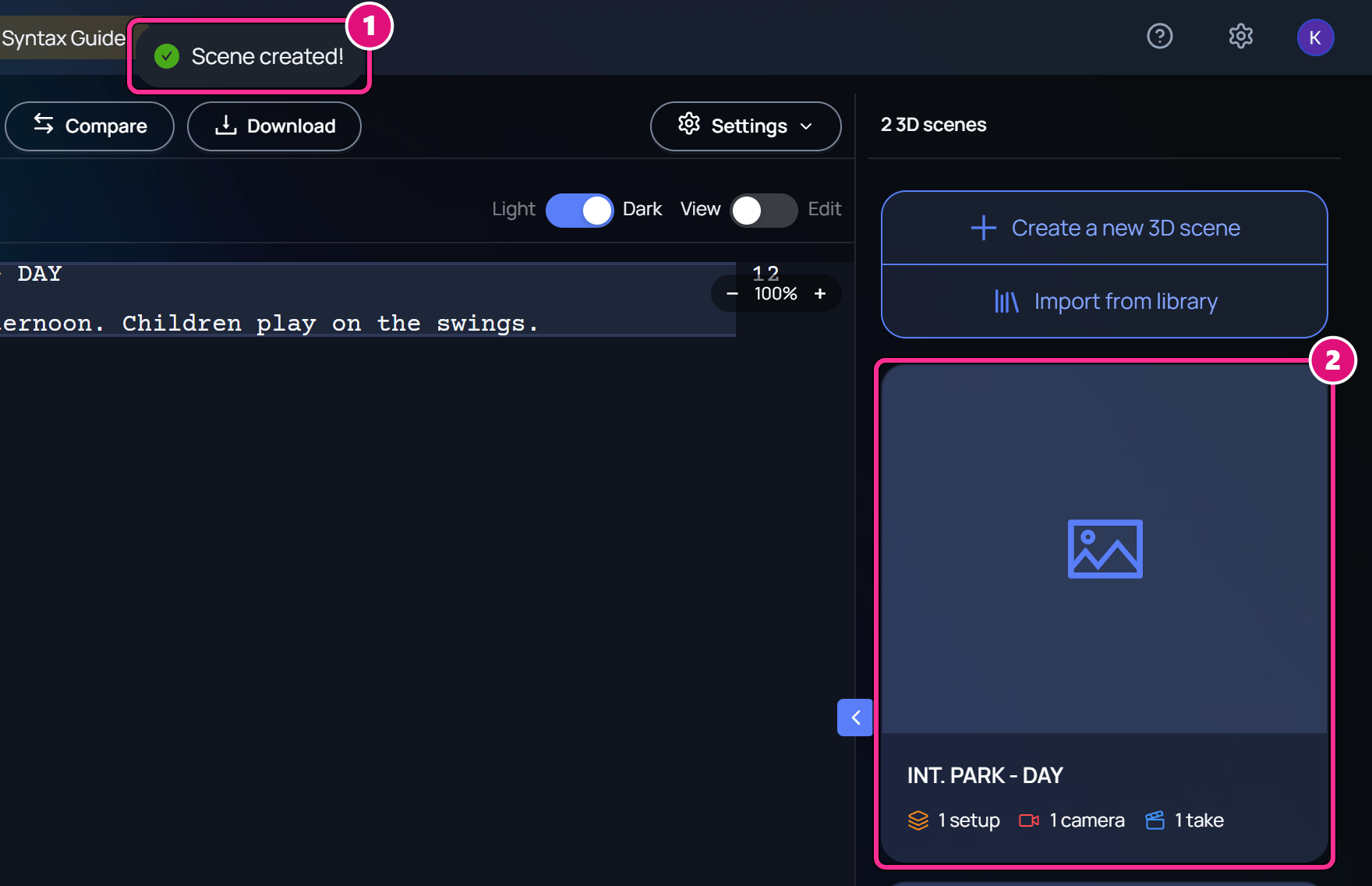
Click Create. Spark shows Scene created! and the new card starts with 1 setup, 1 camera and 1 take.The script page after creating a 3D scene. Box 1 is on the Scene created! message and 2 on the new INT. PARK - DAY card, with 1 setup, 1 camera and 1 take.
  1. Scene created!
  2. New 3D scene card

Start from a library scene

The scene library holds 3D scenes shared with every Spark user. Import one to get your own copy, with its setups, cameras and objects.
1

Click Import from library

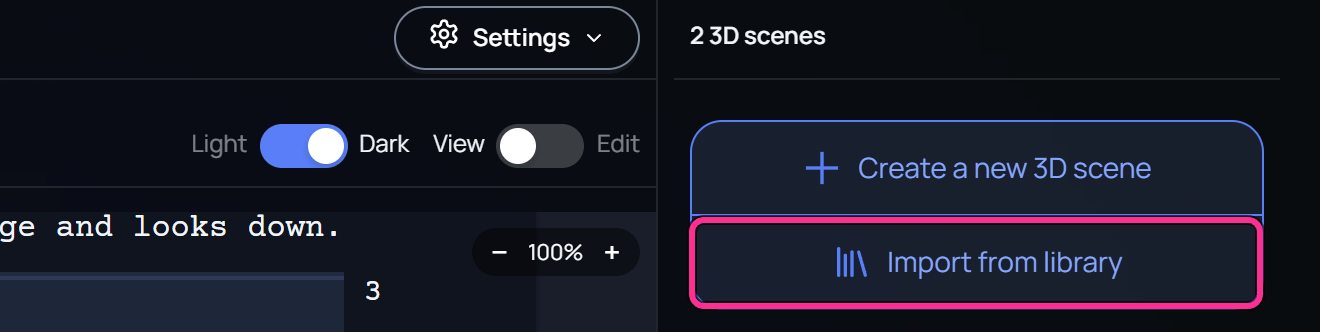
On the script page, pick the script scene, then click Import from library under Create a new 3D scene.The right column of the script page, with a box on Import from library, under Create a new 3D scene.
2

Pick a scene

The Scene Library window opens. The first card, Empty scene, makes a new empty 3D scene. Click a library scene to copy it.
3

Wait for the copy

The window reads Copying the scene and its files, with the size of the files. When it’s done, Imported shows with the scene’s name.To keep working, click Continue in background. The copy carries on in the bottom bar, and Spark gives you a link to the scene when it’s done.
A production with no script offers Start from a library scene, beside Upload a script and Use default script. Spark makes a new script to hold the copy, then opens the copied 3D scene.
The copy is a new 3D scene in your production, and its files count toward your organization’s storage. Your changes don’t reach the library scene, and later library changes don’t reach your copy.

Open a 3D scene

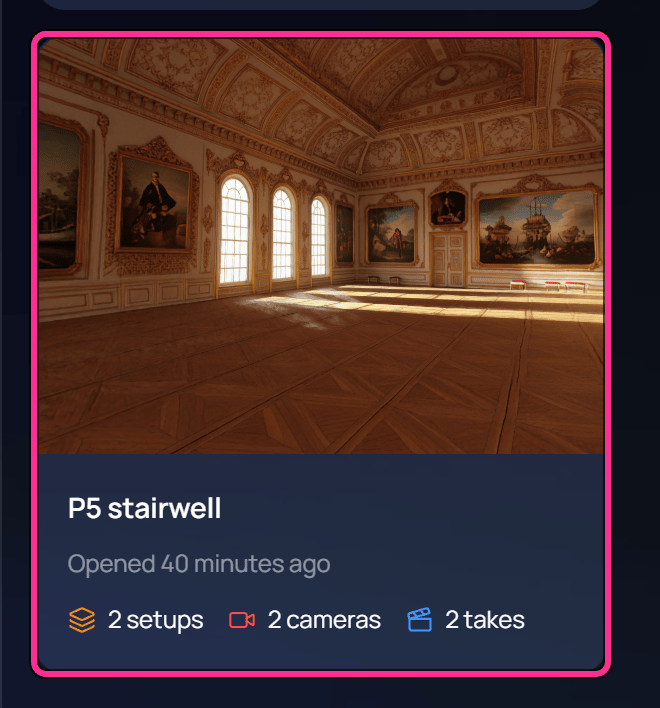
Click its card. The scene editor opens on the 3D Scene tab. The card shows when you last opened it, such as Opened 3 minutes ago. The P5 stairwell 3D scene card in the right column of the script page, with a box around it. It reads Opened 40 minutes ago.
Scene navigation

Scene navigation (☰, top left) moves between 3D scenes without leaving the scene editor. It lists the script’s scene headings and the 3D scenes of the selected heading. Click a 3D scene to open it, or click New 3D Scene to add one to that heading. Scene navigation open over the scene editor. Box 1 is on the menu button at the top left, 2 on the list of script scene headings, 3 on the P5 stairwell 3D scene and 4 on New 3D Scene.
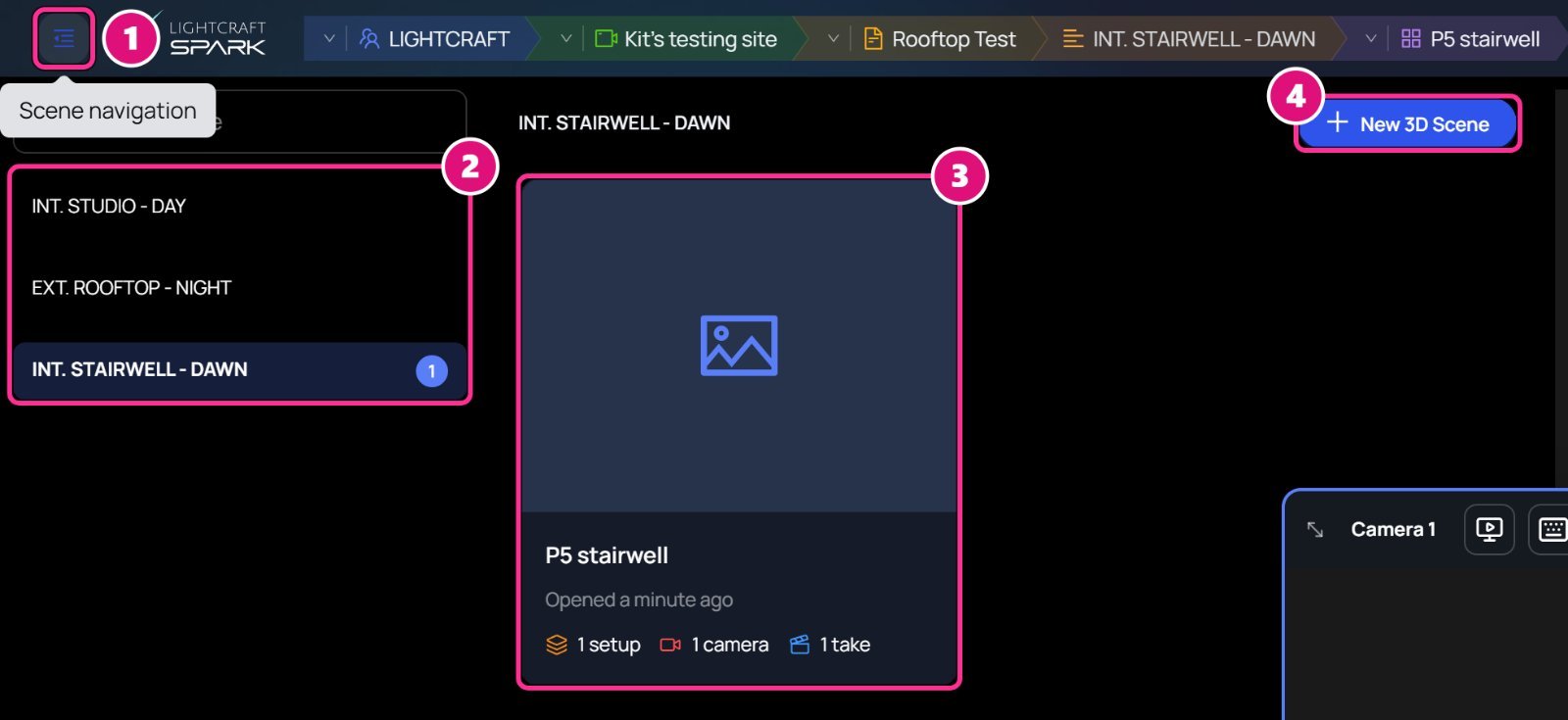
  1. Scene navigation
  2. Script scene headings
  3. 3D scene
  4. New 3D Scene

Rename, clone or delete a 3D scene

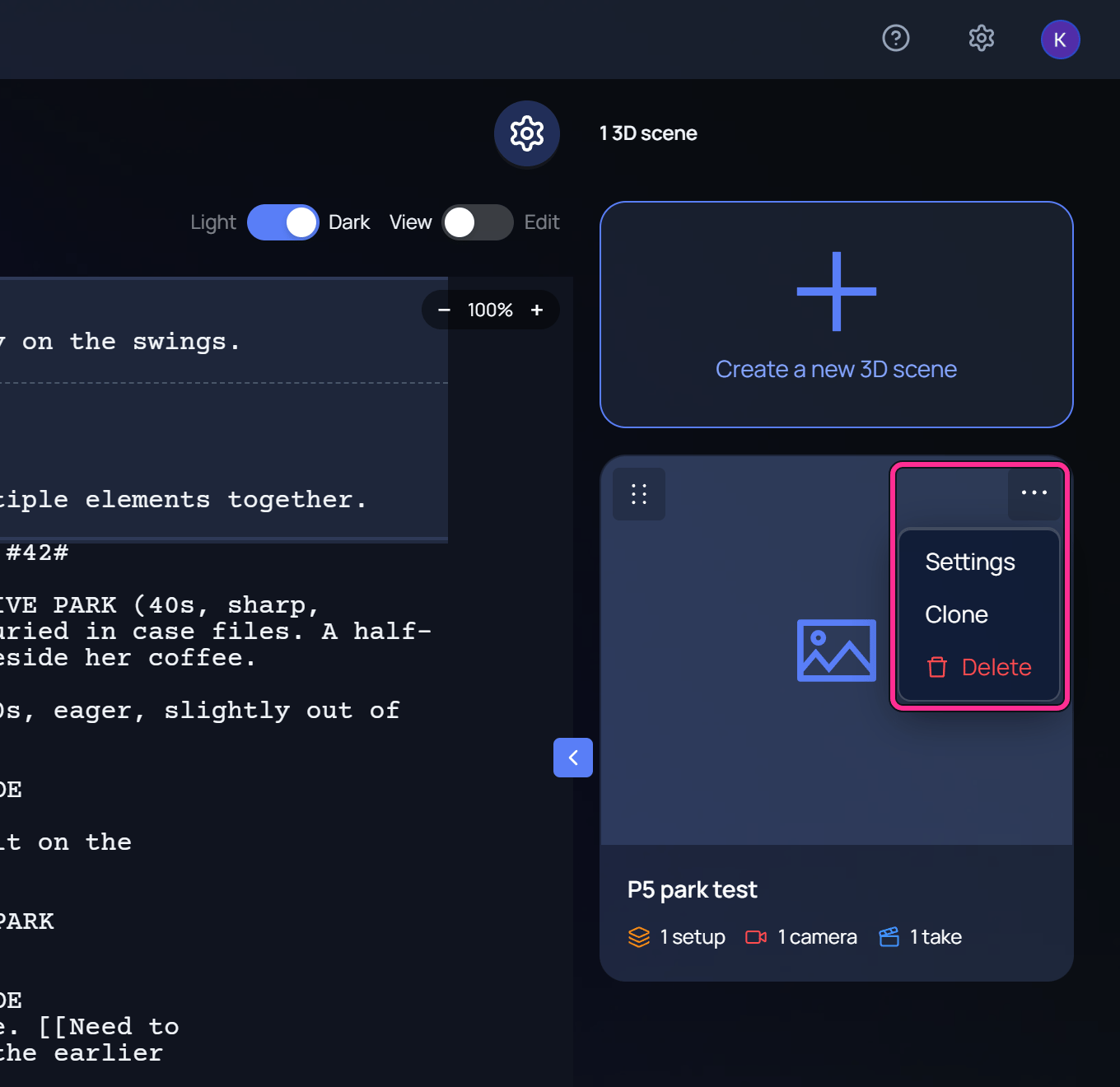
Hover the card, then click ⋯. A 3D scene card with its menu open and boxed: Settings, Clone and Delete. The 3D Scene Settings window. Box 1 is on Camera Preset with Landscape and Portrait, 2 on Name, 3 on the Danger Zone with Delete 3D Scene, and 4 on Save.
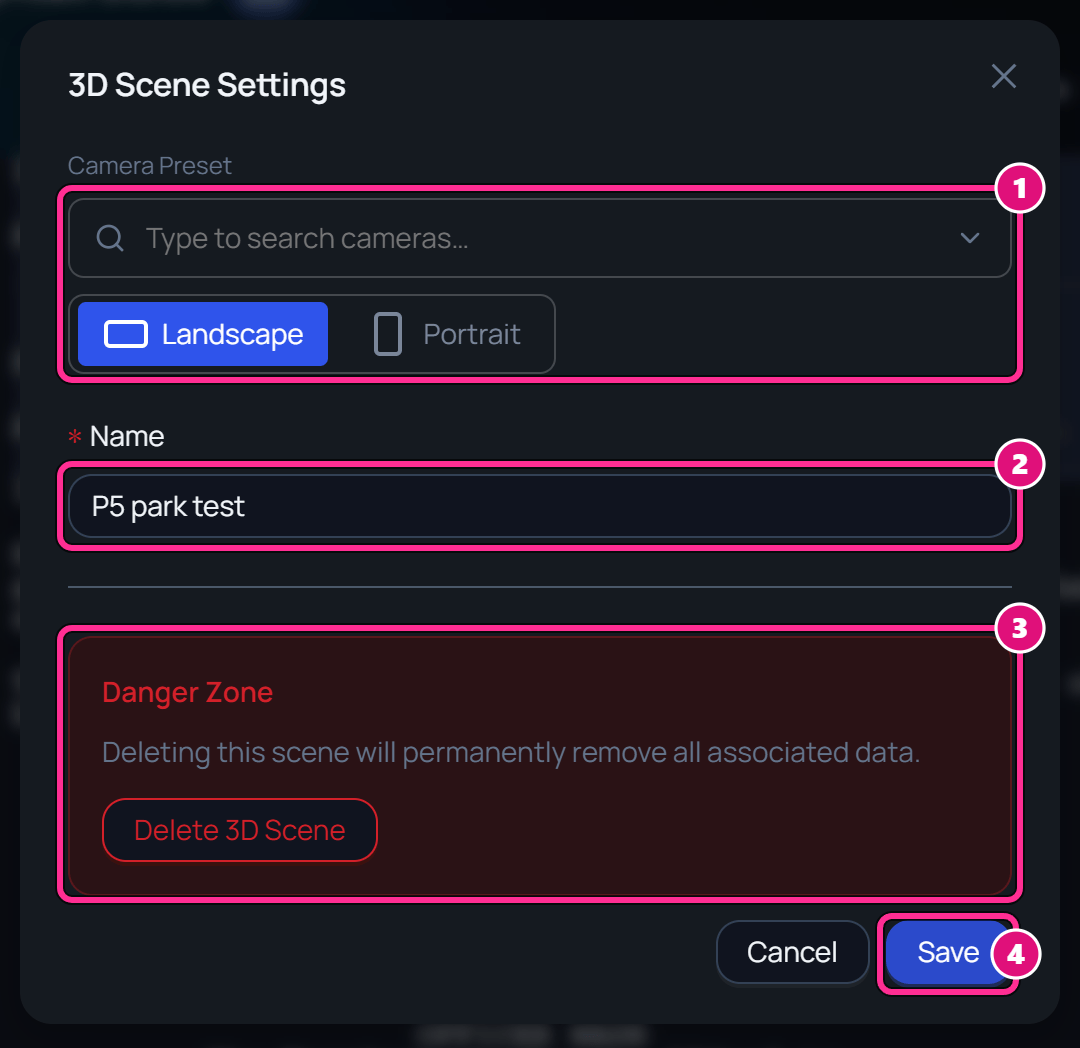
  1. Camera preset and orientation
  2. Name
  3. Delete 3D Scene
  4. Save
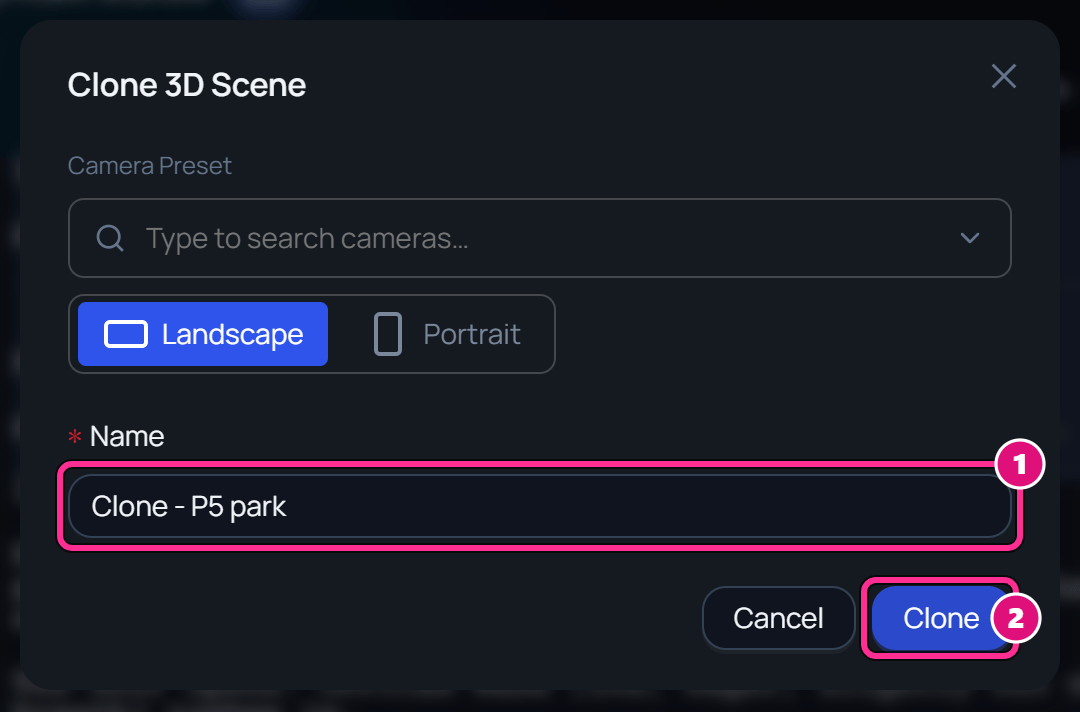
The Clone 3D Scene window. Box 1 is on Name, filled with Clone - P5 park, and 2 on Clone.
  1. Name
  2. Clone
The list doesn’t update after a clone or a delete until you reload the page.

Move a 3D scene to another heading

Drag the card by its handle (⠿, top left) onto another script scene. The script page. Box 1 is on the handle at the top left of a 3D scene card, and 2 on the list of script scenes on the left.
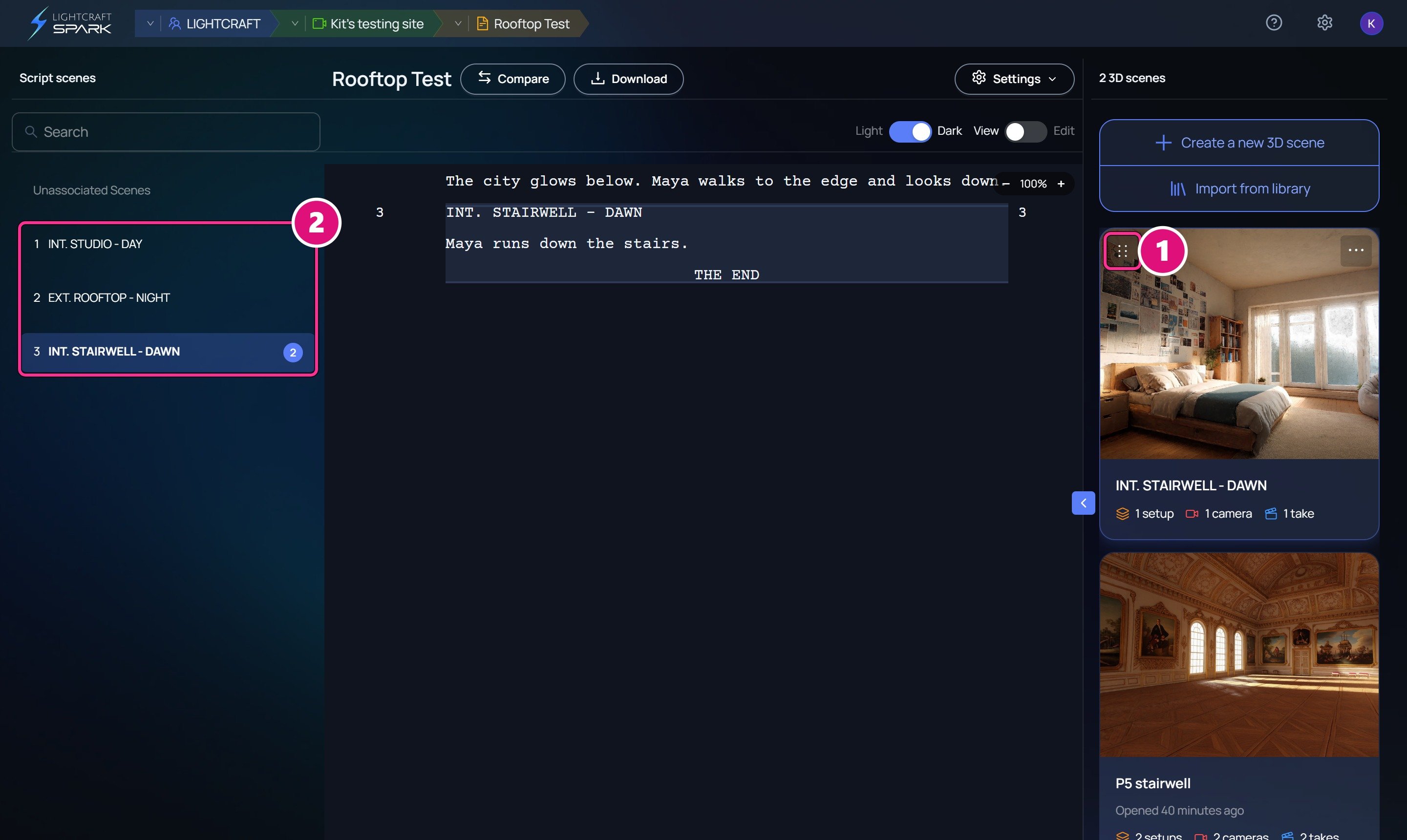
  1. Card handle
  2. Script scenes
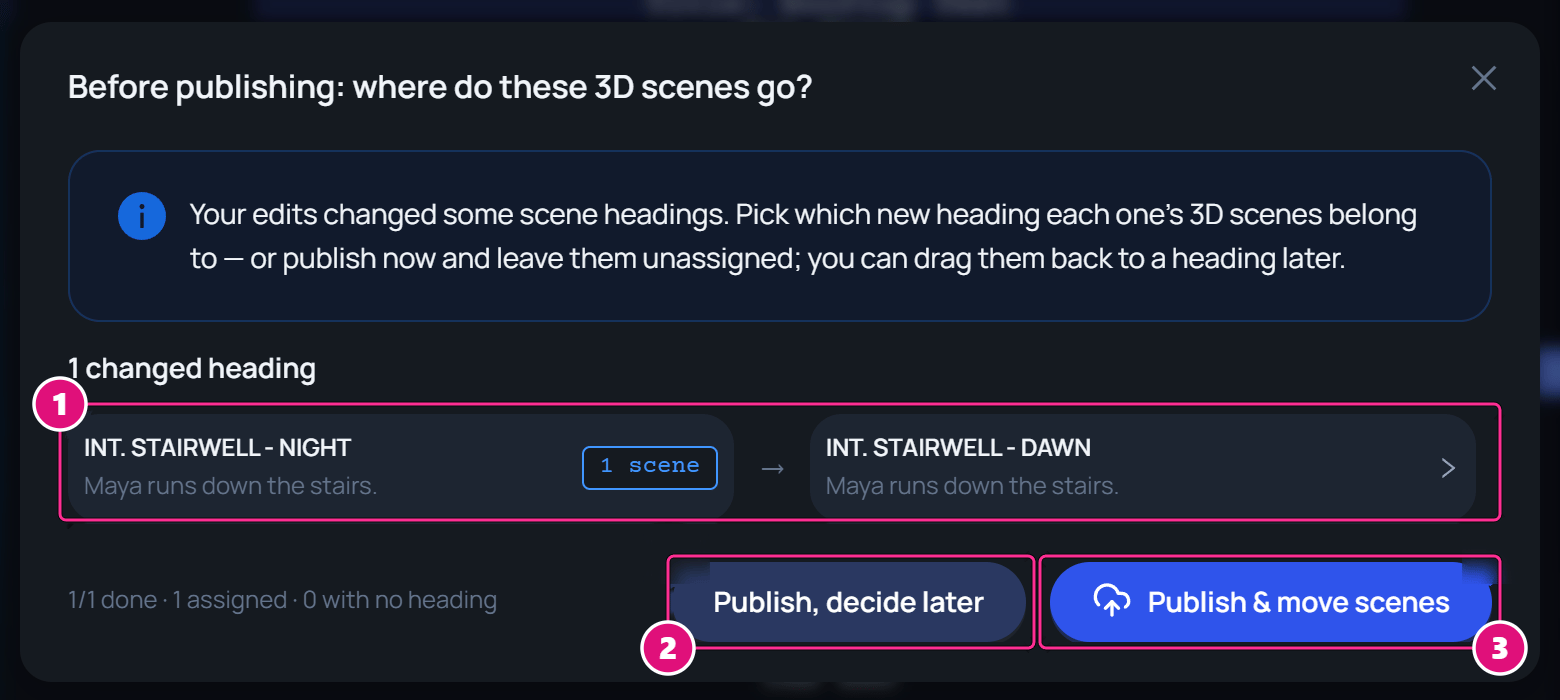
When you publish script edits, 3D scenes stay with any scene that is unchanged, moved or edited. Spark asks only about renamed and removed scenes, in the Before publishing: where do these 3D scenes go? window. It pre-picks a renamed scene’s new heading. For a removed scene, it pre-picks the one scene added in its place, if there is one. Click an old heading to read that scene as it was. The Before publishing window. Box 1 is on the changed heading, INT. STAIRWELL - NIGHT to INT. STAIRWELL - DAWN, 2 on Publish, decide later and 3 on Publish and move scenes.
  1. Old and new heading
  2. Publish, decide later
  3. Publish & move scenes
  • Publish & move scenes moves the 3D scenes to the headings shown.
  • Publish, decide later publishes and leaves them without a heading. Drag them back later.

Scene editor

The parts of the screen where you build a 3D scene.

Scripts and script scenes

How scene headings become script scenes.