

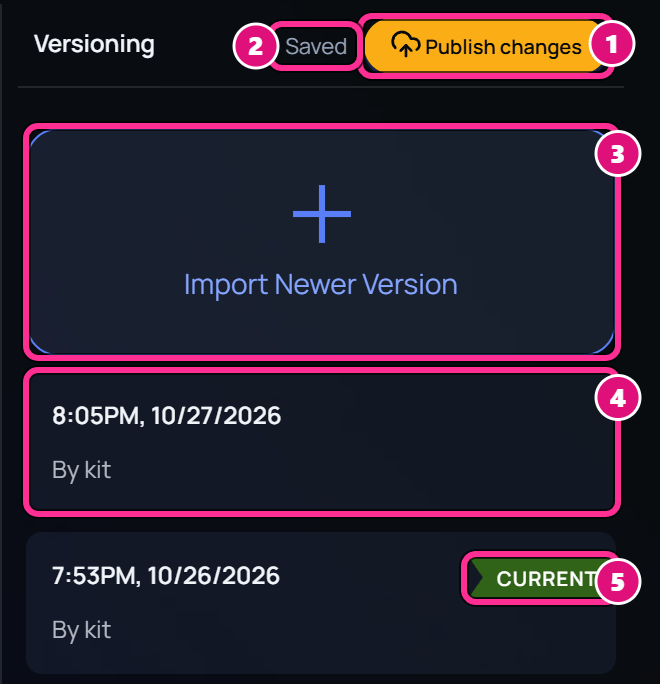
- Publish changes
- Save status
- Import Newer Version
- Version: time, author
- CURRENT
- CURRENT marks the published version that everyone reads. PUBLISHED marks an earlier publish, and IMPORTED a version that came from a file.
- For the save status, see Script editor.
The Versioning column
To see it, switch the script to Edit or press Ctrl+E (Cmd+E on a Mac). It lists every version of the script, newest first. Your saves share one card until you pause for 5 minutes, and the card counts them, such as 8 saves. A run of saves with no pause starts a new card after 30 minutes. A published card shows a stripe in its revision color, the revision’s name, and who published it. 3D scenes, lists and downloads use the current version.Publish your edits
Open your draft
In View mode, a draft shows as Unpublished edits. Click Review & publish to open it in Edit mode.
- Unpublished edits
- Review & publish
Pick a color and a name
Click Publish changes. Optional: in Publish your edits?, click a Revision color and enter a name, such as 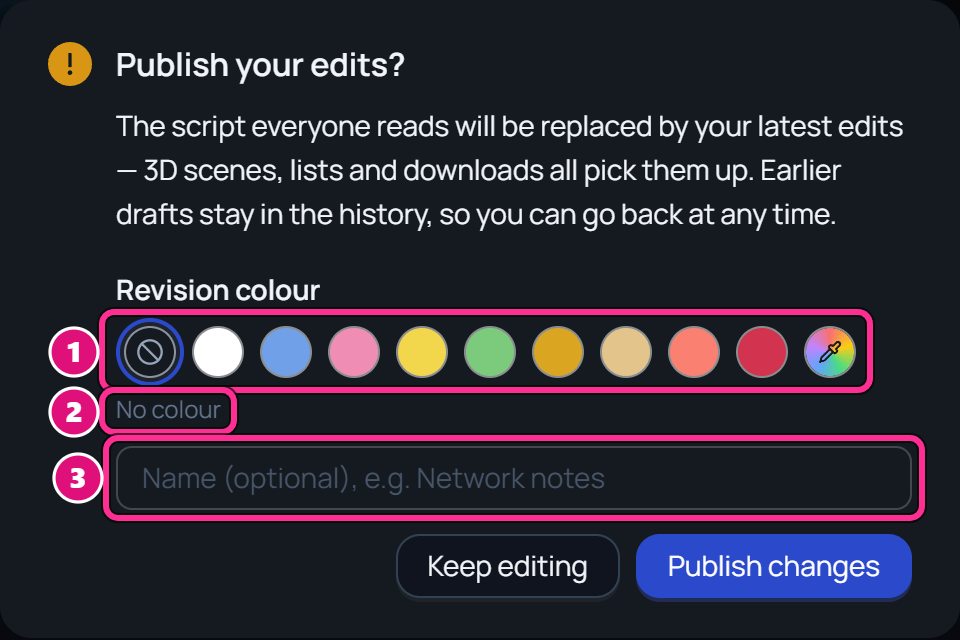
Network notes.- Revision color
- Color Spark picks
- Name
Revision colors
Colors follow the standard order for script revisions: White, Blue, Pink, Yellow, Green, Goldenrod, Buff, Salmon and Cherry. When the order starts again, the name says so, such as Double White.- The window starts on No color until the script has a colored publish. After that, it starts on the next color in the order.
- Your own color, the last swatch, opens a color picker.
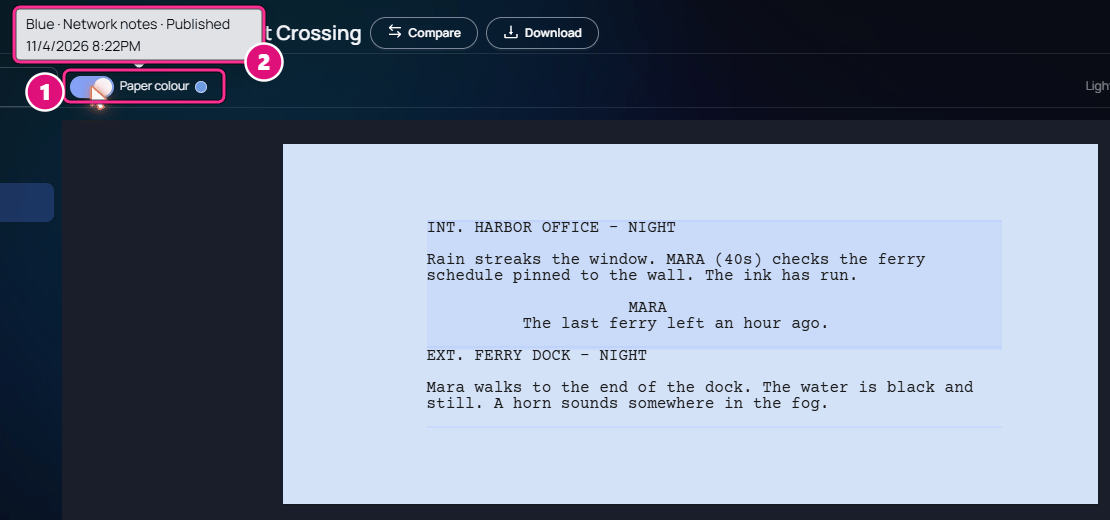
- Paper color
- Revision name and publish date
Import a newer version
Use this when a new draft arrives from your screenwriting app. It adds the file as a new version, so the script keeps its history.Open the Versioning column
Switch the script to Edit, then click Import Newer Version.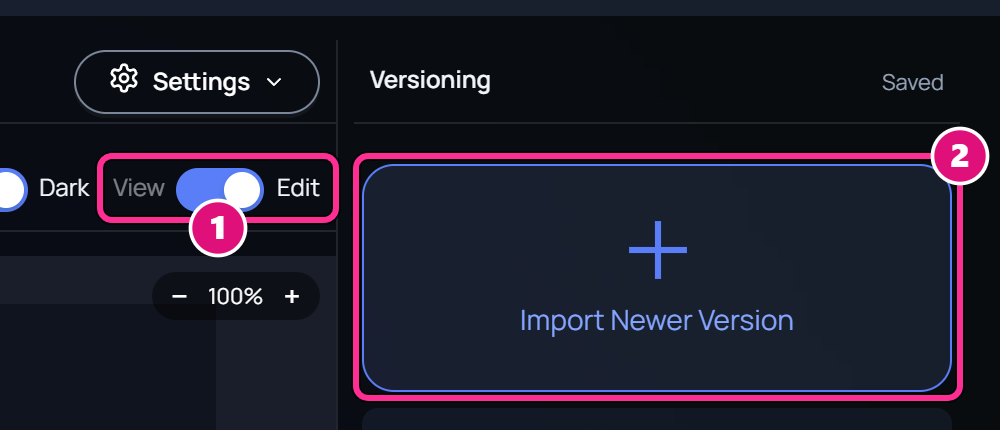
- Edit
- Import Newer Version
Choose the file
Drag in a 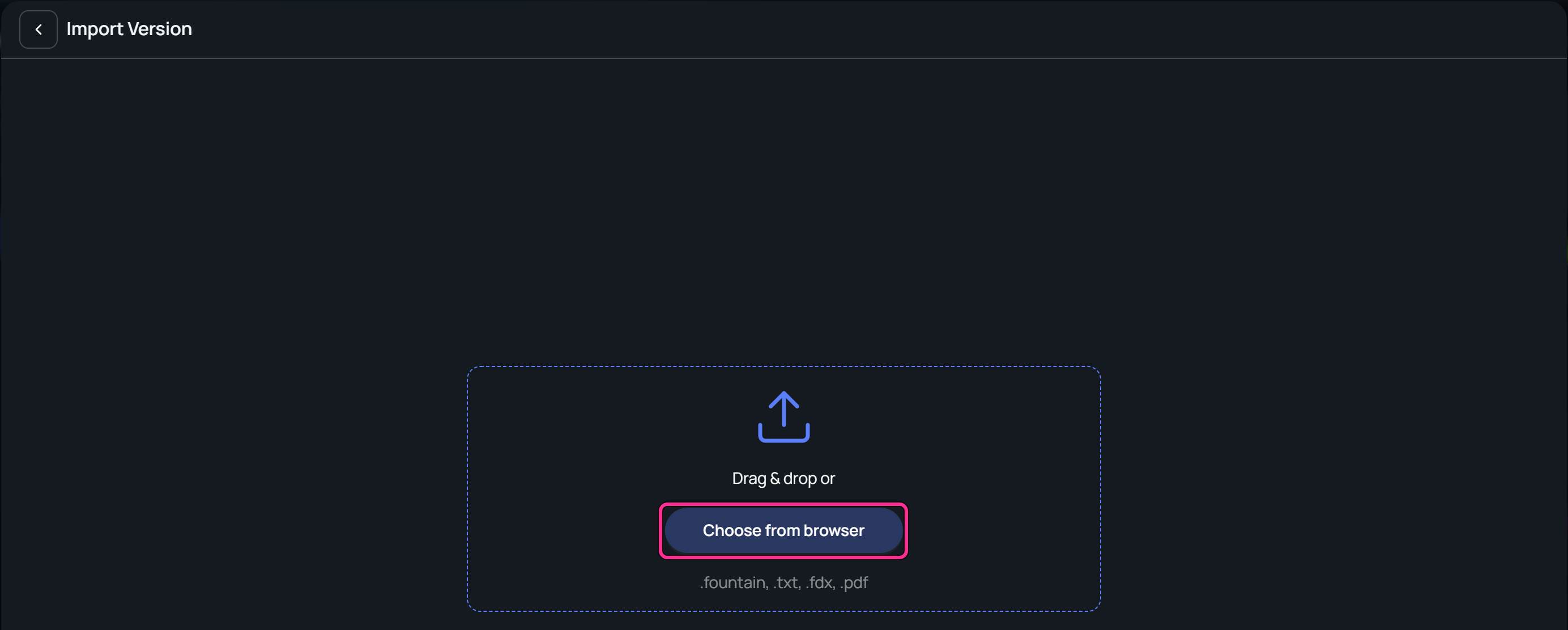
.fountain, .txt, .fdx or .pdf file. You can also click Choose from browser. A file with no scene headings shows a warning first.Check the changes
The review opens on Preview, the file’s own pages. Changes sets the file beside the published version, or beside your latest draft if you have unpublished edits. Compare with picks another version.Scenes lists the scenes that changed, each marked Added, Removed, Edited, Renamed or Moved. Click one to jump to it. Turn off Changed only to list every scene.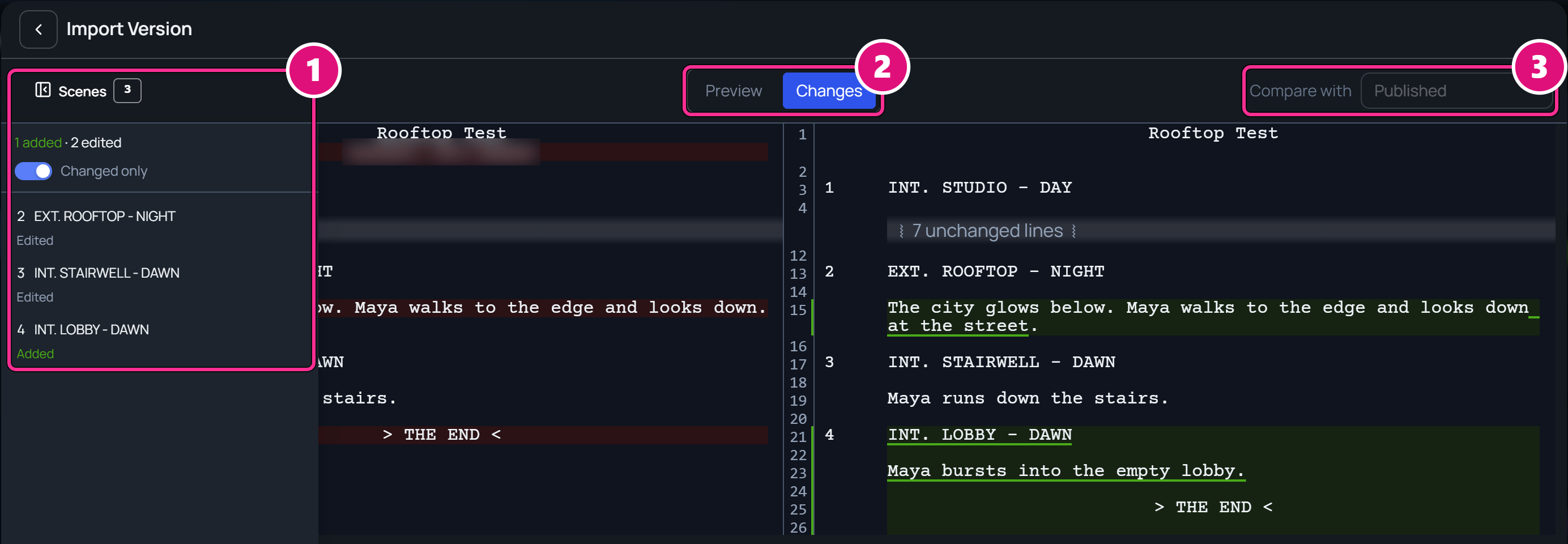
- Scenes
- Preview and Changes
- Compare with
Compare two versions
Click Compare in the title bar to see what changed since the last publish. To compare a version with the one before it, click its card in the Versioning column. In Compare versions, pick a version on each side. The older one shows in red and the newer one in green, whichever side it’s on.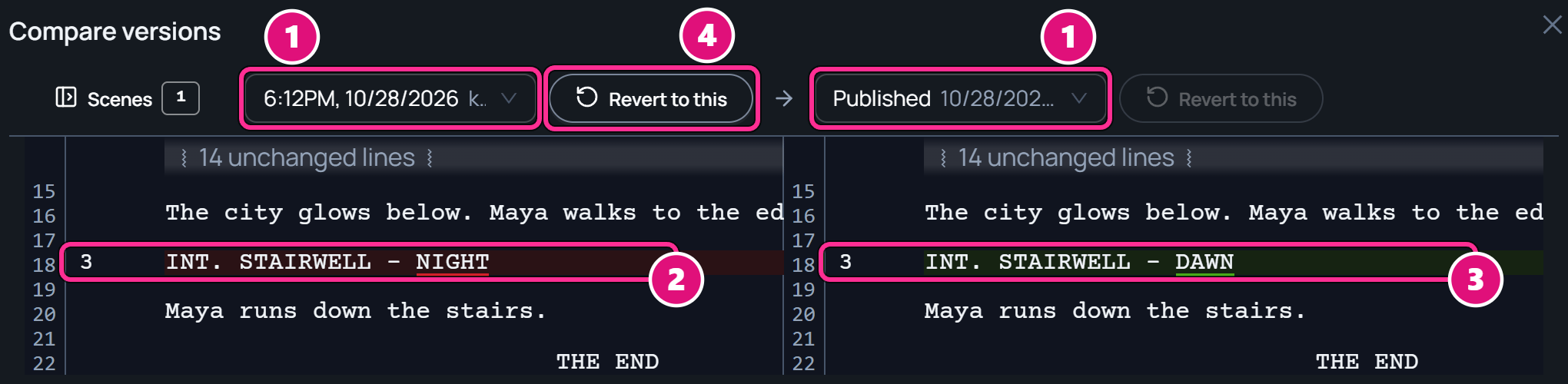
- Version pickers, with Published and Drafts
- Older version
- Newer version
- Revert to this
Go back to an earlier version
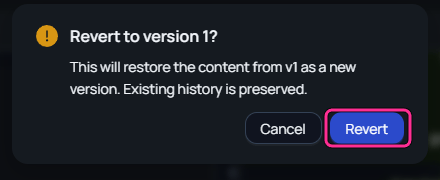
Every version stays in the list, so you can revert to any of them later.
Related
Script editor
Write and format the script.
Scripts and script scenes
Add, switch and rename scripts.
3D scenes
Build 3D scenes for each script scene.