

Generate a CG Take preview
A new CG Take card reads Generate preview until it’s rendered. When you change the 3D scene, older previews go out of date, and a yellow chip counts them.- In the toolbar, click Generate N previews. It renders the missing and out-of-date previews in the 3D scene.
- Wait. Two previews took about 30 seconds. Each item shows its own progress: Queued, Preparing…, Rendering 42%, then Saving….

Regenerate a background
A Take recorded with the iPhone’s camera off has no CG background. On its card’s … menu, click Regenerate BG. The browser renders the background from the take’s camera track and shows Regenerating BG — frame N of M. The item shows its progress too, such as Rendering BG 42%. It doesn’t run on a take that already has a background, isn’t linked to a 3D scene, or hasn’t uploaded its camera track yet.Download takes
On a card’s … menu, click Download. To download several, select them first. See Select takes. Every download is one zip named by date and time, such as2026-10-29 20.05.04 Gallery Takes.zip. Inside, folders go 3D scene, then setup, then camera. A CG Take is an MP4. A Take brings every layer file it has, with its tracking data.
Select takes
- In the toolbar, click Select Takes.
- Tick the box on each card you want.
- Pick what to do with them.
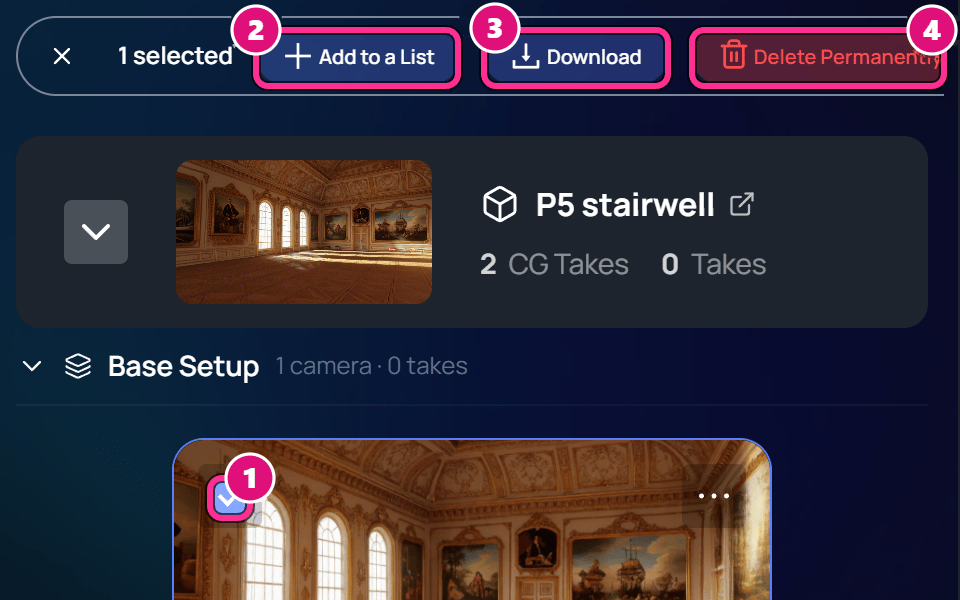
- Select box
- Add to a List
- Download
- Delete Permanently
Delete a take
On the card’s … menu, click Delete permanently, then confirm. Deleting a CG Take removes its camera animation and any camera moves recorded against it. The window says if anything you delete is in a list or used in the Editor. It’s removed from there too.Related
Browse and play takes
Find a take and play it.
Share takes in lists
Collect takes in a list and share its link.