

Feature · Web · Released 2026-09-30 Choose Regenerate BG from a take’s card menu to render its background again from the take’s camera track.

Regenerating a background

Open the … menu on a card. A take card's menu in the Gallery with Regenerate BG, Download, Add to list, and Delete permanently.
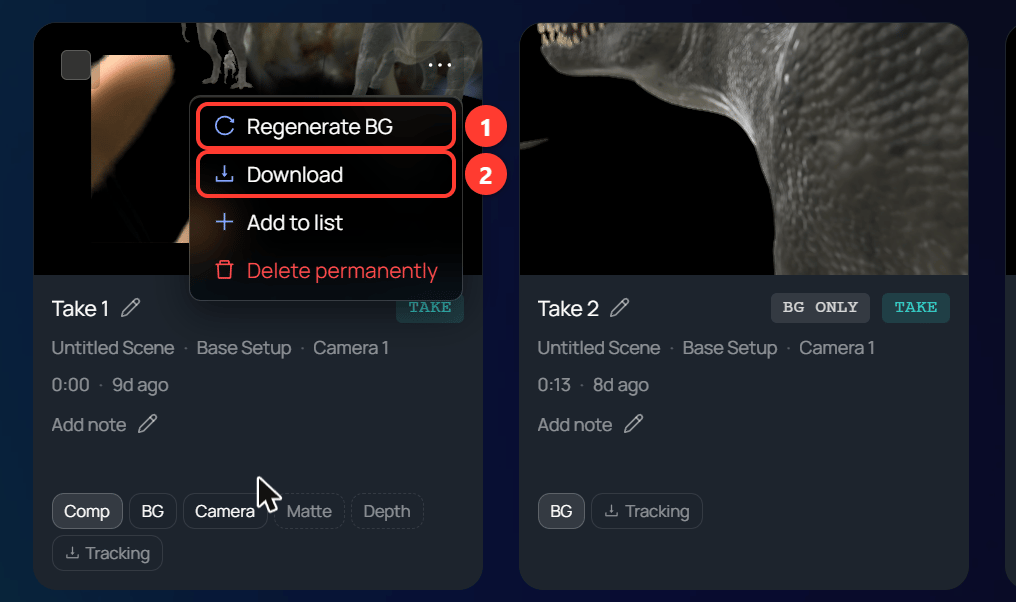
  1. Regenerate BG renders the take’s background again in the browser, using the scene as it is now. The new background replaces the old one.
Use Regenerate BG after you change the 3D scene, for example after you move or hide an object. The render uses the take’s camera track, so the camera move stays the same.
  1. Open the take card’s … menu and click Regenerate BG.
  2. Wait while it renders. The top bar shows “Regenerating BG” with the take’s name and the frames left. The menu item reads Regenerating BG… and is greyed out.
  3. When the message “Background updated” appears, click the BG chip on the card to see the new background.
A take that has no background yet shows a grey BG chip. Regenerate BG creates its first background.