

Finding takes
The left column of the Editor has two tabs, Takes and Audio. On Takes, the picker at the top chooses what the column lists.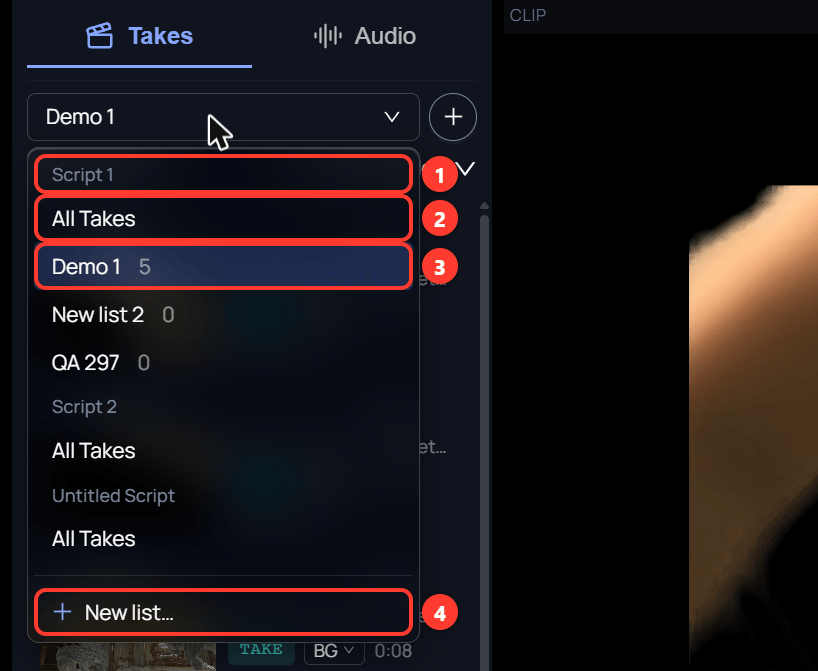
- The menu is grouped by script.
- All Takes lists every CG Take and take in that script.
- A list from the Gallery, with the number of items it holds.
- New list… creates a list.
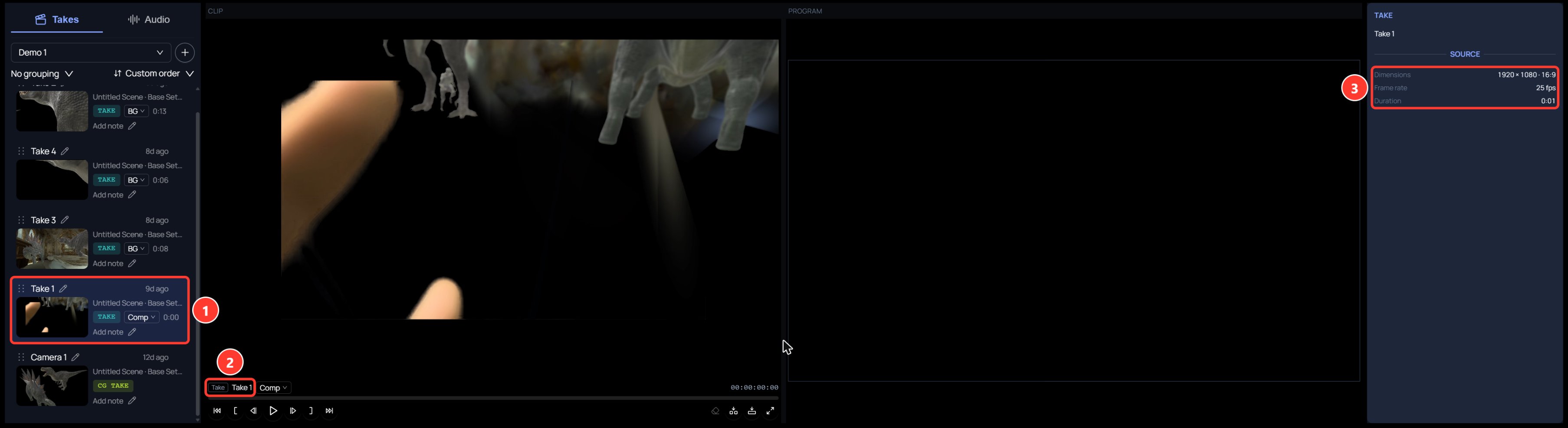
- The row you clicked is highlighted.
- The clip viewer names the kind of item: CG Take, Take, or Audio.
- The Inspector shows the Source values: dimensions, frame rate, and duration. Audio shows only duration.
Adding takes to the timeline
Drag a row by its grip onto a timeline lane. You can also open the row’s … menu.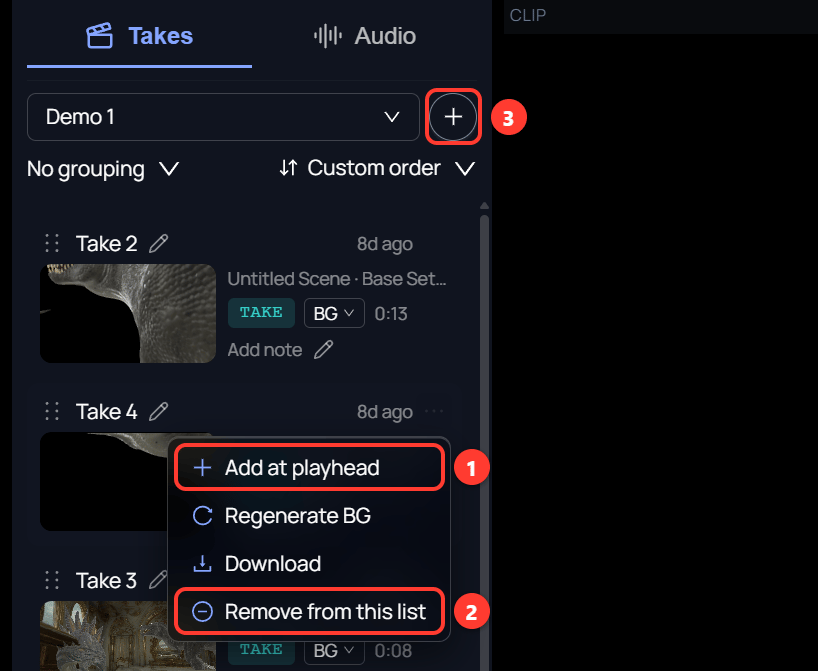
- Add at playhead puts the item on the timeline at the playhead.
- Remove from this list takes the item out of the open list. The change also shows in the Gallery.
- The + button adds CG Takes and takes to the open list.
- Drag a row by its grip onto a video lane and let go.
- Click in the time ruler to move the playhead.
- Open another row’s … menu and click Add at playhead.