> ## Documentation Index
> Fetch the complete documentation index at: https://docs.lightcraft.pro/llms.txt
> Use this file to discover all available pages before exploring further.
# Select and change several parts at once
> Shift-click parts of an imported object, then move, hide, or reset them together
Feature · Web · Released [2026-10-12](/spark/changelog/changelog#2026-10-12)
Hold **Shift** and click to select several parts of an imported USD object. One gizmo then moves, rotates, or resizes them together, and the properties panel hides, shows, or resets them all.
## Selecting several parts
1. Select one part.
2. Hold **Shift** and click another part in the 3D canvas. Both parts fill orange.
3. To take a part out of the selection, hold **Shift** and click it again.
**Shift**-click also works on a part's row under **Parts**, and on a result in **Find a part**.
While two or more parts are selected:
* The path at the bottom of the canvas is hidden.
* The properties panel has the heading **Parts** and a count, such as **2 parts selected**. Each selected part has one line there, with the part's name, then the object's name. The line ends with **moved** or **hidden** when the part is changed in the active setup.
* **Esc** selects the object the parts belong to. Press **Esc** again to select nothing.
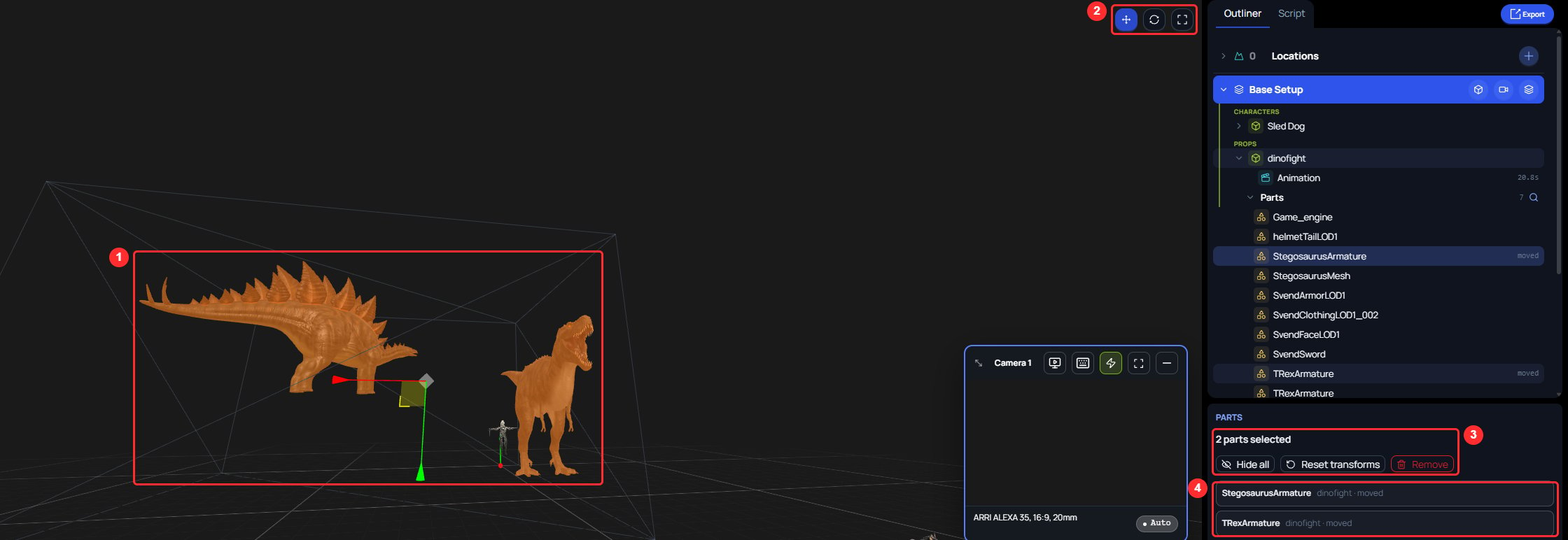 1. The two selected parts, filled orange, with one gizmo between them.
2. The **Move**, **Rotate**, and **Scale** buttons.
3. The count, and the buttons that act on every selected part.
4. One line for each selected part.
## Changing several parts together
With two or more parts selected, one gizmo sits between them.
1. Choose **Move**, **Rotate**, or **Scale** with the buttons at the upper right of the 3D canvas.
2. Drag the gizmo.
| Mode | What happens |
| - | - |
| **Move** | Every selected part moves by the same amount. |
| **Rotate** | The parts turn around the point between them, like one group. |
| **Scale** | The parts grow or shrink around the point between them. The resize is the same in every direction, whichever handle you pull. |
A message says how many parts changed, such as **2 parts moved**. The parts stay selected after the drag. One **Ctrl+Z** undoes the whole drag for every part.
The properties panel has three buttons for the selected parts:
* **Hide all** hides every selected part. The button then reads **Show all**.
* **Reset transforms** puts every selected part back where the file has it. The button is greyed out when no selected part is moved.
* **Remove** clears every change on the selected parts, without asking you to confirm. The parts' rows leave the **Parts** list, and the object becomes selected. Press **Ctrl+Z** to bring the changes back.
One mesh of a rigged character cannot be transformed by itself, because a skeleton drives its shape. The gizmo does not appear. The path at the bottom of the canvas reads **Follows a skeleton — can't be moved**, with a **Select** button that names the nearest level you can transform, such as **Select Game\_engine**. Click that button, then transform that level.
When such a mesh is selected together with other parts, a message says it follows a skeleton and won't move with the others. The gizmo then changes only the other parts.
## Current guide
This page describes the feature as it was released. For how it works today, see [selecting several parts](/spark/scene-editor/parts-of-an-object#selecting-several-parts).
This documentation is built and hosted on [Mintlify](https://mintlify.com), a developer documentation platform.
1. The two selected parts, filled orange, with one gizmo between them.
2. The **Move**, **Rotate**, and **Scale** buttons.
3. The count, and the buttons that act on every selected part.
4. One line for each selected part.
## Changing several parts together
With two or more parts selected, one gizmo sits between them.
1. Choose **Move**, **Rotate**, or **Scale** with the buttons at the upper right of the 3D canvas.
2. Drag the gizmo.
| Mode | What happens |
| - | - |
| **Move** | Every selected part moves by the same amount. |
| **Rotate** | The parts turn around the point between them, like one group. |
| **Scale** | The parts grow or shrink around the point between them. The resize is the same in every direction, whichever handle you pull. |
A message says how many parts changed, such as **2 parts moved**. The parts stay selected after the drag. One **Ctrl+Z** undoes the whole drag for every part.
The properties panel has three buttons for the selected parts:
* **Hide all** hides every selected part. The button then reads **Show all**.
* **Reset transforms** puts every selected part back where the file has it. The button is greyed out when no selected part is moved.
* **Remove** clears every change on the selected parts, without asking you to confirm. The parts' rows leave the **Parts** list, and the object becomes selected. Press **Ctrl+Z** to bring the changes back.
One mesh of a rigged character cannot be transformed by itself, because a skeleton drives its shape. The gizmo does not appear. The path at the bottom of the canvas reads **Follows a skeleton — can't be moved**, with a **Select** button that names the nearest level you can transform, such as **Select Game\_engine**. Click that button, then transform that level.
When such a mesh is selected together with other parts, a message says it follows a skeleton and won't move with the others. The gizmo then changes only the other parts.
## Current guide
This page describes the feature as it was released. For how it works today, see [selecting several parts](/spark/scene-editor/parts-of-an-object#selecting-several-parts).
This documentation is built and hosted on [Mintlify](https://mintlify.com), a developer documentation platform.