> ## Documentation Index
> Fetch the complete documentation index at: https://docs.lightcraft.pro/llms.txt
> Use this file to discover all available pages before exploring further.
# Choose production access when you invite people
> Pick which productions a new User can open, at the time you invite them
Feature · Web · Released [2026-09-30](/spark/changelog/changelog#2026-09-30)
When you invite members as Users, pick which productions they get. You can change it later from the Members list or from Production Settings.
## Choosing production access
When you invite someone as a **User**, the **Production access** section of the invite window sets which productions they can open once they accept.
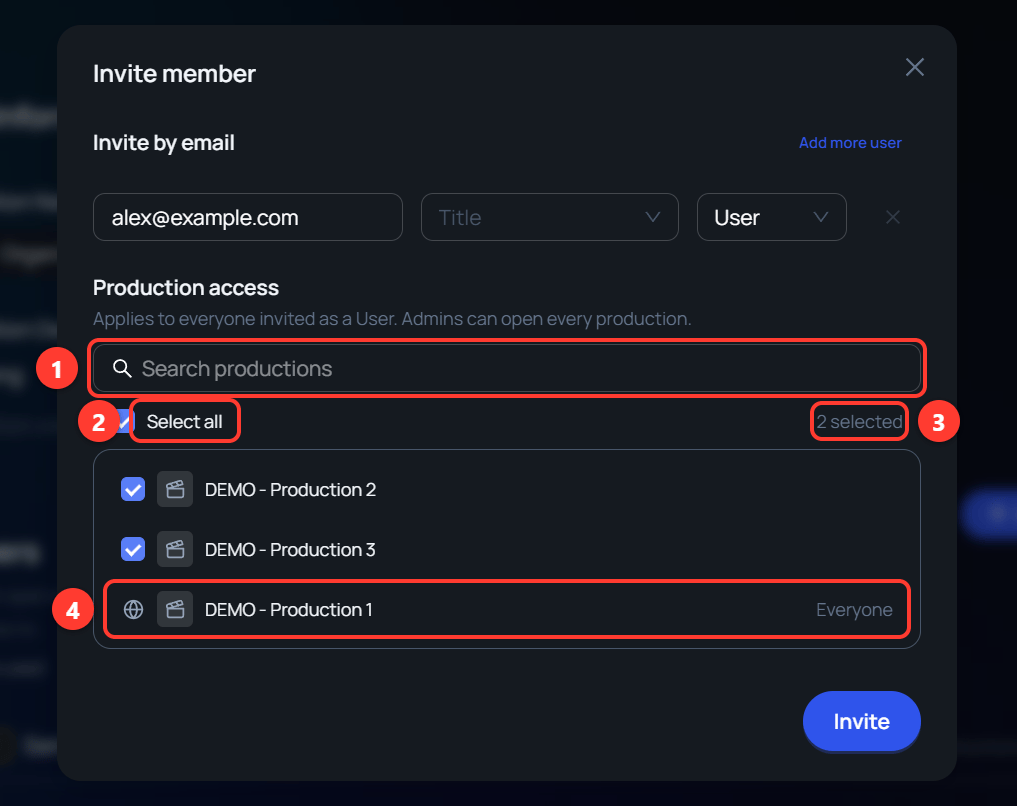 1. **Search productions** filters the list by name.
2. **Select all** ticks every production the search is showing.
3. The count shows how many productions are ticked.
4. A production marked **Everyone** is already open to the whole organization. It has no checkbox, because every member can open it.
One choice applies to every person in the invitation who has the User role.
If everyone in the invitation is an **Admin**, the list is replaced by a note. Admins can open every production, so there is nothing to choose.
## Changing access after you invite
A sent invitation appears in the **Members** list until the person accepts.
1. **Search productions** filters the list by name.
2. **Select all** ticks every production the search is showing.
3. The count shows how many productions are ticked.
4. A production marked **Everyone** is already open to the whole organization. It has no checkbox, because every member can open it.
One choice applies to every person in the invitation who has the User role.
If everyone in the invitation is an **Admin**, the list is replaced by a note. Admins can open every production, so there is nothing to choose.
## Changing access after you invite
A sent invitation appears in the **Members** list until the person accepts.
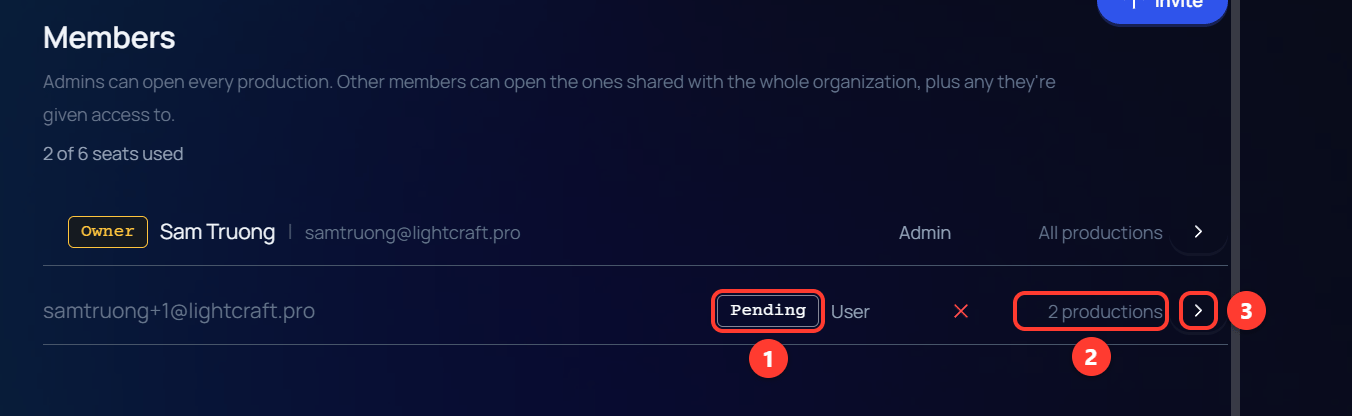 1. **Pending** marks an invitation that has not been accepted yet.
2. The count is the productions this person can open after they accept. It includes productions open to everyone, so it can be higher than the number you ticked.
3. The arrow opens **Production access** for that row. Clicking anywhere on the row does the same.
In **Production access**, tick or clear productions and click **Save Changes**. This works for a pending invitation and for a member who has already joined.
1. **Pending** marks an invitation that has not been accepted yet.
2. The count is the productions this person can open after they accept. It includes productions open to everyone, so it can be higher than the number you ticked.
3. The arrow opens **Production access** for that row. Clicking anywhere on the row does the same.
In **Production access**, tick or clear productions and click **Save Changes**. This works for a pending invitation and for a member who has already joined.
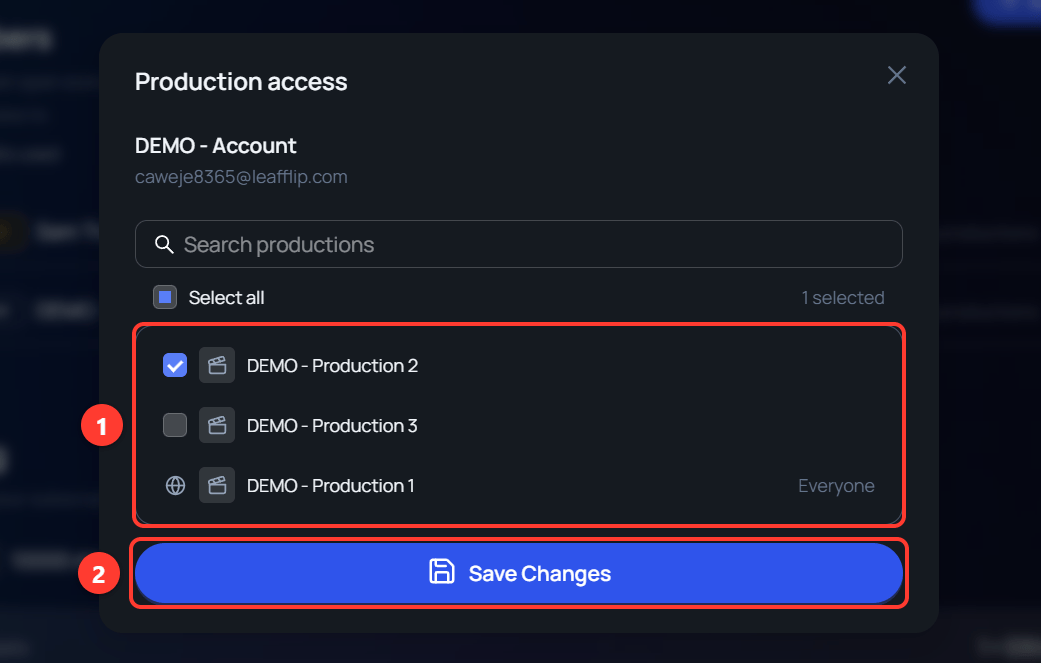 1. The productions this person can be given. Ticked productions are the ones they can open.
2. **Save Changes** applies the new set.
## Changing access from Production Settings
Each production has an **Access** setting. You choose it when you create the production, and you can change it later: on the organization page, open the **…** menu on the production's card and click **Settings**.
* **Everyone in the organization** — Every member can open the production.
* **Only selected people** — Admins can open it, plus the members you tick.
1. The productions this person can be given. Ticked productions are the ones they can open.
2. **Save Changes** applies the new set.
## Changing access from Production Settings
Each production has an **Access** setting. You choose it when you create the production, and you can change it later: on the organization page, open the **…** menu on the production's card and click **Settings**.
* **Everyone in the organization** — Every member can open the production.
* **Only selected people** — Admins can open it, plus the members you tick.
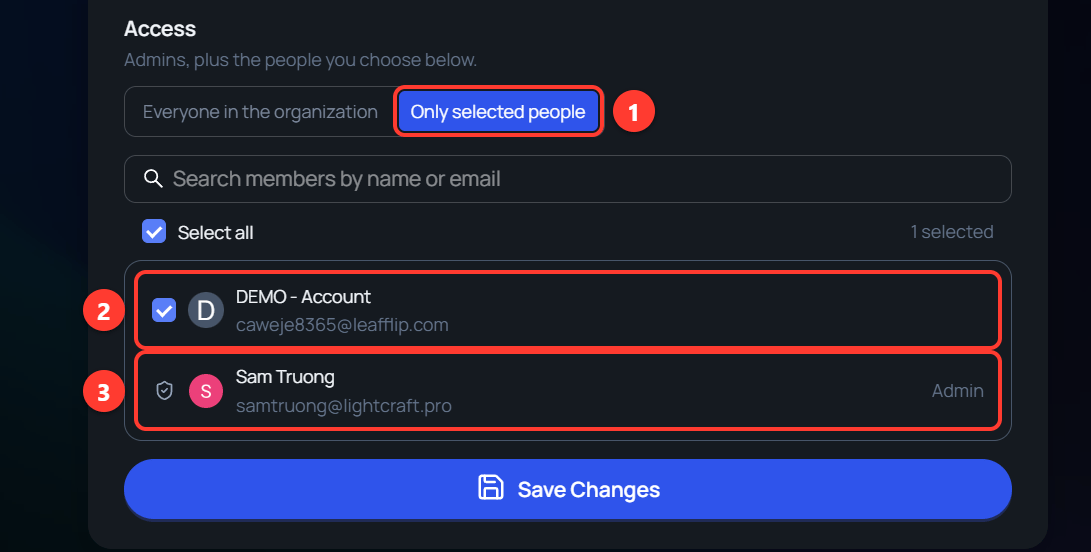 1. **Only selected people** shows the list of members.
2. A ticked member can open this production.
3. An **Admin** has no checkbox, because admins can open every production.
Click **Save Changes** to apply the new set.
## Current guide
This page describes the feature as it was released. For how it works today, see [choosing production access](/spark/organizations-productions/organizations#choosing-production-access).
This documentation is built and hosted on [Mintlify](https://mintlify.com), a developer documentation platform.
1. **Only selected people** shows the list of members.
2. A ticked member can open this production.
3. An **Admin** has no checkbox, because admins can open every production.
Click **Save Changes** to apply the new set.
## Current guide
This page describes the feature as it was released. For how it works today, see [choosing production access](/spark/organizations-productions/organizations#choosing-production-access).
This documentation is built and hosted on [Mintlify](https://mintlify.com), a developer documentation platform.