> ## Documentation Index
> Fetch the complete documentation index at: https://docs.lightcraft.pro/llms.txt
> Use this file to discover all available pages before exploring further.
# Cut straight from your Gallery lists
> The Editor's left column now shows your lists and a script's All Takes
Feature · Web · Released [2026-09-30](/spark/changelog/changelog#2026-09-30)
The Editor's left column now shows your production's lists and a script's All Takes. A CG Take or Take goes onto the timeline without being imported first.
## Finding takes
The left column of the Editor has two tabs, **Takes** and **Audio**. On **Takes**, the picker at the top chooses what the column lists.
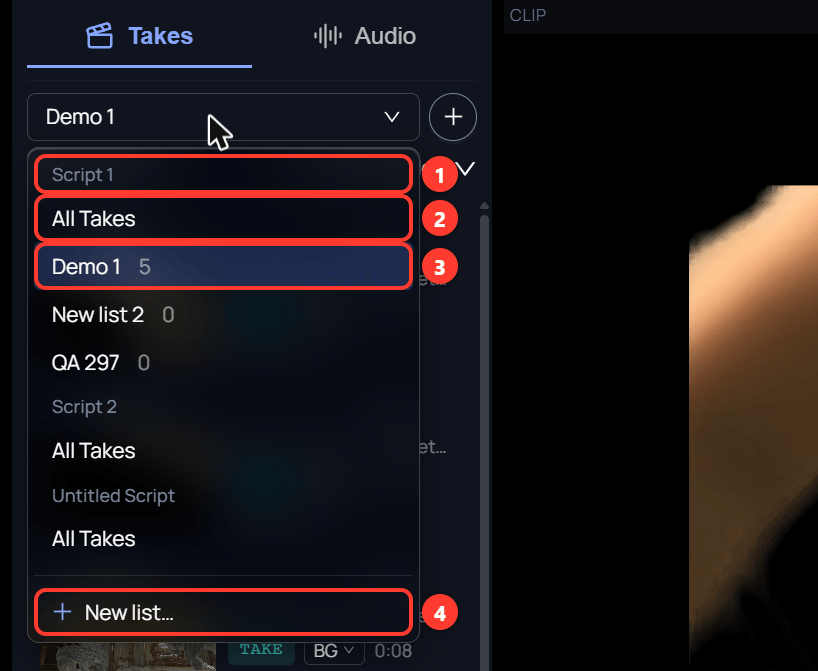 1. The menu is grouped by script.
2. **All Takes** lists every CG Take and take in that script.
3. A list from the Gallery, with the number of items it holds.
4. **New list…** creates a list.
Click any row to load it in the clip viewer.
1. The menu is grouped by script.
2. **All Takes** lists every CG Take and take in that script.
3. A list from the Gallery, with the number of items it holds.
4. **New list…** creates a list.
Click any row to load it in the clip viewer.
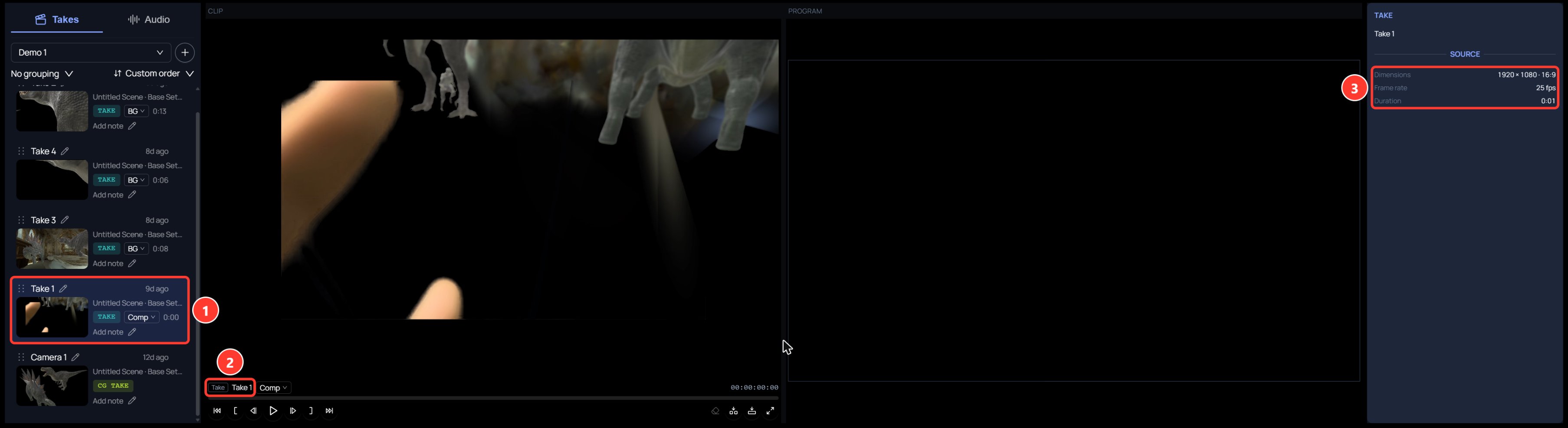 1. The row you clicked is highlighted.
2. The clip viewer names the kind of item: **CG Take**, **Take**, or **Audio**.
3. The Inspector shows the **Source** values: dimensions, frame rate, and duration. Audio shows only duration.
## Adding takes to the timeline
Drag a row by its grip onto a timeline lane. You can also open the row's **…** menu.
1. The row you clicked is highlighted.
2. The clip viewer names the kind of item: **CG Take**, **Take**, or **Audio**.
3. The Inspector shows the **Source** values: dimensions, frame rate, and duration. Audio shows only duration.
## Adding takes to the timeline
Drag a row by its grip onto a timeline lane. You can also open the row's **…** menu.
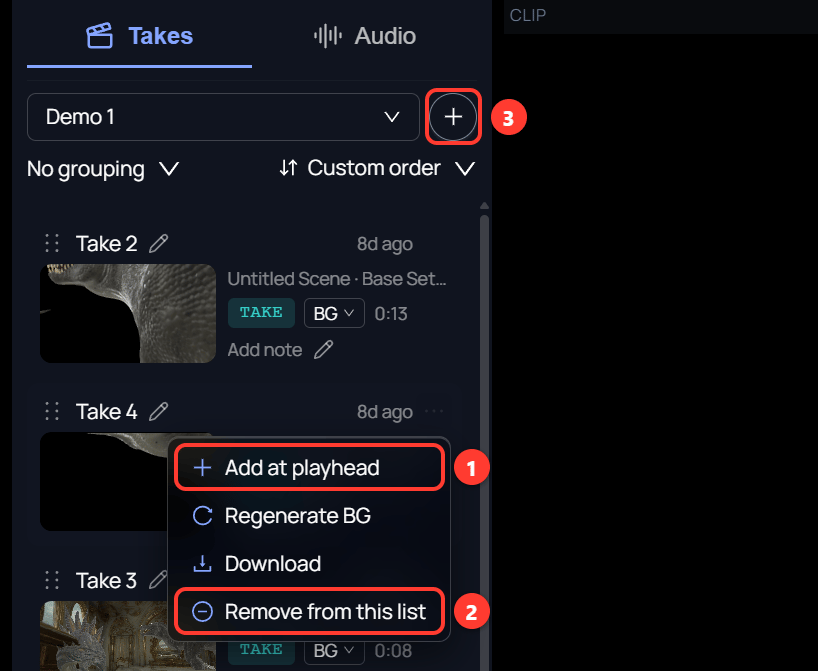 1. **Add at playhead** puts the item on the timeline at the playhead.
2. **Remove from this list** takes the item out of the open list. The change also shows in the Gallery.
3. The **+** button adds CG Takes and takes to the open list.
To put several takes on the timeline:
1. Drag a row by its grip onto a video lane and let go.
2. Click in the time ruler to move the playhead.
3. Open another row's **…** menu and click **Add at playhead**.
The list in the Editor is the same list the Gallery shows. With the sort set to **Custom order**, drag a row up or down by its grip to reorder the list. The Gallery shows the new order too.
## Current guide
This page describes the feature as it was released. For how it works today, see [finding takes](/spark/editing/editing#finding-takes).
This documentation is built and hosted on [Mintlify](https://mintlify.com), a developer documentation platform.
1. **Add at playhead** puts the item on the timeline at the playhead.
2. **Remove from this list** takes the item out of the open list. The change also shows in the Gallery.
3. The **+** button adds CG Takes and takes to the open list.
To put several takes on the timeline:
1. Drag a row by its grip onto a video lane and let go.
2. Click in the time ruler to move the playhead.
3. Open another row's **…** menu and click **Add at playhead**.
The list in the Editor is the same list the Gallery shows. With the sort set to **Custom order**, drag a row up or down by its grip to reorder the list. The Gallery shows the new order too.
## Current guide
This page describes the feature as it was released. For how it works today, see [finding takes](/spark/editing/editing#finding-takes).
This documentation is built and hosted on [Mintlify](https://mintlify.com), a developer documentation platform.