> ## Documentation Index
> Fetch the complete documentation index at: https://docs.lightcraft.pro/llms.txt
> Use this file to discover all available pages before exploring further.
# Jetset Crash Tracing
> If you encounter a Jetset crash, especially one that recurs, we would appreciate your help in tracking it down!
## Share with App Developers
Inside your iPhone/iPad’s Settings menu, browse to Privacy & Security -> Analytics & Improvements -> Share With App Developers, and enable the switch:
 You’ll need to enable this, and then restart the app before the log will start to be saved.
## Saving Log Files
Inside the Jetset app, go to Main Menu -> Settings & Support -> Settings, enable ‘Save log file in SPOOL folder’, and click Done.
You’ll need to enable this, and then restart the app before the log will start to be saved.
## Saving Log Files
Inside the Jetset app, go to Main Menu -> Settings & Support -> Settings, enable ‘Save log file in SPOOL folder’, and click Done.
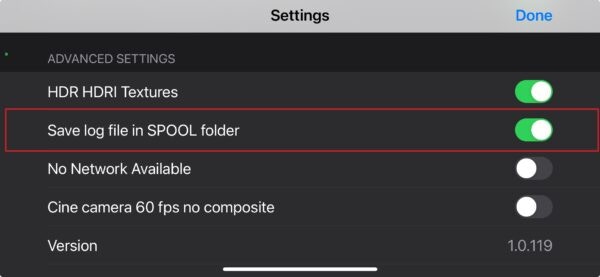 Then, Jetset will start saving to (in the Files app) On My iPhone/Jetset/INTERNAL/SPOOL/jetset.log.
Note — don’t enable saving the log file in production; this is for debugging purposes only.
## Sending the Log Files
After you’ve enabled the above, and Jetset crashes, we still need to receive it!
To send it, navigate to the jetset.log file in the Files app (On My iPhone/Jetset/INTERNAL/SPOOL/jetset.log), and send it to [support@lightcraft.pro](mailto:support@lightcraft.pro) with a quick note on what was happening when Jetset crashed.
Then, Jetset will start saving to (in the Files app) On My iPhone/Jetset/INTERNAL/SPOOL/jetset.log.
Note — don’t enable saving the log file in production; this is for debugging purposes only.
## Sending the Log Files
After you’ve enabled the above, and Jetset crashes, we still need to receive it!
To send it, navigate to the jetset.log file in the Files app (On My iPhone/Jetset/INTERNAL/SPOOL/jetset.log), and send it to [support@lightcraft.pro](mailto:support@lightcraft.pro) with a quick note on what was happening when Jetset crashed.