> ## Documentation Index
> Fetch the complete documentation index at: https://docs.lightcraft.pro/llms.txt
> Use this file to discover all available pages before exploring further.

# Pasting File Paths on the Mac

> Use this trick to paste file paths on the Mac. This is useful when running scripts in SynthEyes and other tools.

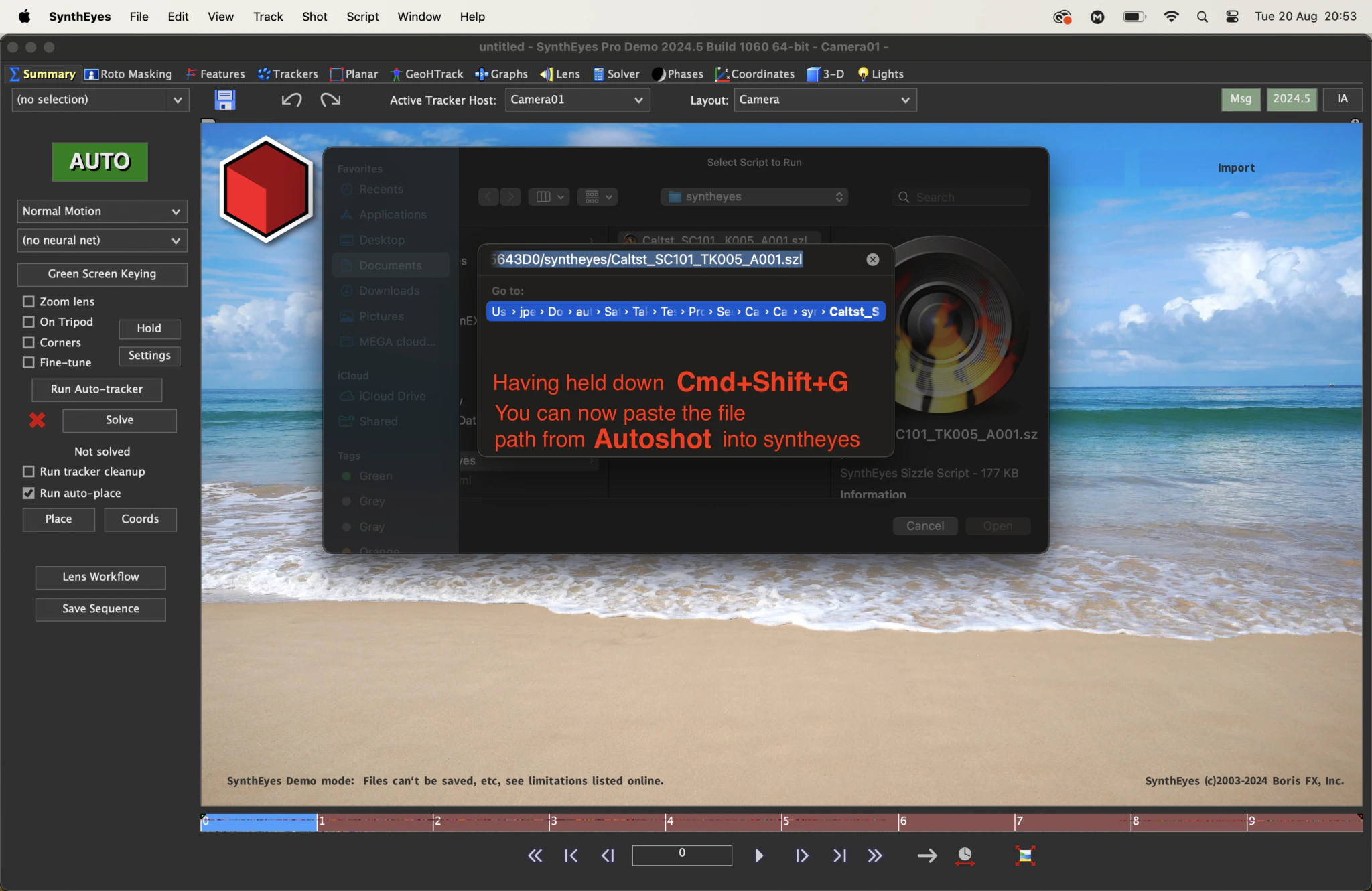
After running Autoshot to generate a SynthEyes (or other) script, you’ll need to point SynthEyes to the correct directory to run that script. You can click the highlighted file line in Autoshot to open up a Finder window that is set to the correct directory, and then select and copy the file path that is at the bottom of the Finder window.

So — how do you then paste a file path on the Mac?

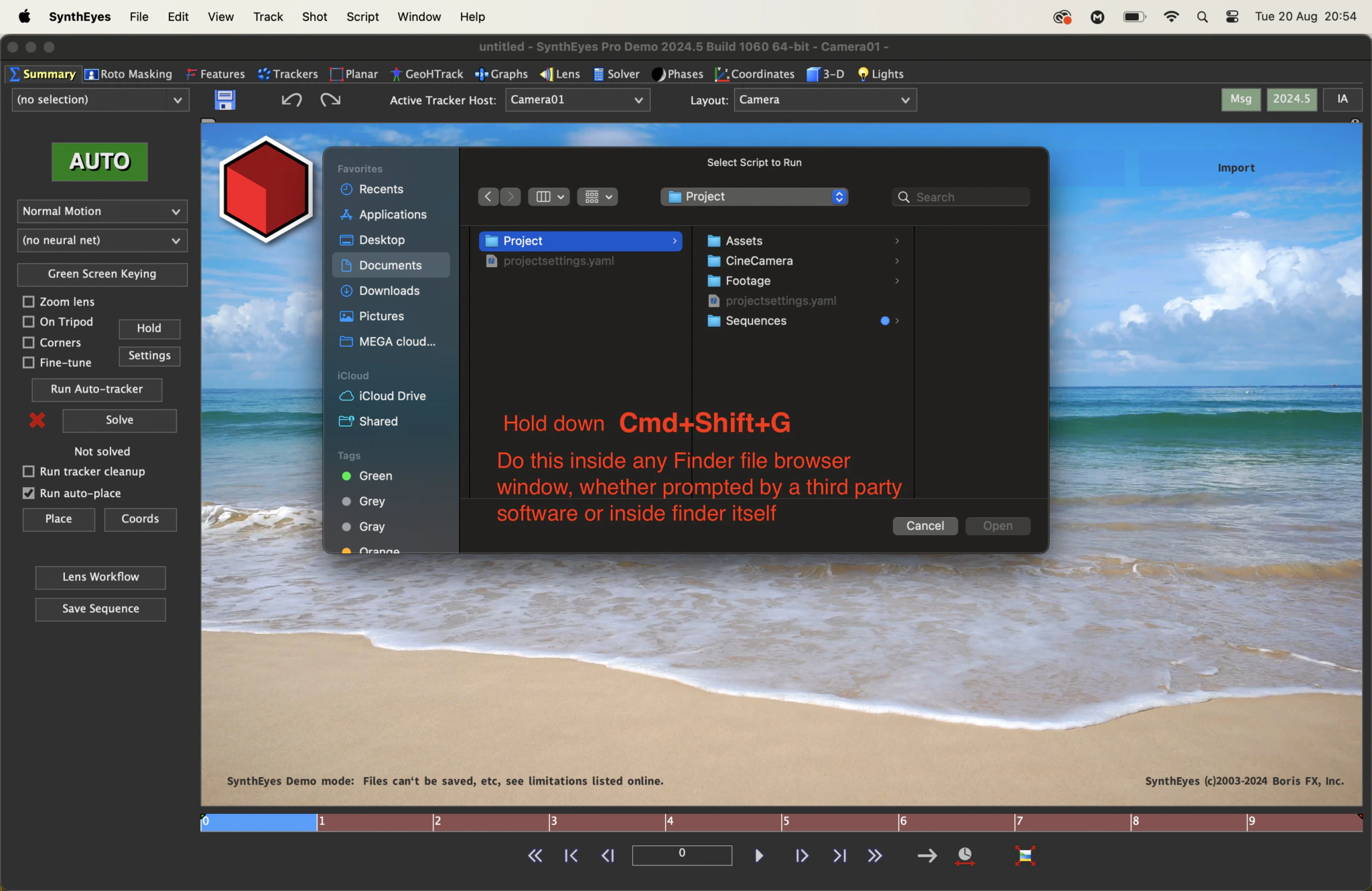
The answer (from user JPTX1292!) is to use Command+Shift+G anywhere inside the Finder file browser, or whenever a 3rd party software uses the Finder window to retrieve a file!

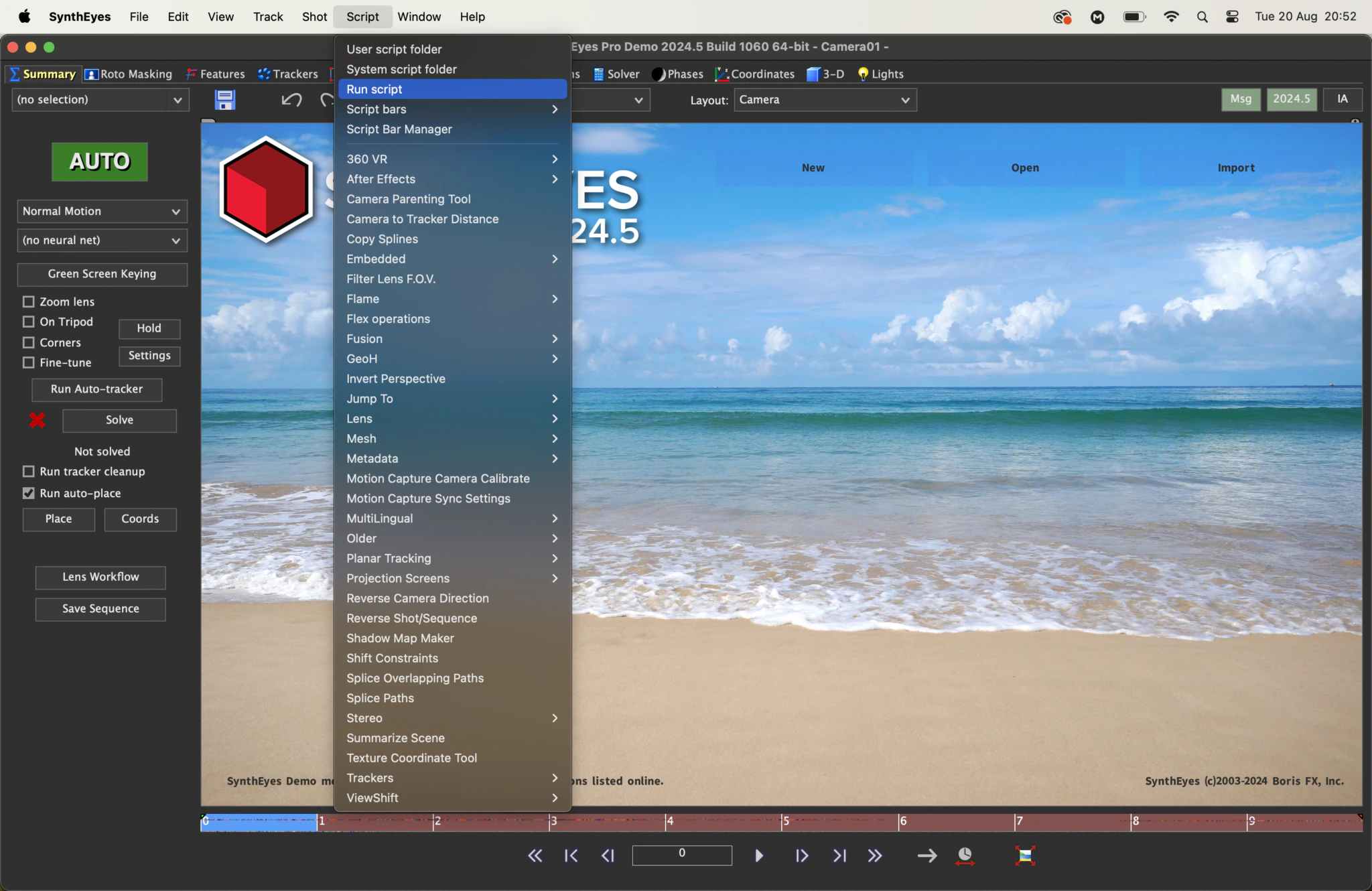
Here’s the sequence in SynthEyes:
<img style={{ borderRadius: '0.5rem' }} src="https://mintcdn.com/lightcraft/X_6lwJ_ZvqZNLhvP/images/autoshot/PasteFilePath_Mac1of3-2048x1330.png?fit=max&auto=format&n=X_6lwJ_ZvqZNLhvP&q=85&s=09984d8d4883e32e85c645bea701819c" width="2048" height="1330" data-path="images/autoshot/PasteFilePath_Mac1of3-2048x1330.png" />

<img style={{ borderRadius: '0.5rem' }} src="https://mintcdn.com/lightcraft/X_6lwJ_ZvqZNLhvP/images/autoshot/PasteFilePath_Mac2of3-2048x1330.png?fit=max&auto=format&n=X_6lwJ_ZvqZNLhvP&q=85&s=d677859b09b331e664f457b7459e515f" width="2048" height="1330" data-path="images/autoshot/PasteFilePath_Mac2of3-2048x1330.png" />

<img style={{ borderRadius: '0.5rem' }} src="https://mintcdn.com/lightcraft/X_6lwJ_ZvqZNLhvP/images/autoshot/PasteFilePath_Mac3of3-2048x1330.png?fit=max&auto=format&n=X_6lwJ_ZvqZNLhvP&q=85&s=4f067e69c7241c477811927b8823b174" width="2048" height="1330" data-path="images/autoshot/PasteFilePath_Mac3of3-2048x1330.png" />